
Recipe Books
Build branded recipe books and share them with clients.
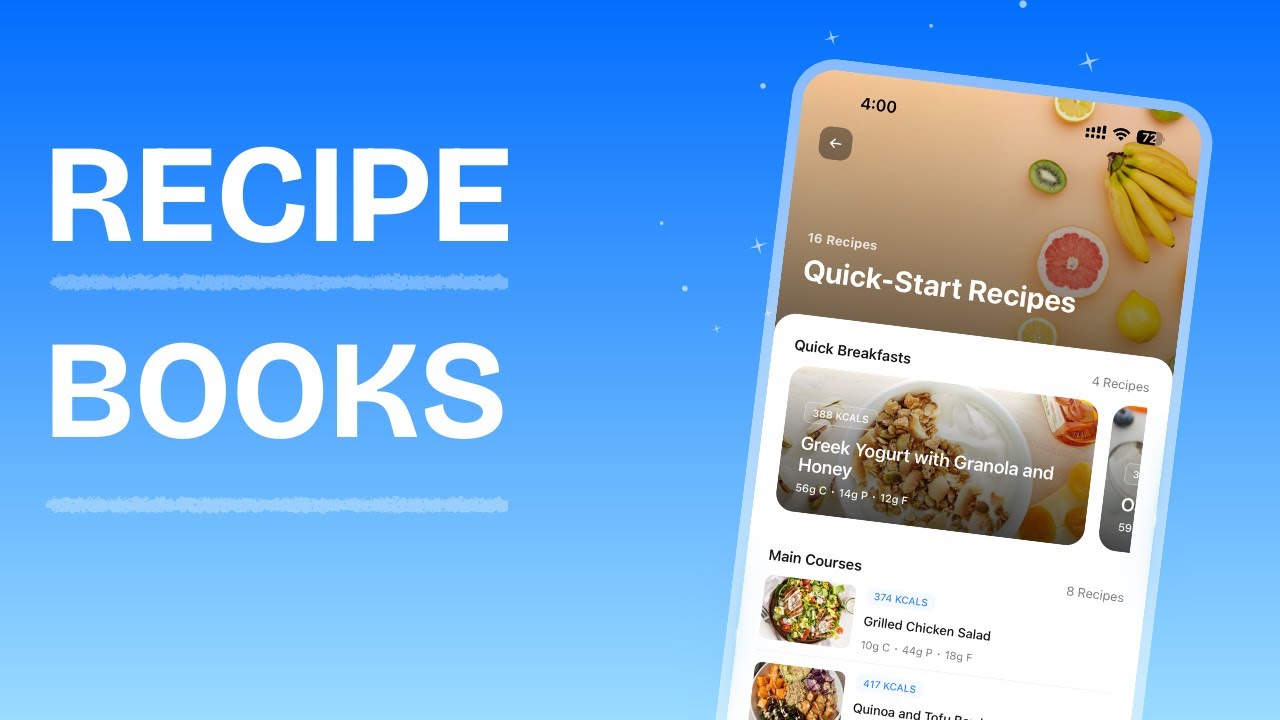
Recipe Books Overview
Recipe Books let you build curated recipe collections organized by sections, choose how each section is displayed, and share them with individual clients. Clients browse their assigned books directly inside the mobile app. You can reach the Recipe Books page from the main sidebar navigation.
From this page you can:
- Create new recipe books from scratch
- Import ready-made recipe books from the template library
- Edit, duplicate, or delete existing recipe books
- See how many recipes and clients are associated with each book
The list view shows every recipe book in your workspace, including the book name, cover image, total recipe count, and number of clients with access.
Each row has a three-dot menu with quick actions: Edit, Duplicate, and Delete.
Creating a Recipe Book
After creation, the book opens in the builder view where you can start adding sections and recipes.
Cover Images
Every recipe book has a cover image that appears on the list page, the book header, and in the client's mobile app.
Default images
Browse the gallery of default cover images and click one to select it.
Custom upload
Click the Upload Image area to upload your own image.
Choosing a cover image
Editing a Recipe Book
You can update a recipe book's name, description, and cover image at any time.
From the list page
From inside the builder
Sections
Sections are how you organize recipes inside a book. Each section has a name, a display format, and its own set of recipes. Think of them as chapters — "Breakfast Ideas", "High Protein Dinners", "Quick Snacks", etc.
Adding a section
The new section appears in the builder, ready for you to add recipes and choose a display format.
Renaming a section
Deleting a section
Section Display Formats
Each section has its own display format that controls how recipes appear to clients in the mobile app. You can mix and match formats across sections within the same book.
| Format | Description |
|---|---|
| Carousel | Horizontally scrollable large cards. Best for hero or featured recipes. |
| Grid | Two-column grid of square cards. Good for browsing larger collections. |
| Card | Full-width stacked cards. Works well for 2-5 recipes per section. |
| List | Compact rows with thumbnail, name, and calorie count. Best for long lists. |
Changing a section's format
Adding Recipes to a Section
Recipes are added from your Meal Library or the HubFit Recipes database. Each recipe you add references an existing meal — it is not a copy.
Viewing a recipe
Click any recipe in the builder list to open the full recipe detail modal. This shows the complete ingredient list, cooking instructions, macro breakdown, meal image, and serving information.
Removing a recipe from a section
Reordering
Reordering sections
You can change the order in which sections appear in the book.
Reordering recipes within a section
The Live Preview
When you are building a recipe book on desktop, the right side of the builder shows a live phone preview. This is a pixel-accurate mockup of how the book looks in the client's mobile app.
The preview updates in real time as you:
- Add, remove, or reorder recipes
- Change section display formats
- Update the cover image
- Add or rename sections
Duplicating a Recipe Book
Duplicating creates an exact copy of a recipe book, including all sections, recipes, and the cover image. The copy does not include client access — you'll need to share it separately.
Deleting a Recipe Book
Sharing Recipe Books with Clients
Sharing a recipe book grants specific clients access to browse it in their mobile app. Clients receive a push notification when they are added.
Granting access
Revoking access
Viewing a client's recipe books
You can also see which recipe books a specific client has access to:
Recipe Book Templates
Templates are pre-built recipe books that you can import into your workspace as a starting point. Each template comes with sections, recipes, and a cover image already configured.
Browsing templates
Previewing a template
Importing a template
How Clients View Recipe Books
Clients see their assigned recipe books under the Recipe Books tab in the Nutrition section of the app. Each book shows its cover image, name, and recipe count. Tapping a book opens it with sections displayed in the layout you configured. Clients can also log meals directly from a recipe book into the in-app nutrition tracker.
When you share a recipe book with a client, they receive a push notification. If you revoke access or delete the book, it disappears from their app. If a client has no remaining recipe book access, the Recipe Books tab is automatically hidden.
Frequently Asked Questions
Can clients add recipes to a recipe book? No. Recipe books are created and managed by coaches. Clients can only browse and view the recipes you share.
Do recipe books update automatically for clients? Yes. If you add or remove recipes, change layouts, or update sections, clients see the changes the next time they open the book.
What happens if I delete a recipe book? All clients who had access lose it immediately. The underlying meals in your Meal Library are not affected.
Why doesn't my client see the Recipe Books tab? The tab only appears if the client has been granted access to at least one recipe book.
Can I share the same recipe book with multiple clients? Yes. Use Manage Access to grant access to as many clients as you need.
Can I reorder my recipe books? No. Recipe books are displayed in the order they were created. This cannot be changed.
What is the recommended aspect ratio for cover photos? 16:9.
Can clients search for recipes by title or tag? No. Clients browse recipes by section within the recipe book but cannot search.
Did this answer your question?