
Wearables
Connect fitness wearables via Apple Health or Health Connect to sync steps, calories, sleep, and heart rate.
How Wearable Integration Works
HubFit integrates with your phone's built-in health platform to pull wearable data into one consistent view for coaches:
- iOS — Apple Health
- Android — Health Connect
This approach means HubFit works with any wearable that syncs to Apple Health or Health Connect — including Apple Watch, Fitbit, Garmin, Oura Ring, Whoop, Samsung Galaxy Watch, Google Pixel Watch, Polar, COROS, and more. No matter which device your clients use, the data arrives in the same format, so you get a consistent coaching experience across your entire client base.
Supported Data Types
HubFit syncs four categories of health data:
| Data Type | What's Tracked | Unit |
|---|---|---|
| Steps | Daily step count | steps |
| Active Calories | Calories burned through activity | kcal |
| Sleep | Duration, sleep cycles (deep, light, REM, awake), and start/end times | hrs / mins |
| Heart Rate | Resting heart rate, average, max, and min | bpm |
Viewing Client Health Data
When a client connects their wearable, you can view their synced health data from their profile.
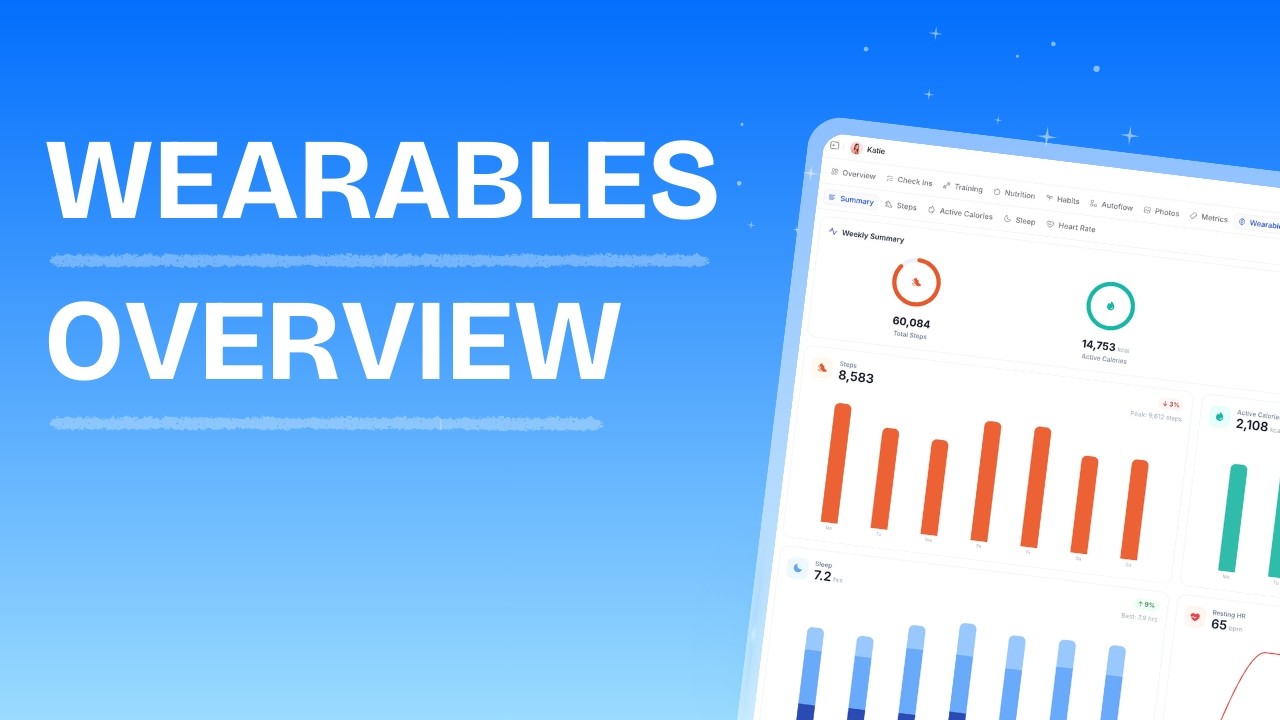
The dashboard shows:
- A Summary tab with ring totals and a mini chart per metric
- Drill into Steps, Calories, Sleep, or Heart Rate for headline stats, a full chart, and a daily log
- Period-over-period comparison badges (e.g. "↓ 35%")
Date Range and Views
You can view health data in two modes:
| View | Description |
|---|---|
| Week | Shows data for a single ISO week (Mon-Sun). |
| Month | Shows data for a full calendar month. |
Understanding Sleep Data
When viewing a client's sleep data, you'll see a detailed breakdown:
- Total Duration — Total time asleep (in hours and minutes)
- Deep Sleep — Time spent in deep/slow-wave sleep
- Light Sleep — Time in light or core sleep stages
- REM Sleep — Time in REM sleep
- Awake — Time spent awake during the sleep session
- Sleep Window — Start and end timestamps (when available)
Understanding Heart Rate Data
Heart rate data shows four measurements per day:
| Metric | Description |
|---|---|
| Resting HR | Resting heart rate (typically measured during sleep or inactivity) |
| Average HR | Average heart rate across the day |
| Max HR | Highest recorded heart rate |
| Min HR | Lowest recorded heart rate |
Integration Status
On a client's Settings > Integrations page, you can see which health integrations are connected.
What Wearable Data Does and Does Not Sync To
Wearable data does sync with Challenges. When a client has Apple Health or Health Connect connected and joins a Steps challenge, their step count updates automatically.
| Feature | Syncs with wearable data? |
|---|---|
| Challenges (Steps) | Yes — step data feeds into Steps challenges automatically |
| Metrics | No — metrics are tracked separately via manual logging or check-in forms |
| Habits | No — habit entries must be logged manually by the client or coach |
Connecting a Wearable (Client Setup)
Clients connect their wearable from Settings > Integrations in the HubFit app. Their wearable must first sync to Apple Health (iOS) or Health Connect (Android).
Most wearables sync automatically through their companion app. If a client needs help, use this reference:
| Wearable | iPhone Setup | Android Setup |
|---|---|---|
| Apple Watch | Syncs to Apple Health automatically | N/A |
| Fitbit | Open Fitbit app > Account > toggle Apple Health on | Open Fitbit app > Settings > toggle Health Connect on |
| Garmin | Open Garmin Connect app > Settings > Health > toggle Apple Health on | Open Garmin Connect app > Settings > toggle Health Connect on |
| Oura Ring | Open Oura app > Settings > toggle Apple Health on | Open Oura app > Settings > toggle Health Connect on |
| Whoop | Open Whoop app > Settings > Health App > Enable | Open Whoop app > Settings > toggle Health Connect on |
| Samsung Galaxy Watch | N/A | Syncs to Health Connect via Samsung Health |
| Google Pixel Watch | N/A | Syncs to Health Connect via Fitbit app |
| Polar | Open Polar Flow app > Settings > toggle Apple Health on | Open Polar Flow app > Settings > toggle Health Connect on |
| COROS | Open COROS app > Settings > toggle Apple Health on | Open COROS app > Settings > toggle Health Connect on |
Once the wearable syncs to the phone's health platform, the client taps Apple Health or Health Connect in HubFit's Integrations settings and grants permission to read health data. Data begins syncing automatically.
How Syncing Works
Data syncs automatically when the client opens the HubFit app. Clients can also manually trigger a sync by tapping the steps display on their profile and hitting the refresh icon in the top right corner.
Clients only see their step count from wearables in the app — calories, sleep, and heart rate data are only visible from the coach dashboard, since clients already have access to this data through their wearable's own app.
Disconnecting a Wearable
If a client wants to stop sharing health data, they can disconnect by going to Settings > Integrations in the HubFit app and tapping their connected integration (Apple Health or Health Connect), then tapping Disconnect.
Frequently Asked Questions
Does wearable data sync with Metrics or Habits? No. Wearable data is a standalone system. Steps, calories, sleep, and heart rate are only visible on the client's Wearable tab. They do not appear as metric data points or count toward habit goals. Wearable data does sync with Steps challenges.
Why is my client's wearable data not showing up? The most common cause is the wearable not syncing to Apple Health or Health Connect. Have the client check their phone's health app first. If the data is there, make sure HubFit has the correct permissions enabled, then have them open the HubFit app to trigger a sync. If the issue persists, try disconnecting and reconnecting the health integration from Settings > Integrations.
Can clients connect Fitbit, Garmin, or Oura directly to HubFit? No. HubFit reads from Apple Health and Health Connect only. The wearable must sync to one of these platforms first.
Why is the step count different from the wearable app? Apple Health and Health Connect aggregate and deduplicate data from all sources. The numbers in HubFit match what the phone's health platform reports, which may differ slightly from the wearable's own app.
My client's sleep data is missing stage breakdowns. Not all wearables report sleep stages. Basic fitness bands may only report total duration. For stage breakdowns (deep, light, REM, awake), the client needs a wearable that tracks sleep stages.
What happens if a client disconnects? Disconnecting removes all synced health data from HubFit. If they reconnect later, HubFit will re-sync available data from their phone's health platform.
Did this answer your question?