
Training
Build workouts, programs, and manage your full exercise library.
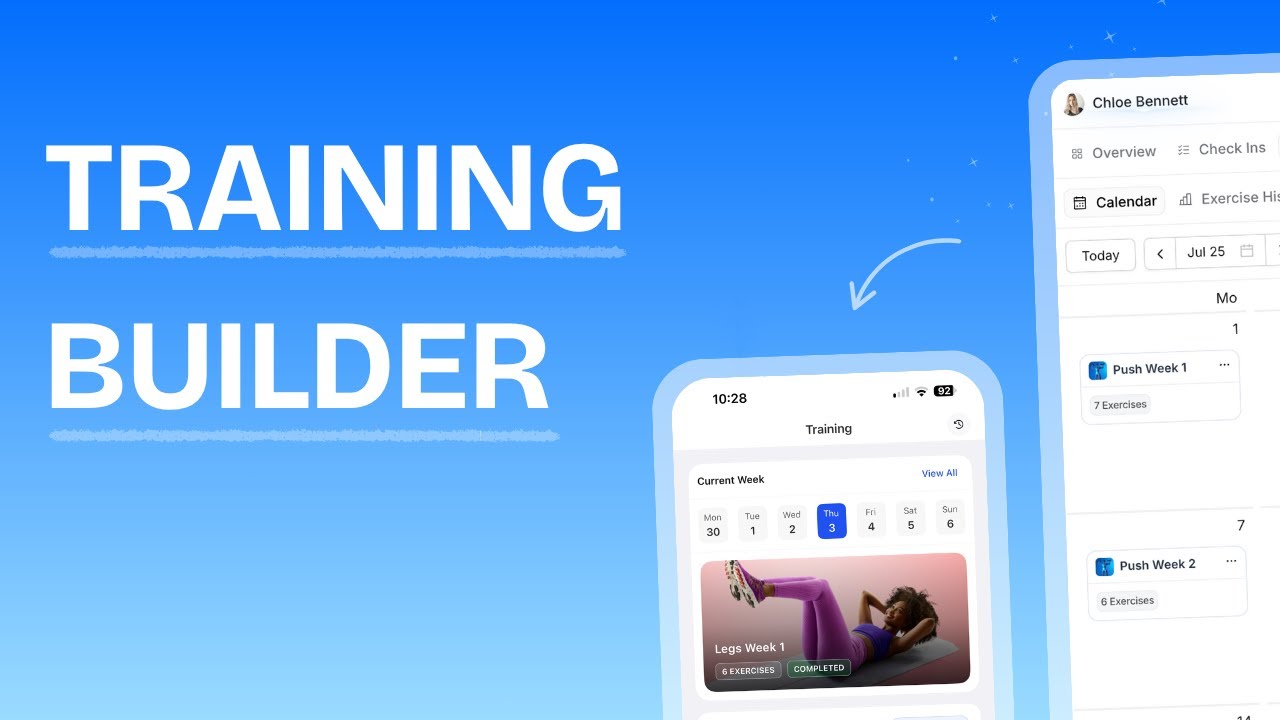
Training Overview
HubFit gives you a complete training system to build exercises, workouts, and programs, then assign them to clients and track their progress.
Your Training page has four tabs:
- Programs: Create and manage multi-workout training programs
- Workouts: Build standalone workout templates for your library
- Sections: Create reusable workout sections (exercise groupings)
- Exercises: Manage your custom exercise library
From these tabs you can:
- Build workouts with exercises, sets, reps, rest times, and custom fields
- Group exercises into supersets, circuits, AMRAPs, and intervals
- Create multi-workout programs with two modes: Calendar and Fixed
- Use AI to generate workouts from a text prompt
- Assign programs directly to individual clients
- Schedule workouts on specific dates with the training calendar
- Track client workout completion, exercise history, and personal records
- Duplicate, export, and organize programs into folders
When you open a client's Training page, you'll see their training content based on their training mode (Calendar or Fixed), plus tabs for completed workouts and exercise history.
Understanding Training Modes
Each client uses one of two training modes, set from their Training Settings.
Calendar Mode
Schedule workouts on specific dates. Clients see a calendar with upcoming workouts and complete them on the assigned day. Workouts can be dragged and dropped to reschedule.
Fixed Mode
Create fixed programs that clients follow at their own pace with no dates. Clients work through the workouts in order. Multiple programs can be assigned simultaneously.
Switching Training Modes
Understanding the Building Blocks
Training content follows a hierarchy: Programs > Workouts > Sections > Exercises.
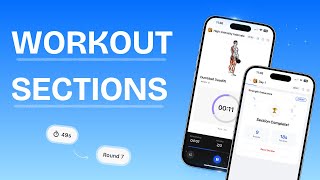
For a video overview, see Workout Sections (AMRAP, Circuits, Intervals)
Exercises: Individual movements with up to 4 configurable fields (e.g. Reps, Weight, Rest, Tempo), a set count, custom notes, alternative exercises, and a link to your Exercise Library.
Sections: Groupings of exercises within a workout. Each section has a type:
| Section Type | Description |
|---|---|
| Regular | Standard exercises performed in order |
| Circuit | Exercises performed back-to-back for a set number of rounds |
| AMRAP | As Many Rounds As Possible within a time limit |
| Interval | Timed intervals of work and rest |
Sections can contain supersets: multiple exercises grouped together and performed back-to-back.
Workouts: A single training session with one or more sections, a name, description, thumbnail image, and tags.
Programs: A collection of workouts. Fixed programs are an ordered list with no dates. Calendar programs assign workouts to specific dates or day numbers.
Managing Your Exercise Library
Your Exercise Library stores custom exercises with video demos, equipment tags, and muscle group information. These are referenced throughout your workouts and programs.
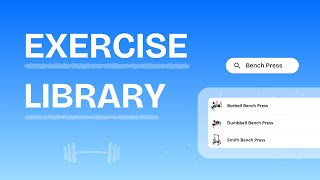
For a video overview, see Exercise Library
Creating an exercise
Equipment
Equipment is a multi-select field: attach up to 3 equipment types to one exercise. The library filter matches an exercise if any of its equipment values match the selected filter.
Available equipment types: Barbell, Dumbbell, Machine, Cable, Kettlebells, Body Only, Bands, E-Z Curl Bar, Medicine Ball, Exercise Ball, Foam Roll, Bench, Other, None
Muscles Worked
Muscles Worked is a multi-select field, and required: an exercise can't be saved without at least one selection. The first muscle you pick becomes the primary muscle (marked with a star); up to 3 more become secondary muscles. Removing the primary promotes the next selected muscle in its place.
For exercises with no target muscle (cardio, rest, warm-up, etc.), select None instead. None can't be combined with other muscles: picking it clears any muscles already selected.
Available muscles: Abdominals, Abductors, Adductors, Biceps, Calves, Chest, Core, Erector Spinae, Forearms, Glutes, Hamstrings, Hip Flexors, Lats, Lower Back, Middle Back, Neck, Obliques, Quadriceps, Shoulders, Tibialis, Traps, Triceps, Upper Back
The library filter matches primary-muscle exercises first, then secondary-muscle matches. Exercises tagged None are excluded from muscle-volume, sets, and movement-pattern charts (including client Training Statistics) so they don't appear as their own meaningless muscle group.
Exercise types
Strength, Cardio, Stretching, Plyometrics, Powerlifting, Olympic Weightlifting, Strongman
Client access to the Exercise Library
Clients can view the default HubFit exercise library, but cannot browse your custom exercises. Toggle Client Exercise Library Access on from the Exercises tab to let all clients view your custom exercise details (name, video, notes, muscle group) within their assigned workouts.
Building a Workout
Workouts can be created inside a program, as standalone library templates, or generated with AI.
Available exercise fields
| Field | Description |
|---|---|
| Reps | Number of repetitions |
| Weight | Load in kg or lbs |
| Time | Duration in seconds |
| Rest | Rest period in seconds |
| Tempo | Tempo notation |
| Distance | Distance in meters or miles |
| Calories | Calories to burn |
| RPE | Rate of Perceived Exertion (1-10) |
| RIR | Reps in Reserve |
| RPM | Revolutions per minute |
| Speed | Speed setting |
| Duration | Duration in seconds |
Supersets
Group multiple exercises within a section exercise to create a superset. Exercises in the same group are performed back-to-back. The group is labeled "Superset" by default and can be renamed.
Circuit and AMRAP sections
For Circuit sections, set the number of Rounds and an optional target duration. For AMRAP sections, set a Duration (time cap) for as many rounds as possible.
Generating Workouts with AI
Building a Program
Programs group multiple workouts. When creating a program, choose between Calendar and Fixed.
Fixed programs
Add workouts as tabs in the program builder. Choose Create New, AI, or Import from your library. Reorder by dragging tabs. Assign to a client by importing the program from their Training page.
Calendar templates
Calendar templates use day numbers instead of dates. When imported to a client, you pick a start date and day numbers convert to real dates.
Week management actions:
- Clear Week: Remove all workouts but keep the week
- Delete Week: Remove the week and shift later weeks back
- Add Week: Insert a new empty week slot after the selected week and shift everything else forward
Assigning calendar workouts to a client
Import a template:
Build directly: Click any date on the client's calendar to create or import a workout for that day.
Client Calendar Settings
Open the client's Training Settings > Calendar Settings tab.
| Setting | Options |
|---|---|
| Workout view range | Current Week, 2 Weeks, 4 Weeks, All |
| Client can reschedule | On / Off, lets clients move an upcoming workout to a new date using a Reschedule button and date picker |
Clear Calendar removes all uncompleted workouts. Completed workouts are preserved.
Periodisation Planner
Compare and edit exercises across multiple workouts side by side to implement progressive overload.
Exporting and Organizing
Exporting: Programs, workouts, and sections can all be exported and saved to your library.
Folders: Organize programs into folders from the Programs tab.
Tags: Add tags to programs, workouts, and sections for filtering. Tags are workspace-wide and reusable.
Viewing Client Training Progress
Completed Workouts
View a client's completed workout history showing workout name, date, duration, difficulty rating (1-5), workout note, personal records, and summary stats (total volume, sets, reps). Click any entry for the full breakdown with every recorded set.
Exercise History
Browse every exercise a client has recorded, sorted by most recent. Click any exercise to see all recorded instances with dates, sets, reps, weight, and personal records.
Personal Records
HubFit automatically tracks three PR types per exercise:
| PR Type | Description |
|---|---|
| Max Weight | Heaviest weight lifted on any single set |
| Max Volume | Highest total volume (weight x reps) in one session |
| Estimated 1RM | Estimated one-rep max via the Epley formula: weight x (1 + reps / 30) |
Clients have their own Personal Records screen in the app, filterable by 30D, 90D, Custom (date range), or All, with PRs grouped by month.
Training Statistics
Clients see their own Training Statistics in the app, and you see the same breakdown on their profile: a Week Streak counter, a Muscle Distribution heat map (Front/Back views showing least- and most-trained regions, plus Push : Pull and Upper : Lower ratios), and a Muscle Groups screen with Daily/Weekly/Monthly sets. Each logged set counts as a full set toward its primary muscle and as half a set (0.5) toward each secondary muscle.
Tapping any non-empty muscle group in the Muscle Groups list opens a breakdown panel showing credited sets, share of total, and the contributing exercises, split into primary and secondary contributors. The panel's title doubles as a switcher to jump to any other muscle group without closing it, and rows link into Exercise History. Empty muscle groups aren't interactive.
Workout Studio
Create curated workout collections and share them with clients as on-demand libraries.
- Organize workouts into sections with cover images
- Grant individual clients access; clients browse and track workouts on-demand
How Clients Track Workouts
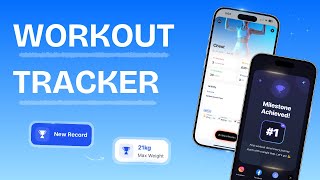
For a video overview, see Workout Tracker
Clients see their upcoming workouts on a swipeable week strip (Monday to Sunday) on their Training tab, capped by the workout view range you've set (see Client Calendar Settings above). When a client opens a workout, they tap Start Workout to begin tracking. The tracker opens full-screen as a single scrolling list of exercises; supersets, circuits, AMRAPs, and intervals are edited or viewed on their own screen rather than inline. For each set, the client enters their actual values (reps, weight, etc.). They can swap to an alternative exercise you have added or browse the HubFit exercise library for a replacement - filtering candidates by equipment or muscle group - and add notes to any exercise. When finished, they tap Complete Workout, rate the difficulty (1-5), add an optional session note, and tap Save. You are notified when the workout is completed.
During a workout, the client can add exercises from the Add Exercise button in the footer, or add a new Interval, AMRAP, or Circuit section from the ... menu in the header. Tapping an exercise's field selector opens a Tracking Fields sheet listing the field types that can be tracked (Weight, Reps, Time, Distance, RPE, and Calories); up to 4 can be selected at once. From the exercise picker, they can also create a superset by selecting 2 or more exercises and tapping Add as Superset, or turn an existing exercise into one from its ... menu; this isn't available inside Interval, AMRAP, or Circuit sections.
If a client leaves the app mid-workout - by switching tabs, tapping a push notification, or (on Android) pressing back while idle - the workout minimizes to a floating progress bar instead of closing, and they can resume where they left off. Their previous performance is shown for each exercise, and personal records (Max Weight, Max Volume, Estimated 1RM) are highlighted when beaten.
Rescheduling from the app
If you've enabled Client can reschedule in Calendar Settings, clients can tap Reschedule on an upcoming workout and pick a new date. Completed workouts cannot be rescheduled.
Rest Timer
When a client marks a set complete, a rest timer starts automatically for the prescribed rest period. It appears as a persistent strip above the workout's navigation controls, with a live countdown, a progress bar, and -15s / +15s / pause / cancel controls. The timer keeps running in the background if the client browses the app or switches tabs during rest - only cancelling it explicitly stops it. Clients set rest duration on a dial, and the app remembers the last duration they chose and pre-selects it next time.
Lock Screen and Dynamic Island
On iOS, clients tracking a workout get a Live Activity on the Lock Screen and in the Dynamic Island showing the current exercise, its thumbnail, your prescribed values (e.g. "8 reps · 60 kg"), and a progress label ("Set 2 of 4", "Round 1 of 3", or an open-ended round count for AMRAP). While a rest period is running, the card shows a Skip Rest button; otherwise it shows the session's completion percentage. The Lock Screen is read-only for logging - clients still need to open the app to log a set or round.
Sharing a completed workout
From the workout-complete screen, clients can share their session to social media. Sharing opens the camera first (or Share without a photo to skip it), then offers a deck of story cards built from that session's data - a photo card, personal records, muscle map, volume chart, top lifts, and more - showing only the cards that have data to fill them. Clients can drag and reposition the photo and stats on any card before sharing.
Frequently Asked Questions
How do clients start a workout? Clients open the Training section in the app, tap the workout, and tap Start Workout to begin tracking.
Can clients reschedule a workout? In Calendar mode, if you have enabled rescheduling, clients can tap Reschedule on an upcoming workout and pick a new date. Completed workouts cannot be rescheduled.
Can clients swap an exercise? Yes. Clients can tap the swap icon on any exercise to choose from alternative exercises you have added or browse the HubFit exercise library for a replacement.
What happens if a client closes the app mid-workout? Their progress is saved. A floating progress bar appears when they reopen the app so they can resume where they left off.
How are personal records tracked? HubFit automatically tracks Max Weight, Max Volume, and Estimated 1RM for each exercise. New PRs are highlighted in the client's completed workout summary.
How can I visually distinguish training phases on the calendar? Use Calendar mode and set different cover images on your workouts. The built-in color images in the library work well for this — assign a different color per phase so clients can see at a glance which block they are in.
What is a Workout Studio? Workout Studios are on-demand workout collections you share with clients. There are no scheduled dates, clients can do these workouts whenever and as many times as they want.
Can clients upload their own training videos? No. Clients cannot upload videos directly in the training section. To collect video content from clients (e.g. for form checks), use a check-in form with a Media question type.
Is there a dedicated cardio section separate from workouts? No. Cardio is handled through workouts. Add a cardio workout to the client's program, or create a Workout Studio with cardio workouts that clients can complete any time.
Can I duplicate a week in a training program? No. You can duplicate individual workouts within a program, but not a full week.
How do I give a training program a cover image? Programs do not have their own cover image. The program displays the cover image from its first workout.
Can I convert a calendar program to a fixed program or vice versa? No. You cannot switch a program's type. The recommended approach is to export the workouts to your workout library, then import them into a new program of the other type.
Can clients log their own workouts or activities outside of what the coach assigns? No. Clients can only track workouts assigned to them by the coach. Self-directed activities such as cardio, runs, yoga, swimming, or group fitness classes cannot be logged.
What is the exercise video file size limit? 50MB per video file. For longer videos, upload to YouTube and paste the link instead.
Can I export or download a training program as a PDF? No. Exporting training programs as PDF is not supported.
Can I respond to a client's comment on their completed workout? No. Responding to workout comments is not supported. Use Messages to follow up on a client's workout feedback.
Can clients view their training program on the web? Yes. Clients can view their program on the web, but workout tracking is only available in the app.
Why is the finish button greyed out when completing a workout? The client has not selected a workout difficulty rating. This is required before the workout can be saved.
How do rest times display for clients during workouts? Rest times are not shown upfront. When a client marks a set as complete, a rest timer automatically starts with the prescribed rest period and stays visible as a persistent strip until it finishes or the client cancels it - it keeps counting down in the background even if they browse elsewhere in the app.
Can I edit a client's completed workout? Yes, from the coach app - open the completed workout and tap Edit to adjust set values, notes, or the difficulty rating, or to remove an exercise. Clients can do the same for their own completed workouts from the client app. This isn't available on web, where completed workouts are view-only.
Can clients share a completed workout to social media? Yes. From the workout-complete screen, clients can take or skip a photo and share a deck of auto-generated story cards (personal records, muscle map, volume chart, and more) built from that session.
Can I view a summary of all clients' training progress at once? No. You need to open each client's profile individually to view their training progress.
Can clients track sets and reps within interval sections? No. Interval sections are designed for timed interval workouts and do not support set and rep tracking.
Can I set different values for individual sets within an exercise? No. All sets share the same target values. To specify different targets per set (e.g. 12, 10, 8, 6), use the custom notes field on the exercise — clients see this during tracking. You can also enter comma-separated values in the reps field.
When swapping an exercise, do the tracking fields update automatically? No. Tracking fields are set by the coach and do not change based on the exercise. Swapping a reps/weight exercise for a time-based exercise will keep the original tracking fields.
Can I view the originally prescribed workout after a client has completed it? No. Completed workouts only show the client's logged data, not the original prescribed values.
Can exercise videos auto-play during workouts for follow-along style? Not for regular exercises. However, interval sections do support auto-play videos.
Did this answer your question?