
Habits
Track daily habits to drive adherence and long-term results.
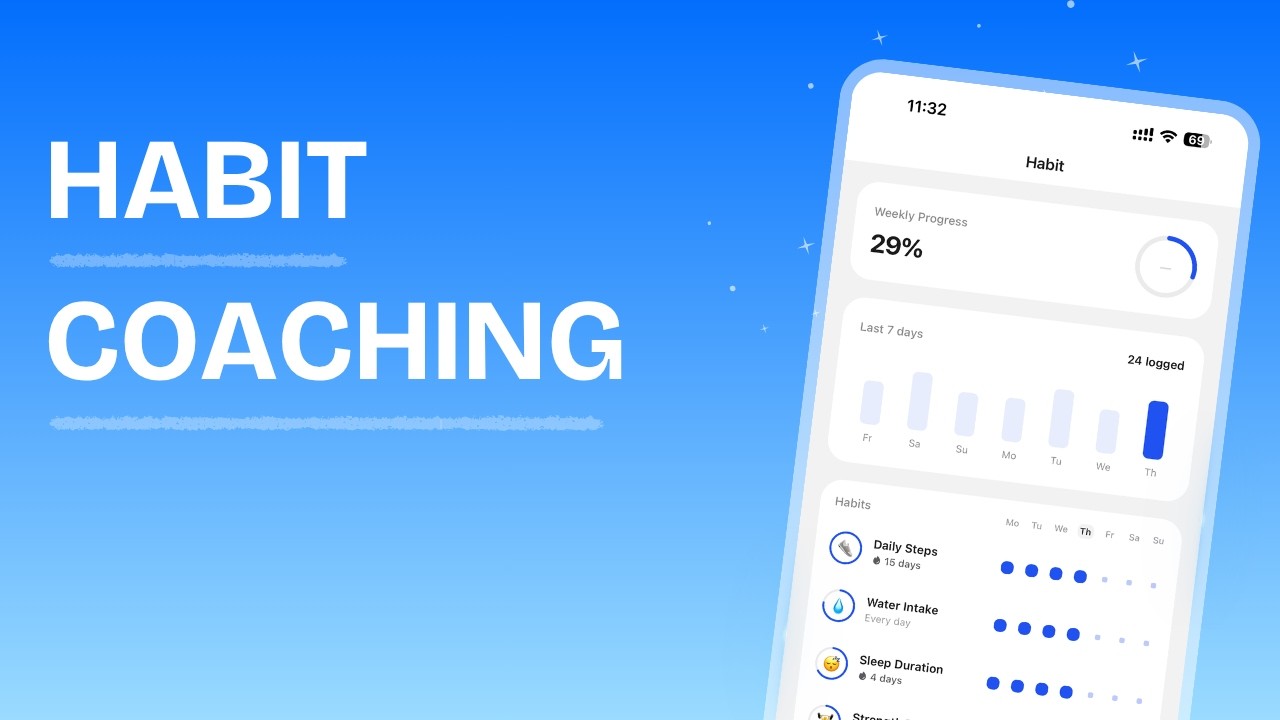
Habits Overview
HubFit's habit tracking system lets you create measurable habits, assign them to clients, and monitor compliance over time. Habits drive daily accountability and give you visibility into the behaviours that sit behind your clients' results.
As a coach you have two main areas for working with habits:
- Habits Library: Your personal library of habit templates, accessible from the sidebar
- Client Habits: Habits assigned to a specific client, accessible from their profile
From these areas you can:
- Create new habits from scratch or from the HubFit Library
- Assign habits to individual clients with start and end dates
- Set goals with flexible frequency and unit options, or use a simple Yes/No habit type
- Configure push notification reminders
- Track client entries, streaks, and completion rates
- Review weekly habit compliance in the Overview tab
Understanding Habit Settings
Before creating your first habit, it helps to understand the settings that define how a habit works.
Emoji and Name
Every habit has an emoji icon and a name. The emoji appears alongside the habit everywhere, in the coach dashboard, the client app, reminders, and the weekly overview table.
Description
An optional text field for additional context. Use it to explain how the client should track the habit, what counts as a completion, or any other instructions.
Habit Type, Goal, Unit, and Frequency
Every habit is either Numeric (tracked against a goal value and unit) or Yes/No (tracked as a simple done or not done). You choose the type from the Goal Unit dropdown, which lists Yes/No together with the numeric units. Yes/No is the default for a new habit.
For a Numeric habit, you configure three things together:
| Setting | What it controls | Example |
|---|---|---|
| Goal | The numeric target | 10000 |
| Goal Unit | The unit of measurement | steps |
| Frequency | How often the goal resets | Day |
Combined, these produce a readable goal string like "Complete 10000 steps every day".
For a Yes/No habit, there's no numeric goal or unit to enter: your client simply marks the period done or not done. If the frequency is Weekly, a second dropdown appears where you choose how many of the week's days need to be marked done for the week to count as complete, from 1 to 7 days.
Available goal units:
| Unit | Label |
|---|---|
| N/A | Yes/No (default) |
steps | Steps |
min | Minutes |
times | Times |
count | Count |
drink | Drinks |
cups | Cups |
m | Metres |
km | Kilometres |
mile | Miles |
sec | Seconds |
hour | Hours |
ml | Millilitres |
liters | Litres |
oz | Ounces |
cal | Calories |
g | Grams |
mg | Milligrams |
Available frequency options:
| Frequency | Goal resets | How completion works |
|---|---|---|
| Day | Every day | The client must hit the goal target each individual day |
| Week | Every Monday | Entries across the week are accumulated; the goal is met when the weekly total reaches the target |
Days
When the frequency is set to Week, you choose which days of the week the habit shows up in your client's task list and can trigger a reminder. This is separate from the weekly goal itself (how many times or days the client needs to log): it only controls when the habit surfaces, not how completion is counted. All seven days are selected by default. For Day frequency, every day is automatically included.
Start Date and End Date
When assigning a habit to a client, you set a start date (required) and optionally an end date. If no end date is set, the habit runs indefinitely.
Habits have three lifecycle states:
- Active: The habit has started and not ended — clients can log entries
- Upcoming: The start date is in the future — the habit is visible but entry logging is disabled until the start date arrives
- Completed: The end date has passed — no new entries can be logged, but all past data remains viewable
Upcoming habits display a "Starts on [date]" tag and Completed habits display an "Ended on [date]" tag.
Habit Duration (Library Only)
When creating a habit in your library (not directly on a client), you can set a duration in days. When you later assign the library habit to a client, the end date auto-calculates from the start date plus the specified duration.
Reminders
You can enable a push notification reminder for any habit assigned to a client. When enabled, you configure:
- Reminder Time: The time the notification should be sent (in the client's local timezone)
- Reminder Message: The notification body text (e.g. "Time to drink water")
Creating a Habit in Your Library
Your Habits Library stores reusable habit templates. When you assign a habit to a client, you can pull from this library instead of building from scratch each time.
Using the HubFit Library
HubFit includes a built-in library of pre-configured habit templates across five categories. You can use these as a starting point and customise them before saving.
Assigning a Habit to a Client
The client receives a notification that a habit has been assigned. The habit immediately appears in their Habits tab and on the mobile app.
Editing and Deleting Habits
Editing a habit
Editing a library habit
Deleting a habit
Logging Entries on Behalf of a Client
Coaches can log habit entries directly from the client's Habits tab on the web dashboard.
To edit an existing entry, click the pencil icon next to it in the entry list, or click the date on the calendar.
To delete an entry, open it for editing and click Delete.
Viewing Client Habit Progress
When you open a client's Habits tab, you see two sub-tabs: Habits and Overview.
Habits Tab
The Habits tab has a split-panel layout:
Left panel: Lists all habits assigned to the client. Each row shows the emoji, name, goal summary, and current streak (fire icon). Habits are grouped by lifecycle state — Active, Upcoming, and Completed — with status badges.
Right panel: Shows detailed data for the selected habit:
- Activity Dashboard: Key metrics displayed as cards — Total Completed (number of periods the goal was met), Completion Rate (percentage), Current Streak, and Best Streak. For Numeric habits, two additional cards show Volume Total (sum of all logged values) and Average (mean value per entry); these are hidden for Yes/No habits, since every logged entry simply counts as 1. This gives coaches a data-driven overview of habit performance at a glance
- Interactive Calendar: A monthly calendar view with animated progress rings on each day. Blue rings indicate the goal was met, orange rings indicate a logged entry that did not meet the goal, and gray rings mark days with no entry. Navigate months using the arrow buttons
- Entry log: A chronological list of all entries for the selected month, showing the value, unit, and date. Click any entry to edit it
Overview Tab
The Overview tab displays a weekly compliance table across all of the client's habits.
Each cell shows the logged value for that day and a progress ring:
| Ring state | Colour | Meaning |
|---|---|---|
| Full ring | Primary (blue) | Goal met for the period |
| Partial ring | Amber | Entry logged but goal not yet met |
| Empty ring | Grey | No entry logged |
The Avg column shows the average value across days that have entries.
How Streaks Work
Streaks measure consecutive periods where the client met their habit goal.
- For daily habits, a streak increments for each consecutive day the goal is reached
- For weekly habits, a streak increments for each consecutive week the accumulated total meets the goal
HubFit calculates and displays the following metrics on the activity dashboard (Volume Total and Average apply to Numeric habits only):
| Metric | Description |
|---|---|
| Current Streak | Consecutive periods of goal completion ending today (or the most recent completed period) |
| Best Streak | The longest streak achieved since the habit started |
| Total Completed | Total number of periods where the goal was met |
| Completion Rate | Percentage of possible periods where the goal was met, from the start date to today |
| Volume Total | Sum of all logged values across all entries |
| Average | Mean value per entry |
Streaks break when a period passes without the goal being reached. The current streak resets to zero, but the best streak is preserved.
How Completion Rate Works
Completion rate is calculated as:
Completed periods / Total possible periods x 100
- For daily habits, the total possible periods is the number of days from the start date to today (or the end date, whichever is earlier)
- For weekly habits, the total possible periods is the number of weeks from the start date to today
The rate is capped at 100%. HubFit provides completion rates at three levels:
| Level | Time range |
|---|---|
| Weekly | Current week (Monday to today) |
| Monthly | Current month (1st to today) |
| Overall | Start date to today |
Tracking Habits in the App
Clients track habits from the Habits section and the home dashboard in the mobile app.
Habit details — When your client opens a habit, its goal card shows the key details directly, with nothing to tap. A Frequency row shows how often the goal resets (e.g. "Daily"). A Scheduled Days row appears whenever the habit runs on fewer than all seven days (daily habits skip this row since Frequency already covers it). A Habit Ends On row shows the end date, if one is set. If the habit has a description, a Note row also appears; tapping it opens a bottom sheet titled with the habit's emoji and name, showing the full description text.
Logging entries — Clients can log a habit entry by tapping the + button next to the habit for today's entry, or by tapping any date on the habit's calendar to log for that specific day — including past dates. This means clients can backdate entries if they forgot to log. For Yes/No habits, clients tap a tick and use the Done / Not done toggle to log the day; there's no keypad. For Numeric habits, clients enter a value on the keypad, or tap Complete to instantly log the exact remaining amount needed to meet the goal for the day. The interactive calendar displays animated progress rings around each day — blue for completed, orange for partial, and gray for missed — giving clients an at-a-glance view of their completion status throughout the month.
Dashboard — Active habits appear on the client's home dashboard as a task list. Uncompleted habits for today show a progress tracker, and completed habits are grouped separately. Clients can log entries directly from the dashboard.
Editing and resetting — Clients can tap any existing entry to update the value, or use the Reset button to remove an entry for a date. Resetting an entry may break a streak if the period total drops below the goal.
Reminders — Push notification reminders are sent at the scheduled time in the client's local timezone. Clients must have push notifications enabled for the HubFit app on their device to receive them.
Frequently Asked Questions
Why can my client not log entries for their habit? The habit likely has a future start date. Clients can see upcoming habits but cannot log entries until the start date arrives. Check the habit's start date from the client's Habits tab.
Why is my client not receiving habit reminders? Push notifications must be enabled for the HubFit app on the client's device. The habit must also be active (started and not ended), and the current day must be one of the habit's scheduled days.
Can I change a habit from daily to weekly? No. The frequency cannot be changed after a habit is created. Delete the existing habit and create a new one with the desired frequency.
Can I change a habit from Numeric to Yes/No, or back? No. A habit's type is locked once it's created, the same as the Day/Week frequency. Delete the habit and create a new one with the type you need. You can still change a Numeric habit's unit (e.g. kilometres to miles) at any time.
Why don't I see Volume Total or Average for one of my client's habits? Those two metrics only apply to Numeric habits. Yes/No habits hide them because every logged entry simply counts as 1.
What happens to past data when I change a habit's goal? HubFit keeps a history of previous goals. Completion calculations for past periods use the goal that was active at the time, not the current goal.
Why did my client's streak reset? Streaks reset when a period passes without the goal being reached. For daily habits, missing one day resets the streak. For weekly habits, the accumulated total for the week must meet the goal or the streak resets. The best streak is always preserved.
Do weekly habits require logging every day? No. For weekly habits, entries across the week accumulate toward the weekly total. As long as the total meets the goal by Sunday, the week counts as completed.
Did this answer your question?