
Packages
Build coaching packages, set pricing, and let clients sign up online.
Packages Overview
Packages let you sell your coaching services online. Create one-time or subscription-based packages, set your price, connect Stripe to collect payments, and share a branded pricing page with prospective and existing clients. The Packages page has two tabs:
- Packages: Create and manage your coaching packages
- Coupons: Create discount codes clients can apply at checkout
From the Packages tab you can:
- Create new packages with flexible pricing (one-time, weekly, monthly)
- Set free trials and initial fees
- Attach an onboarding flow to automate client setup on purchase
- List benefits that appear on your public pricing page
- Toggle packages as active or hidden
- Copy a shareable link to any individual package or your full pricing page
- Preview your public pricing page
- Open your Stripe dashboard directly from HubFit
Connecting Stripe
Before you can accept payments, you need to connect a Stripe account. HubFit uses Stripe Connect, which means payments go directly to your Stripe account - HubFit never holds your funds.
The Connect to Stripe button shows different states depending on your setup progress:
| State | Button Text | What to Do |
|---|---|---|
| No Stripe account | Connect to Stripe | Click to start Stripe onboarding |
| Partially set up | Continue Stripe Setup | Click to finish your Stripe onboarding |
| Charges not enabled | View Stripe Account | Check your Stripe dashboard for issues |
| Fully connected | (button hidden) | You are ready to accept payments |
Once connected, you can open your Stripe dashboard at any time by clicking the Stripe button in the Packages page header.
Troubleshooting: "Account not found" or "Failed to connect" error
If you click Continue Stripe Setup or Stripe and see an error like "account not found" or "failed to connect", this is because you are logged into a different Stripe account in your browser.
HubFit creates a separate Stripe Connect account for your workspace. If you already have a personal or business Stripe account, your browser may default to that account instead.
To fix this:
Creating a Package
The package creation flow walks you through three steps: Setup, Automations, and Benefits.
Step 1: Setup
The bottom of the Setup step shows a Total payout (for fixed-duration plans) or Recurring payment (for until-cancelled plans), so you can verify the math before proceeding.
Step 2: Automations
Step 3: Benefits
Your new package appears in the Packages table and is immediately available on your public pricing page (if active and visible).
Package Configuration Reference
Supported Currencies
| Currency | Code | Symbol |
|---|---|---|
| US Dollar | USD | $ |
| British Pound | GBP | £ |
| Euro | EUR | € |
| UAE Dirham | AED | د.إ |
| Australian Dollar | AUD | $ |
| Canadian Dollar | CAD | $ |
| New Zealand Dollar | NZD | $ |
| Norwegian Krone | NOK | kr |
| Swiss Franc | CHF | fr |
Billing Intervals
| Type | Behavior |
|---|---|
| One-Time | Client is charged once. No recurring billing. |
| Weekly | Client is charged every week for the selected duration, or until cancelled. |
| Monthly | Client is charged every month for the selected duration, or until cancelled. |
Duration Options
For Weekly and Monthly plans, you can set a fixed duration (1-12 weeks or 1-12 months) or select Until Cancelled for an open-ended subscription.
- Fixed duration: The subscription auto-cancels at the end of the set period. Both the client and coach receive an email when the subscription ends.
- Until Cancelled: The subscription renews indefinitely until the client cancels through the Stripe billing portal.
Free Trials
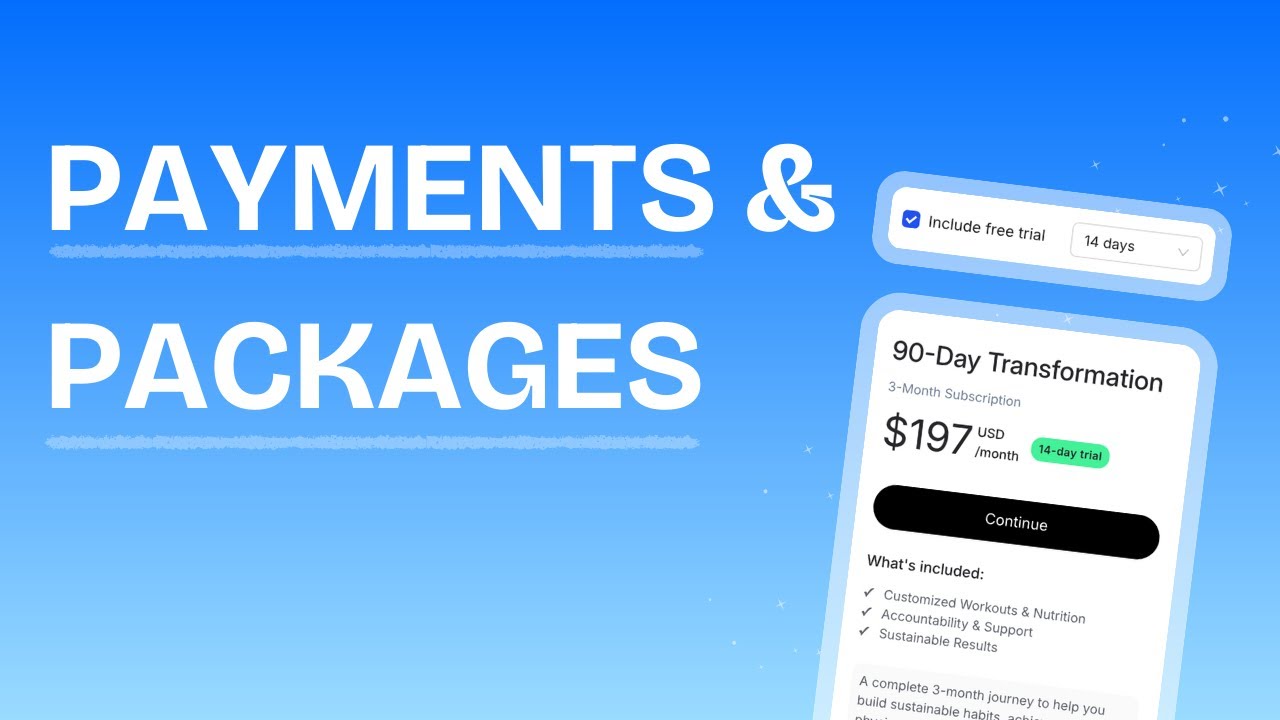
Free trials delay the first charge by a set number of days. Available options: 3 days, 7 days, 14 days, or 30 days.
When a trial is active, the public pricing card shows a badge (e.g. "7-day trial") so clients know what to expect.
Initial Fee
An initial fee is a one-time upfront charge added on top of the first billing cycle. For example, if you have a monthly subscription at $50/month with a $100 initial fee, the client pays $150 for the first month and $50/month thereafter.
- The initial fee appears as a separate line item on the Stripe checkout page.
- Initial fees cannot be combined with free trials.
Instant Access
When Give clients instant access upon purchase is enabled, the client automatically receives login credentials via email immediately after purchase. If disabled, the coach is notified and must manually onboard the client.
Editing a Package
Managing Package Visibility and Status
Each package has two toggles in the table:
- Active: Controls whether clients can purchase the package. Inactive packages show as "Unavailable" on your pricing page.
- Visible: Controls whether the package appears on your public pricing page at all. Hidden packages are not shown to clients but can still be shared via a direct link.
You can toggle these directly from the package table without opening the editor.
Deleting a Package
Your Public Pricing Page
HubFit generates a public pricing page that displays all your active and visible packages. This page is branded with your logo and brand color.
There are two types of public pages:
All Packages Page
Shows every visible package as a card grid. Access it at:
https://app.hubfit.com/plans/{your-unique-id}
Single Package Page
Shows one specific package in a focused layout. Access it at:
https://app.hubfit.com/plan/{package-id}
You can access both from the Packages page:
- Packages Page button in the header opens your all-packages page
- Preview on any package row opens the single package page
- Copy Link copies the single package URL to your clipboard
What Each Pricing Card Shows
The public-facing pricing card displays the following to potential clients:
- Package name
- Price with currency symbol and billing interval (e.g. "$50 USD /month")
- Duration label (e.g. "3-Month Subscription", "Recurring Subscription", or "One time")
- Trial badge if a free trial is configured (e.g. "7-day trial")
- Initial fee if set (e.g. "+ Initial fee: $100")
- Benefits list with checkmarks
- Description (truncated with a "Show more" toggle for longer text)
- Purchase button ("Continue" for paid packages, "Try for free" for free packages, or "Unavailable" if inactive)
Creating Coupons
Coupons let you offer discounts to clients at checkout. When a client applies a coupon code during Stripe checkout, the discount is applied automatically.
Managing Coupons
The Coupons table shows each coupon with its name, code, discount amount, expiry date, usage count, and active status.
Editing a Coupon
Click a coupon row to open the editor. You can update the Coupon Name only, the code, discount type, and discount amount cannot be changed after creation (this is a Stripe limitation). To change these, delete the coupon and create a new one.
Activating and Deactivating Coupons
Toggle the Active switch in the coupons table to enable or disable a coupon. Deactivating a coupon prevents it from being used at checkout, but does not affect existing discounts already applied.
Deleting a Coupon
Click the menu icon on a coupon row and select Delete. This removes the coupon from both HubFit and Stripe.
Coupon Usage Tracking
The Usage column shows how many times a coupon has been redeemed out of the maximum (e.g. "3/100" or "5/∞" for unlimited). Coupons automatically deactivate when they hit the redemption limit.
Viewing Client Subscriptions and Payments
You can view a client's subscription history and past payments from their profile.
Subscription statuses include:
| Status | Meaning |
|---|---|
| Active | Subscription is running and payments are current |
| Trialing | Client is in a free trial period |
| Past Due | A payment failed and is overdue |
| Canceled | Subscription has been cancelled |
| Incomplete | Initial payment has not been completed |
Stripe Customer Portal
You can open the Stripe Customer Portal for any client with an active subscription. The portal lets clients:
- Cancel their subscription
- Update their payment method
- Update their email, address, and phone number
- View their invoice history
To open the portal, click the billing portal button on the client's profile. Coaches can also access this from the client overview.
What Happens When a Client Purchases a Package
Here is the full flow from the client's perspective and what happens behind the scenes:
Behind the scenes:
- New clients: A client account is created in your workspace. If instant access is enabled, they receive login credentials by email.
- Existing clients: If the client purchases using the same email address as their client account, the purchase is linked to their existing profile automatically. If the client was archived, they are automatically unarchived.
- Onboarding flow: If an onboarding flow is attached to the package, it triggers automatically (assigning programs, plans, forms, etc.).
- Confirmation email: The client receives a purchase confirmation email.
- Coach notification: You receive an in-app notification that a new purchase was made.
- Zapier: If you have a Zapier integration configured, a "New Purchase" trigger fires with the client and package details.
- Client note: A note is automatically added to the client's profile documenting the purchase.
Subscription Lifecycle
Fixed-Duration Subscriptions
When a subscription has a fixed duration (e.g. 3 months), HubFit calculates the end date and sets a scheduled cancellation in Stripe. When the subscription reaches its end date:
- Stripe cancels the subscription automatically
- The client receives a "Subscription Has Ended" email
- You receive an in-app notification
Open-Ended Subscriptions (Until Cancelled)
These subscriptions renew indefinitely. The client can cancel anytime through the Stripe billing portal. When they cancel:
- The subscription is cancelled immediately
- The client receives a "Subscription Has Been Cancelled" email
- You receive an in-app notification
Client Cancels via Stripe Portal
Clients can cancel their own subscription through the Stripe billing portal. When this happens, both the client and coach are notified by email and in-app notification.
Free Packages
You can create packages with a price of $0 (or any currency equivalent). Free packages behave differently from paid packages:
- No Stripe checkout is required, the client signs up with just their name and email
- The purchase is processed instantly
- The client sees a success page immediately
- All post-purchase automations (onboarding flows, emails, notifications) still trigger normally
The Client Experience
Here is what your clients see and how you can guide them through purchasing and managing their subscription.
How Clients Purchase a Package
When a client opens your pricing page or a direct package link, they review the package details and click Continue (or Try for free for free packages). They enter their name and email, then are redirected to a Stripe checkout page to complete payment. After purchase, they see a confirmation page. If you have enabled instant access, they receive login credentials by email automatically. Otherwise, you will need to onboard them manually.
Clients can apply a coupon code during Stripe checkout by entering it in the Add promotion code field. Coupon codes are case-sensitive.
How Clients Manage Their Subscription
Clients log into the web app at app.hubfit.com and click Manage Subscriptions to access the Stripe billing portal, where they can:
- Cancel their subscription
- Update their payment method
- Update their contact information (email, address, phone)
- View their invoice history
You can open the Stripe billing portal for any client from their profile by clicking the billing portal button.
Frequently Asked Questions
Can I connect my existing Stripe account? No. HubFit creates a new Stripe Connect account dedicated to your workspace. This is required because HubFit manages your customers, prices, coupons, and subscriptions directly in Stripe on your behalf.
I am getting an "account not found" error when clicking Stripe. How do I fix it? This happens when your browser is logged into a different Stripe account. Go to dashboard.stripe.com, click the account dropdown in the top-left corner, and switch to your HubFit Connect account. If you are unsure which account it is, log out of Stripe completely and click the Stripe button from HubFit again.
What happens if a client uses a different email at checkout? A new client account is created in your workspace. The purchase will not link to their existing profile. To avoid this, make sure clients use the same email address they registered with.
Why can I not edit my coupon code or discount amount? Coupon codes and discount amounts cannot be changed after creation. This is a Stripe limitation. To change these, delete the coupon and create a new one.
Can I invoice a client directly from HubFit? No. To collect payment, create a package and share the checkout link with the client.
Did this answer your question?