
Messages
Chat with clients, send updates, and manage all your conversations.
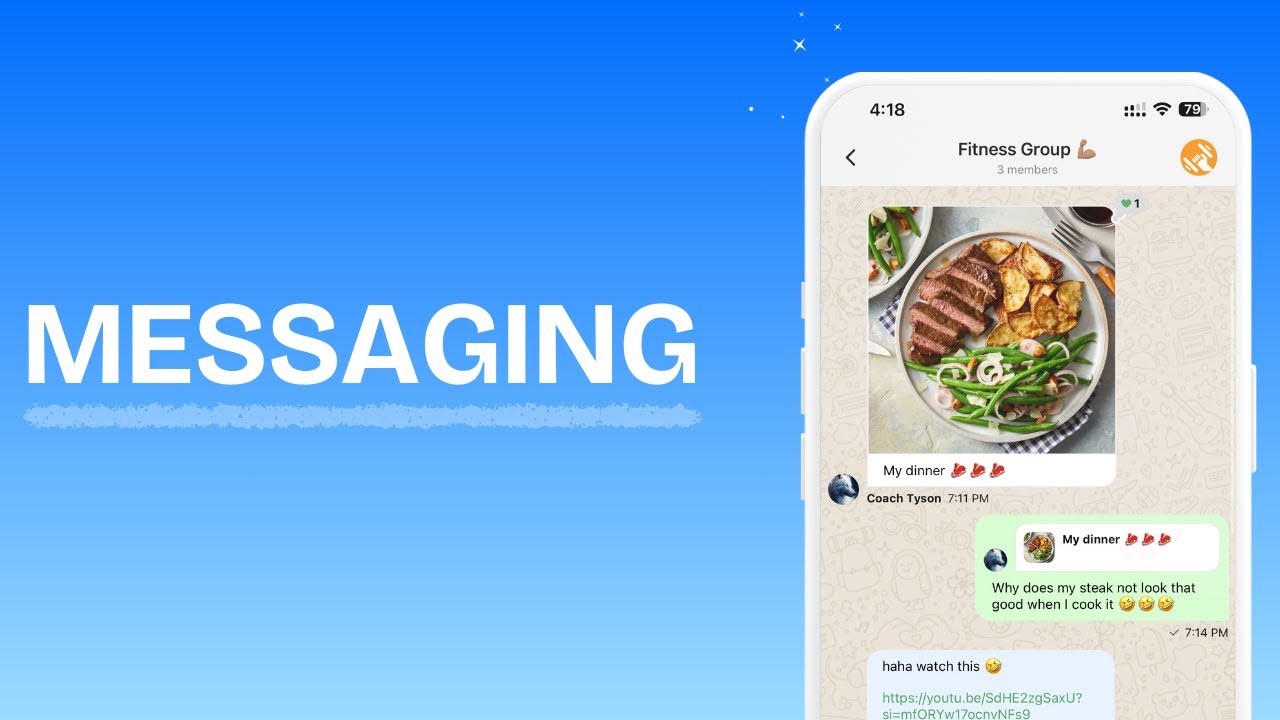
Messages Overview
HubFit Messages is a real-time messaging system and your central hub for all client and team communication. From here you can:
- Start and manage 1:1 conversations with any active client
- Create group chats with clients and team members
- Broadcast a single message to multiple clients at once
- Send text, images, videos, files, voice notes, GIFs, and polls
- Pin important messages for easy reference
- See real-time online status, typing indicators, and read receipts
Your Messages page has two panels:
- Channel List (left): All your conversations, sorted by most recent activity. Unread conversations are highlighted and show an unread count badge.
- Conversation View (right): The active conversation with its message history, input bar, and channel header.
You can also jump straight into a conversation from a client's profile. On web, click the chat icon in the client profile header to open Messages with that client's conversation active. On mobile, tap the chat icon in the top-right corner of the client screen to open the conversation directly.
Starting a 1:1 Conversation
Every active client has a dedicated 1:1 chat channel. When you start a conversation with a client, HubFit creates (or reopens) a private channel between you and that client.
Creating a Group Chat
Group chats let you communicate with multiple clients and team members in a single channel. Use them for accountability groups, coaching cohorts, or team coordination.
Managing group members
After creating a group, you can add or remove participants at any time.
Updating group settings
Deleting a group chat
Sending Broadcast Messages
Broadcast messages let you send the same message to multiple clients at once. Each client receives the message in their individual 1:1 conversation with you, they do not see that it was sent to others.
Sending Messages and Attachments
The message input bar supports a range of content types. Here is what you can send in any conversation:
| Content Type | Description |
|---|---|
| Text | Plain text messages with formatting and emoji support |
| Images | Photos and screenshots from your device or gallery |
| Videos | Short video clips for demos, technique reviews, or quick updates |
| Files | Documents like PDFs, spreadsheets, and program exports |
| Voice Notes | Recorded audio messages — great for form cues or quick context |
| GIFs | Animated GIFs, searchable from the built-in GIF picker |
| Polls | Quick polls to collect votes from group chat members (group chats only) |
On the mobile app, tapping the attachment button opens your device's native photo and video picker, so the selection screen matches whatever you're used to elsewhere on your phone. Sending an image or video works the same way once you've picked it.
Message Actions
Long-press (mobile) or hover (web) over any message to access message actions. On mobile, you can also swipe a message to the side to reply to it directly, without opening the action menu.
| Action | Description |
|---|---|
| Reply | Reply directly to a specific message so the original is shown for context |
| Mark as Unread | Flag the conversation as unread so you remember to come back to it |
| Copy Message | Copy the message text to your clipboard |
| Pin to Conversation | Pin the message to the top of the conversation for quick reference |
You can also react to any message with an emoji. The reaction picker is shown alongside the message actions.
Pinned messages
Pinned messages are highlighted at the top of the conversation. Use them to keep important information visible.
On mobile, the pinned banner shows a short preview of the most recently pinned message. For a pinned poll, video, or voice note, it shows a label (like "Poll" or "Video") instead of a text preview since there's nothing to preview as text. Tapping the banner opens a dedicated pinned messages screen listing every pinned message in the conversation.
Opening Client Profiles from Chat
You can quickly navigate to a client's full profile from any 1:1 conversation.
This is useful when you need to jump from a conversation into the client's profile to review their training, nutrition, or check-in data.
Channel List Features
The channel list shows all your active conversations with several helpful indicators:
| Indicator | Meaning |
|---|---|
| Unread badge | A numbered badge showing unread messages in that conversation |
| Blue highlight | The conversation has unread messages |
| Green dot | The client or member is currently online |
| Typing... | The other person is currently typing a message |
| Double checkmark (blue) | Your last message has been read |
| Double checkmark (grey) | Your last message has been delivered but not read |
| Timestamp | Relative time since the last message (e.g. "5 min ago") |
| Message preview | A preview of the last message in the conversation |
Use the search bar at the top of the channel list to find conversations by client name, email, or group chat name.
Chat Notifications
HubFit sends push notifications for new messages on both iOS and Android. Notifications rely on the client granting HubFit notification permission and keeping notifications enabled for the HubFit app in their device settings.
Archived Client Conversations
When you archive a client, their messaging channels are handled automatically:
- 1:1 channels are hidden from the channel list.
- Group channels: the archived client is removed from all group chats they were part of.
When you unarchive a client, their 1:1 channel is restored and appears in the channel list again.
Team Member Access
If you have team members on your workspace, their chat access follows these rules:
| Role | Access |
|---|---|
| Workspace Owner | Full access to all client conversations. Can create group chats, broadcast messages, and manage group settings. |
| Team Member (Admin) | Can message any client in the workspace. |
| Team Member (Standard) | Can only message clients assigned to them. Broadcast messages are limited to assigned clients only. Cannot create, edit, or delete group chats. |
When a team member is removed from the workspace, they are automatically removed from all chat channels in that workspace.
Automated Messages
HubFit can send chat messages automatically through two systems:
Autoflow messages
Autoflow events can trigger automated chat messages to clients. These messages are sent from the workspace owner's account and appear in the client's 1:1 conversation as if the owner sent them personally.
Zapier integration
The Zapier integration can also send chat messages to clients. Like autoflow messages, these appear in the client's 1:1 conversation as messages from the workspace owner.
Frequently Asked Questions
How do I message a specific client? Open the client's profile and tap the chat icon, or go to Messages and find their conversation in the channel list.
Can I send a message to multiple clients at once? Yes. Use the Broadcast Message feature to send the same message to multiple clients. Each client receives it in their own 1:1 conversation.
Can my team members see my conversations with clients? No. A team member's conversation with a client is private. If you need visibility, create a group chat that includes you, the team member, and the client.
Who does a client message when they open chat for the first time? If a client has no existing conversations, their first message goes to the workspace owner by default.
Why is a client not receiving message notifications? Ask the client to confirm that HubFit has notification permission and that notifications are enabled for the HubFit app in their device settings.
Can I delete a conversation? You can delete individual messages, but conversations themselves cannot be deleted. Archiving a client hides the conversation from your channel list.
Can I send automated messages? Yes. Use Autoflow to trigger messages based on events, or use the Zapier integration to send messages from external workflows. Both appear as messages from the workspace owner.
Did this answer your question?