
Coach App
Navigate HubFit as a coach — web dashboard, mobile companion, and where to find everything.
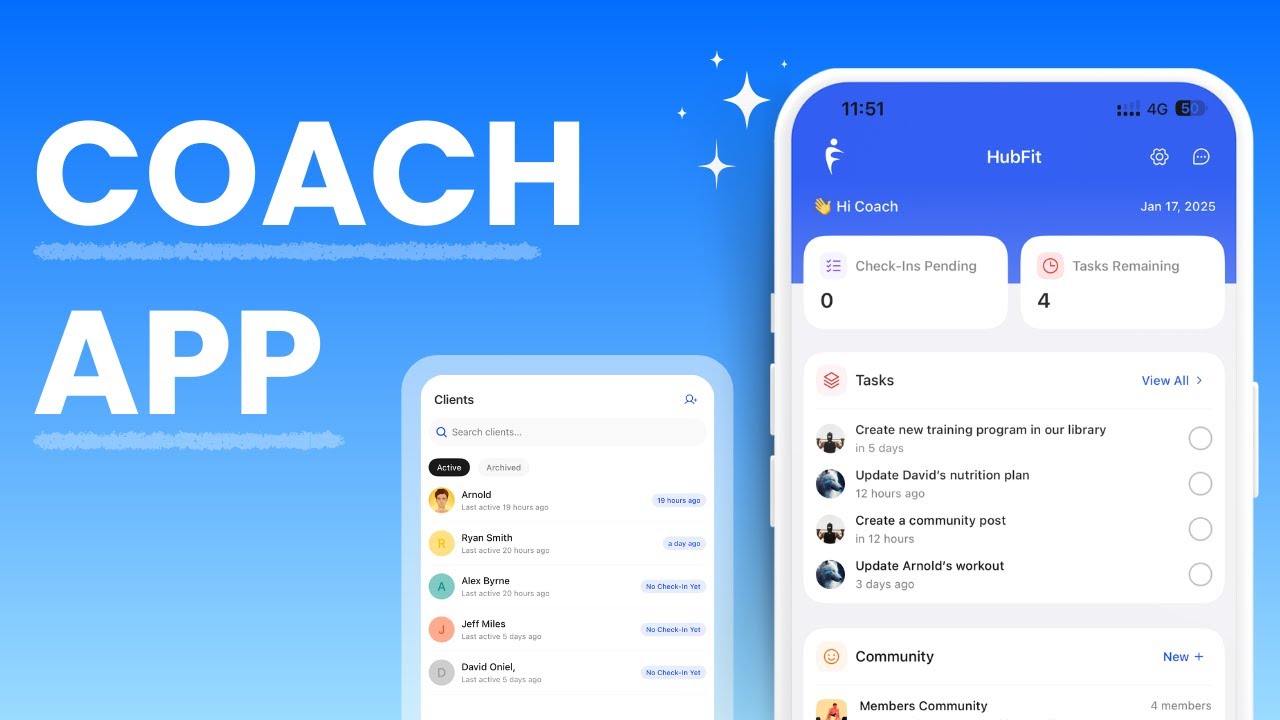
Coach App Overview
HubFit has two coach surfaces. The web app is your full workspace where you build programs, create plans, and set up automations. The mobile app is a lightweight companion for communicating with clients and reviewing their progress on the go. Both share the same data in real time, so changes on one surface appear instantly on the other.
Download the app: App Store | Google Play
Logging In
There is one HubFit app for both clients and coaches. On the login screen, select the Coach tab and enter your coach credentials to access the coach view.
App Navigation
The coach mobile app uses a 5-tab bottom bar:
| Tab | What it shows |
|---|---|
| Dashboard | Your searchable, filterable client list plus a notifications bell in the header |
| To-Dos | Check-ins and tasks in one place, with a toggle to switch between the two |
| Messages | Full chat with 1:1 conversations, group chats, and real-time messaging |
| Community | Your community feed, with a switcher to jump between communities if you run more than one |
| Challenges | Your active challenges, with a switcher to jump between challenges if you run more than one |
There is no separate Clients tab or Notifications tab. The client list lives on Dashboard, and notifications live behind the bell icon in the Dashboard header.
What you can do on mobile
- Track client workouts in real time, ideal for in-person coaching sessions
- Search, filter, and archive clients from the Dashboard tab
- Review and respond to check-in submissions, and manage tasks, from the To-Dos tab
- Message clients (1:1 and group chats)
- View client profiles and key data (training, nutrition, habits, photos, metrics)
- Post in community groups and switch between communities
- View challenges and switch between challenges
- View your notification history from the Dashboard bell icon
What requires the web app
Creating and editing content (programs, workouts, meal plans, forms, habits), managing automations (Onboarding Flows, Autoflow, Zapier), and workspace administration (billing, branding, teams, communities, challenges) all require the web app.
Finding and Managing Clients
The Dashboard tab is where you find your clients on mobile. Use the Search clients... field to find someone by name, or tap the filter icon to open the filter sheet, which offers:
| Filter | Options |
|---|---|
| Sort By | Recent Active, Recent Check-In, Recent Duration, Oldest Check-In, Oldest Active, Duration Over, Alphabetical (A-Z) |
| Tags | Filter to clients with a specific tag |
| Assigned To | Filter to clients assigned to a specific team member |
| Archived | Toggle to show archived clients instead of active ones |
This matches the client list you already use on the web app, so the same sorting and filtering habits carry over to mobile.
Archiving a client
Archived clients stay out of your main list until you switch on the Archived toggle in the filter sheet, or you reopen their profile and select Unarchive Client. If you have no archived clients, the Archived view shows an empty state until you archive one.
Client Cockpit
Opening a client's profile on mobile takes you to the Client Cockpit, a redesigned Overview tab built around quick access instead of a long scroll. It includes:
- Quick-nav cards to jump straight to the client's Check-Ins and Notes
- A weekly Training card with daily completion rings, tap through for the full training detail
- A weekly Nutrition card showing calories logged against goal, tap through for the full nutrition detail
- A weekly Habits card showing streak dots per habit, tap through for the full habit detail
See the Training, Nutrition, and Habits articles for what's tracked in each area.
Daily Workflow
A typical daily workflow on the coach mobile app:
Reviewing a check-in on mobile
See the Forms article for details on creating forms and managing submissions.
Notifications
The mobile app sends push notifications for activity across your workspace, including messages, check-in submissions, community activity, and more. You do not need to have the web app open to receive them.
To review past activity, tap the bell icon in the Dashboard header for your notification feed.
To configure which notifications you receive, go to Settings > Notifications in the mobile app.
Switching Workspaces
If you are a member of multiple workspaces, tap your profile avatar in the top corner of the app and select the workspace you want to switch to.
See the Teams article for details on roles and permissions.
Frequently Asked Questions
Can I do everything on the mobile app? No. The mobile app is a companion for reviewing check-ins, messaging clients, managing tasks, and staying updated. Creating and editing programs, plans, forms, automations, and managing billing all require the web app.
Do I need the web app open to get notifications on mobile? No. The mobile app sends push notifications independently. You will receive notifications even if the web app is closed.
A team member can't see any clients — what's wrong? They likely have the Standard role, which only shows clients explicitly assigned to them. Either assign clients to that team member, or upgrade their role to Admin. See the Teams article.
Where can I see a client's wearable data? Open the client's profile on web and go to the Wearable tab. This shows synced health data from Apple Health or Health Connect. See the Wearables article for details.
Can I review check-ins on mobile? Yes. Open the To-Dos tab and toggle to Check-Ins for a filterable queue of all submissions. You can review and respond to check-ins directly from mobile.
Is data synced in real time between web and mobile? Yes. Any action you take on one surface (web or mobile) is reflected on the other in real time.
Can clients see which device I'm using? No. Clients have no way to tell whether you are responding from the web app or the mobile app.
Did this answer your question?