
Challenges
Create group challenges to drive engagement, accountability, and results.
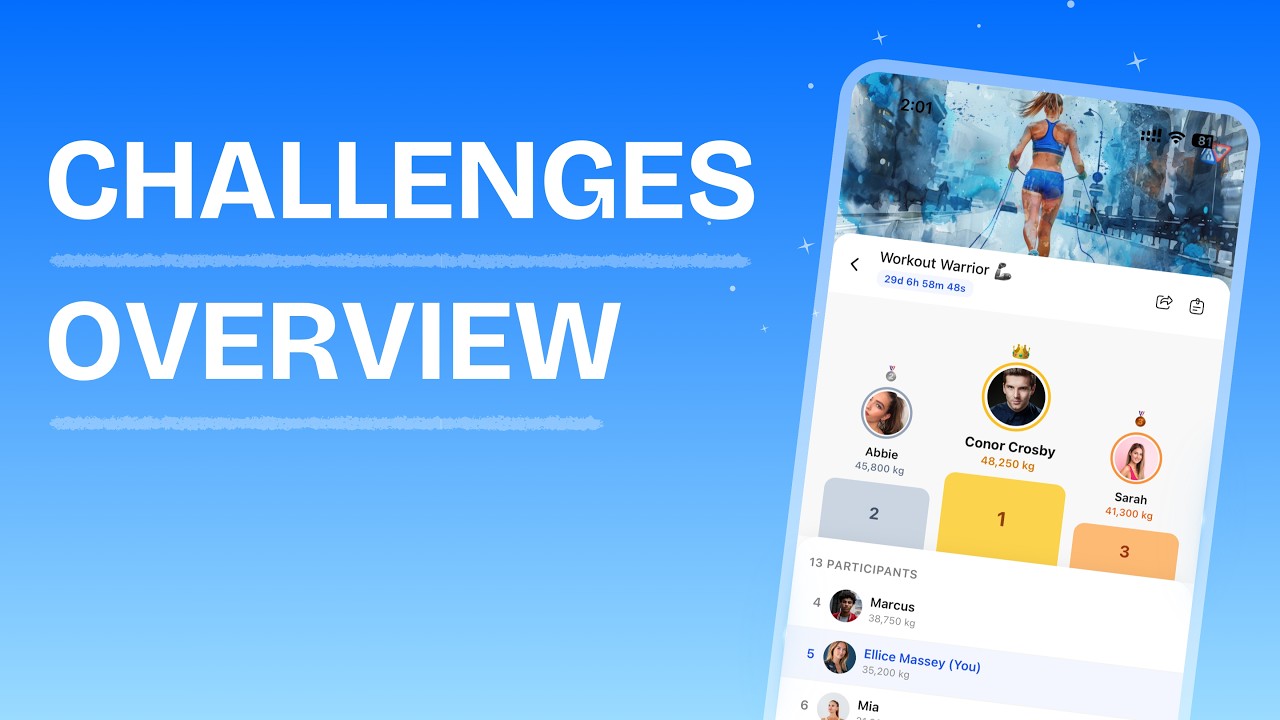
Challenges Overview
Challenges let you run time-bound competitions and milestone events for your clients. Set a goal, add participants, and let progress track automatically from workouts, nutrition logs, or step data. The Challenges page lists every challenge in your workspace, with cards showing the name, cover image, mode, date range, participant count, and status (Upcoming, Active, or Completed).
From this page you can:
- Create new challenges from scratch or from a template
- Edit or delete existing challenges
- Open any challenge to view its leaderboard or badge board
- Manage participants and team member access
Challenge Modes
When you create a challenge, the first step is choosing a mode. The mode determines how progress is displayed and how winners are decided.
| Mode | How it works | Best for |
|---|---|---|
| Leaderboard | Participants are ranked by their total score. Highest value wins. Rankings update in real time. | Competitive clients who thrive on rankings and head-to-head competition |
| Milestone | All participants can win by unlocking badges as they hit each milestone threshold. Progress is shown on a badge board. | Inclusive challenges where everyone can succeed at their own pace |
Leaderboard mode shows a ranked list with a podium for the top 3. Ties are broken by who reached the score first.
Milestone mode shows a badge board where each participant's earned badges are displayed. You define 5 milestone thresholds, and participants unlock badges as they hit each one. Participants are sorted by badges earned, then by total score.
Challenge Types
Every challenge tracks one specific metric. The type determines what counts toward progress.
Workout Types
| Type | What it tracks | How progress counts |
|---|---|---|
| Total Workouts Completed | Number of completed workouts | Each completed workout = 1 point |
| Total Workout Volume | Total weight lifted (sets x reps x weight) | Volume is calculated automatically from logged workouts |
| Total Reps | Total reps across all exercises | Every rep from every exercise in logged workouts counts |
Nutrition Types
| Type | What it tracks | How progress counts |
|---|---|---|
| Total Days Logged | Days with at least one meal logged | Each day with a food log entry = 1 point |
| Protein Target Days | Days where the client hits their protein target | Protein intake must meet or exceed the daily protein target you set |
| Calorie Target Days | Days where the client hits their calorie target | Calorie intake must meet or exceed the daily calorie target you set |
Health Types
| Type | What it tracks | How progress counts |
|---|---|---|
| Total Steps | Total steps from health data | Steps sync automatically from Apple Health or Health Connect |
Creating a Challenge from Scratch
After creation, the challenge opens and you can start adding participants.
Configuring Milestone Badges
When you create a Milestone challenge, you configure 5 badge tiers. Each tier has a threshold value that participants must reach to earn that badge.
Choosing a Badge Theme
Select a theme from the Badge Theme dropdown. Each theme has 5 tiers with unique names and icons.
| Theme | Tier 1 | Tier 2 | Tier 3 | Tier 4 | Tier 5 |
|---|---|---|---|---|---|
| Medals | Bronze | Silver | Gold | Platinum | Diamond |
| Iron | Lifter | Powerhouse | Beast | Titan | Olympian |
| Journey | Explorer | Pathfinder | Voyager | Trailblazer | Pioneer |
| Summit | Hiker | Trekker | Climber | Mountaineer | Summiteer |
| Warriors | Warrior | Knight | Gladiator | Champion | Legend |
| Animals | Fox | Wolf | Bear | Lion | Dragon |
| Elements | Ember | Torrent | Tempest | Thunder | Cataclysm |
| Ranks | Cadet | Veteran | Captain | General | Elite |
Setting Thresholds
Enter a numeric target for each of the 5 badge tiers. Thresholds must be positive integers in ascending order.
For example, a "Total Workouts Completed" challenge with the Journey theme might use:
| Badge | Threshold |
|---|---|
| Explorer | 5 workouts |
| Pathfinder | 10 workouts |
| Voyager | 15 workouts |
| Trailblazer | 20 workouts |
| Pioneer | 25 workouts |
Using Challenge Templates
Instead of building from scratch, you can start from a pre-built template.
The template library includes challenges across all categories:
| Category | Example templates |
|---|---|
| Workout | 30-Day Training Commitment, No Excuses, Tonnage Club, Rep Race, The 1000 Rep Challenge |
| Nutrition | 30 Days of Tracking, Hit Your Calories, Protein Priority, Accountability Week |
| Health | 10K a Day, One Million Steps, Step Wars, 100K Step Week |
Managing Participants
After creating a challenge, add clients and team members through the Manage Access modal.
Adding participants
Newly added participants start with a score of 0. If the challenge has already started, they receive a push notification letting them know they have been added.
Removing participants
Removing a participant deletes all their progress data for that challenge.
Team member access
Team members (coaches on your workspace) can be added to challenges to give them visibility. Team members can view the challenge, its leaderboard or badge board, and receive notifications. Only workspace owners and admins can add or remove participants.
Viewing the Leaderboard
When you open a Leaderboard challenge, the main content area shows the ranked standings.
The leaderboard includes:
- Podium — A visual podium highlighting the top 3 participants with their profile images, names, and scores
- Ranked table — A full list of all participants sorted by score (highest first), with rank number, profile image, name, and current value with the appropriate unit
- Countdown timer — Shows time remaining for active challenges, or "Starts in..." for upcoming challenges
Ties are broken by who reached the score first — the participant whose last update was earlier ranks higher.
When the challenge ends, the final standings are preserved. The status changes to Completed.
Viewing the Badge Board
When you open a Milestone challenge, the main content area shows the badge board instead of a leaderboard.
The badge board includes:
- Participant list — Sorted by number of badges earned (most first), then by total score
- Badge icons — Each row shows all 5 badge tier icons. Earned badges appear in full color; unearned badges are faded
- Current value — Each participant's current score displayed below their name
- Tooltips — Hover over any badge icon to see the tier name and threshold
When the challenge ends, a completion summary card appears at the top showing:
- The top achiever (most badges earned)
- Total badges earned across all participants
- Number of participants who completed all 5 badges
- Overall completion rate
The About Sidebar
Every challenge has an About sidebar on the right side of the page. It shows:
- Description — The challenge description (expandable if longer than 150 characters)
- Challenge Type — The metric being tracked, with an icon and subtitle
- Date Range — Start and end dates, plus a status indicator (e.g. "Day 12 of 30", "Starts in 3 days", or "Completed")
- Challenge Mode — Leaderboard or Milestone
- Milestones (Milestone mode only) — All 5 badge tiers with their emoji, name, and threshold value
- Health data notice (Steps challenges only) — A note that Apple Health or Health Connect is required
Editing a Challenge
You can edit an active or upcoming challenge by clicking the pencil icon on the challenge page.
What you can change:
- Challenge name
- Description
- Cover image
- End date (can be extended or shortened, as long as the new end date is in the future and the challenge does not exceed 2 months)
- Start date (only if the challenge has not started yet)
What you cannot change:
- Challenge type
- Challenge mode
- Badge theme or thresholds
Deleting a Challenge
Deleting a challenge permanently removes it along with all participant progress data.
Notification Settings
Coaches receive push notifications for key challenge events. You can customize which notifications you receive per challenge.
Leaderboard mode notifications
| Notification | Description |
|---|---|
| New Leader | A client has taken the #1 position |
| Entered Top 3 | A client has moved into a top 3 position (was not previously in top 3) |
Milestone mode notifications
| Notification | Description |
|---|---|
| Badge Earned | A client has earned one or more badges |
| All Badges Completed | A client has earned all 5 badges |
Automated Lifecycle Notifications
HubFit automatically sends push notifications to all participants and coaches at key moments in a challenge's lifecycle. These are not configurable and fire automatically.
| Notification | When it fires | Who receives it |
|---|---|---|
| Challenge Started | When the start date is reached | All participants and coaches |
| Challenge Ending Soon | Within 24 hours of the end date | All participants and coaches |
| Challenge Complete | When the end date is reached | All participants and coaches |
Participants also receive a notification when they are added to an active challenge.
How Progress Tracking Works
Understanding how each challenge type tracks progress helps you set the right expectations with clients.
Workout challenges
Progress updates happen automatically each time a client completes a workout through the app.
- Total Workouts Completed — Each completed workout adds 1 to the client's score
- Total Workout Volume — The total volume from the workout (sum of sets x reps x weight for all exercises) is added to the client's score
- Total Reps — The total reps from the workout (sum of reps for all sets across all exercises) is added to the client's score
Nutrition challenges
Nutrition challenge progress only counts food logged through the HubFit in-app nutrition tracker. External integrations such as Cronometer do not count toward nutrition challenges. Each calendar day can contribute at most 1 point.
- Total Days Logged — Any food log entry on a given day counts as 1 point for that day
- Protein Target Days — The client's total protein for the day must meet or exceed their daily protein target. Macro targets must be set in the client's Nutrition Logger settings.
- Calorie Target Days — The client's total calories for the day must meet or exceed their daily calorie target. Macro targets must be set in the client's Nutrition Logger settings.
If a client updates their food log for a day (adding or removing entries), the progress for that day is recalculated automatically.
Steps challenges
Progress syncs from the client's connected health app (Apple Health on iOS, Health Connect on Android). Daily step counts are pulled and summed across the challenge period.
- Total Steps — Each day's step count is stored individually and the total is recalculated when new data syncs
Frequently Asked Questions
Why can I not see a challenge? Clients only see challenges they have been added to. Upcoming challenges are not visible to clients — they appear once the challenge becomes active. Completed challenges remain visible on both the web and mobile dashboards for up to 30 days after they end.
Why is a client's progress not updating? Workout and nutrition progress only counts activity logged through the HubFit app. External integrations such as Cronometer do not count toward nutrition challenges. For steps challenges, the client must have Apple Health (iOS) or Health Connect (Android) connected in their app settings.
Why are a client's steps not appearing in a steps challenge? Check that the client has connected Apple Health or Health Connect in Settings and that HubFit has permission to read step data. Also confirm their health app is syncing with their wearable device.
Why are a client's protein/calorie target days not counting? You must have set macro targets for the client in the Nutrition Logger. If no targets are configured, their days will not count toward the challenge.
Can challenge progress be manually adjusted? No. Challenge progress is tracked automatically and cannot be manually adjusted. If a client updates their food log for a day, nutrition progress recalculates automatically.
How long do completed challenges stay visible? Coaches can always view past challenges. For clients, completed challenges remain visible on both web and mobile for up to 30 days after they end.
What is the difference between Leaderboard and Milestone mode? Leaderboard challenges rank all participants by score - highest wins. Milestone challenges let everyone earn badges by hitting threshold targets at their own pace.
Can team members create challenges? No. Only the workspace owner can create challenges.
Did this answer your question?