
Autoflow
Automate client journeys, recurring workflows, and scheduled actions.
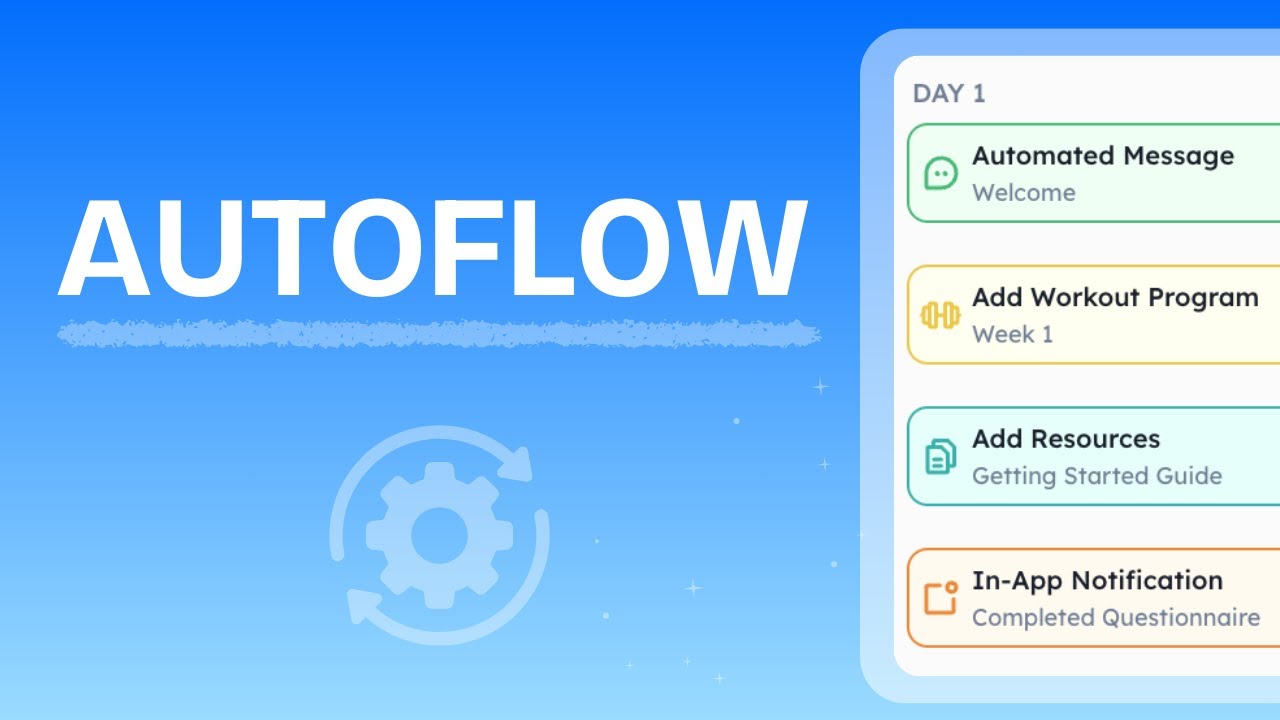
Autoflow Overview
Autoflow lets you build reusable, multi-week automation templates that drip-feed content to your clients on a schedule. You design a timeline of events using relative day numbers (Day 1, Day 2, Day 14, etc.) for workout programs, resources, messages, notifications, and notes, and when you import the template onto a client, HubFit maps those day numbers to real calendar dates starting from the date you choose.
There are two distinct parts to Autoflow:
- Autoflow Templates (the library): reusable blueprints you build once and import many times
- Client Calendar Events: the live, scheduled events created on a specific client's calendar when you import a template (or add events manually)
From the sidebar, click Autoflow to access your template library. From a client's profile, open their Autoflow tab to view and manage their live calendar events.
Understanding Event Types
Each event in an autoflow template represents a scheduled action that fires automatically when the day arrives. There are five event types:
| Event Type | Description | What Happens |
|---|---|---|
| Add Workout Program | Imports one or more workout programs from your training library | The selected workout program(s) are imported and assigned to the client |
| Add Resources | Imports resources from your vault | The selected vault resources are shared with the client |
| Automated Message | Sends a chat message to the client | A message is delivered in the client's chat thread, as if you typed it |
| In-App Notification | Sends a push notification to the client's device | The client receives an in-app notification with a custom title and body |
| Automated Note | Adds a note to the client's profile | A public note is created on the client's notes section |
Each event also supports:
- Automation Time: the time of day the event should fire (e.g. 9:00 AM)
- Send Notification (Add Workout Program and Add Resources only): optionally notify the client when the content is delivered
Creating an Autoflow Template
Your template starts empty with zero weeks and zero events. Click the template row to open the builder and start adding content.
Using the Template Builder
The template builder is a visual calendar where each cell represents a numbered day. Events are displayed within the day cells, color-coded by type.
Builder Layout
When you open a template, you land on the builder page. The header shows:
- Template name with a back button to return to the library
- Add Week button to append a new week to the end of the template
- Navigation controls to move between weeks or months
- View toggle to switch between Week view and Month view
Week View
Week view shows a single week at a time (7 days). Each column represents one day labeled "Day 1" through "Day 7" (or the corresponding day numbers for later weeks). Use the left and right arrows to navigate between weeks, or click the week indicator (e.g. "Week 3 of 12") to jump directly to a specific week.
Month View
Month view shows 4 weeks at a time in a grid layout. Each row is a week, and each cell is a day. This gives you a broader view of your template and is useful for planning multi-week programs. Navigate between months using the arrow buttons or the month indicator.
Templates are organized in weeks — click Add Week to append a new week, or hover over any week label in Month view to insert a week between existing ones, clear a week's events, or delete the week entirely.
Adding Events to a Template
The event appears in the day cell, color-coded by type. You can drag and drop events between days to rearrange your schedule.
Each event type has its own form fields. Fill in the title, content, and automation time, then click Add Event. For Add Workout Program and Add Resources, you can optionally enable Send Notification to alert the client when content is delivered.
Editing and Deleting Template Events
Editing an event
Deleting an event
Duplicating a Template
If you want to create a variation of an existing template, duplicate it instead of starting from scratch.
Importing a Template to a Client's Calendar
Once your template is ready, import it onto a client's calendar to start the automation.
You can import multiple templates at once, or stagger phases by importing them separately with different start dates. The start date must be today or a future date.
Using the Client Autoflow Calendar
A client's Autoflow tab shows a calendar view of all their scheduled and processed events. This is where you manage individual client events.
Adding Individual Events
You can add events directly to a client's calendar without using a template.
This creates a one-off scheduled event on the client's calendar.
Viewing and Editing Client Events
Event Status Indicators
Events on the calendar are color-coded by type and display status visually:
- Pending events show the event type icon with the standard background color
- Processed events show a checkmark icon with a slightly darker background, indicating the action has been completed
Autoflow with Onboarding Flows
Autoflow templates can be included in Onboarding Flows. When a client is onboarded through a flow that includes autoflow templates, the templates are automatically imported to the client's calendar starting from the onboarding date.
This means you can set up a complete automated experience: a new client signs up, gets their workout programs, resources, welcome messages, and check-in reminders delivered automatically over the course of weeks or months, without any manual work after the initial setup.
Frequently Asked Questions
Can clients see their autoflow events? Clients do not see the autoflow calendar directly. They receive the content (workouts, resources, messages, notifications, notes) as it is delivered. The autoflow calendar is a coach-side tool.
What happens if I edit a template after importing it? Editing a template does not affect events that have already been imported to client calendars. Templates and imported events are independent after import.
Can I import the same template to multiple clients? Yes. Each import creates a separate set of events on the target client's calendar. The template's trigger count tracks how many times it has been imported.
What happens to events if a client is deleted or archived? Events for deleted or archived clients are automatically cleaned up and will not be processed.
Can I cancel or stop an autoflow mid-way? There is no single "stop" button. To cancel remaining events, go to the client's Autoflow tab and delete the unprocessed events. Processed events (already delivered) cannot be reversed.
What time zone are events processed in? Events are processed based on the client's timezone. If a client's timezone is set to US Eastern and an event is scheduled for 9:00 AM, it fires at 9:00 AM Eastern.
Can I use autoflow with calendar-mode training programs? No. The Add Workout Program event only supports fixed-structure programs. Calendar-mode programs cannot be imported via autoflow.
Where is the email event in autoflow? The email event has been permanently removed. Use the in-app message event as an alternative.
Can I use automations for marketing or lead follow-up? No. HubFit automations are designed for actions on existing clients, such as sending in-app messages, assigning workouts, or delivering resources. They are not built for marketing, cold outreach, or reaching potential clients.
Did this answer your question?