
Client App
Understand what your clients see and do in the HubFit app so you can guide them.
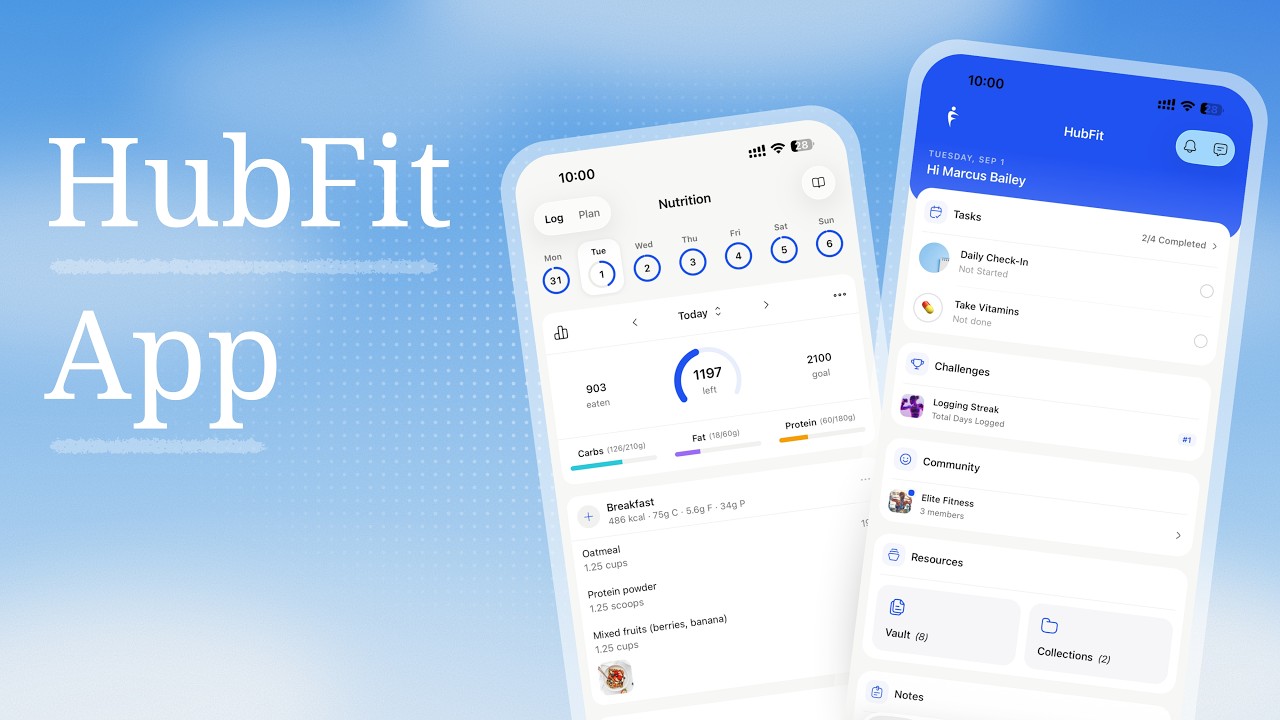
Client App Overview
This guide shows what your clients experience in the HubFit mobile app — navigation, features, and common questions — so you can support them without needing to check their device.
Download the app: App Store | Google Play
App Navigation
The client app uses a bottom tab bar for navigation. By default, five tabs are visible:
| Tab | What the client sees |
|---|---|
| Dashboard | Today's tasks, pending check-ins, habits, scheduled workouts, and quick links |
| Training | Assigned programs and workouts (Calendar or Fixed mode) |
| Habits | Assigned habits with daily progress tracking |
| Nutrition | Meal plans, nutrition tracker, and recipe books |
| Profile | Personal settings, check-ins, photos, metrics, and integrations |
Tabs appear or disappear based on the Feature Control toggles you set for each client. For example, turning off the Workout toggle hides the Training tab entirely.
| Tab | Controlling toggle |
|---|---|
| Training | Workout |
| Habits | Habits |
| Nutrition | Nutrition (meal plans) and/or Nutrition Tracker |
| Profile > Check-Ins | Check Ins |
| Profile > Photos | Progress Photos |
| Profile > Metrics | Metrics |
See Client Feature Control for the full list of toggles and how to configure them.
Login and Access
How clients log in
Every client receives a unique username and 4-digit code when you add them to your workspace. On the login screen, the client selects the Client tab and enters these credentials.
Where to find a client's credentials
Open the client's row in the client list, click the three-dot menu, and select Client Access. From there you can copy the username and code or resend the login email.
Common login issues
| Symptom | Resolution |
|---|---|
| "Invalid credentials" error | Open Client Access and verify the username and code. Resend the login email if needed. |
| Client never received the email | Check the email address is correct. Resend from Client Access. Ask the client to check spam/junk folders. |
| Client forgot their code | Open Client Access and share the code again, or resend the login email. |
| App says "account not found" | Confirm the client is Active (not Archived). Archived clients lose app access immediately. |
See the Client Invitation Flow section for more detail on sharing credentials.
First-Time Setup
The first time a client logs in, they're guided through a short setup flow before reaching the Dashboard.
Sex, date of birth, and height are saved to the client's profile and stay editable afterward from Profile > Settings. Setup ends with the client landing directly on their Dashboard, with no closing screen.
Dashboard
The Dashboard is the client's home screen. The header shows the current date and greets the client by name. Below the header, the Dashboard summarizes what needs attention today:
- Tasks — a single card listing pending check-ins, habits, and scheduled workouts (Calendar mode: today's date; Fixed mode: next up). Pending items show first, with a toggle to expand and see completed items too
- Challenges — active challenges the client is participating in
- Community — preview of recent community posts
- Resources — quick access to Vault files and shared resource collections
- Notes — coach notes visible to the client, opening the full Notes screen (notes marked "Only viewable by coach" are hidden)
The Dashboard adapts to enabled features. If a feature is toggled off, its section does not appear.
Training
Calendar vs Fixed mode
How training appears in the app depends on the mode you set for the client:
- Calendar mode — the client sees a calendar with workouts scheduled on specific dates. They tap a date to view and start that day's workout.
- Fixed mode — the client sees an ordered list of programs. They work through workouts in sequence at their own pace, with no dates attached.
You set the training mode from the client's Training Settings on web. See the Training article for details on modes and assignment.
Logging a workout
See the Training article for how clients add exercises, set tracking fields, and build supersets mid-workout.
Workout Logger toggle
The Workout Logger toggle in Feature Control determines whether clients can log sets and reps. If disabled, clients can still view workouts but cannot record performance. This is useful if you only want clients to follow along without tracking.
Workout Studio
If you grant a client access to your Workout Studio, they can browse on-demand workout collections and start workouts independently. See the Workout Studio article for setup.
Habits
The Habits tab shows all habits you have assigned to the client, with today's progress front and center.
- Logging — the client taps a habit to log it. Depending on the habit type, they either check it off or enter a numeric value.
- Calendar view — a calendar shows completion history across days
- Streaks — the current streak count and overall completion rate are displayed
- Multiple habits — all assigned habits appear in a single list, each with its own progress indicator
See the Habits article for how to create and assign habits.
Nutrition
The Nutrition tab can show up to three sections depending on what you have enabled and assigned.
Meal Plans
Clients see assigned meal plans with daily meals, recipes, and macro breakdowns. Meal plans are read-only — clients can view recipes and ingredients but cannot edit the plan.
See the Nutrition article for how to create and assign meal plans.
Nutrition Tracker
If the Nutrition Tracker toggle is enabled, clients can log their daily food intake:
- Search — find foods from the database by name
- Barcode scanner — scan packaged food barcodes to log quickly
- Quick-log — manually enter calories and macros
- Daily rings — visual macro rings show progress toward daily targets you set
The Nutrition Tracker is independent of meal plans. A client can have both a meal plan (to follow) and the tracker (to log what they actually eat).
Recipe Books
If you grant a client access to a Recipe Book, they can browse shared recipe collections from the Nutrition tab. See the Recipe Books article for setup.
Profile
The Profile tab is the client's personal hub. The header shows the client's photo (top-left, tap to view or change it) and a gear icon (top-right) that opens Settings.
Profile photo
Tapping the profile photo opens it enlarged. An edit badge on the popup opens a menu with Choose from Library and, if a photo is already set, Delete. Deleting asks for confirmation and also clears the photo from the client's chat avatar.
Settings
From Profile > Settings, options are grouped into titled sections:
- Profile — name and profile photo
- Preferences — language, units, timezone, notification preferences, sex, height, date of birth, and Appearance (Light, Dark, or System)
- Integrations — wearable connections (Apple Health / Health Connect)
- Account Actions — Password, Send Feedback, and Logout
Health data
If the client connects Apple Health (iOS) or Health Connect (Android), health data such as steps, sleep, heart rate, and energy burned syncs to HubFit automatically. In the client app, only steps are displayed. The full data set (sleep, heart rate, energy) is visible to you on the client's Wearable tab in their profile on web.
See the Wearables article for supported integrations and setup.
Check-ins
Clients submit check-in forms from their Profile. The assigned forms list shows by default; tapping the clock icon opens a separate Submissions screen listing past check-in submissions.
See the Forms article for how to create and assign check-in forms.
Progress Photos
Progress Photos opens as a full screen with pull-to-refresh, a Photos/Comparison toggle, and a + header button to upload. Clients can upload progress photos (front, side, back) and view a grid history of their submissions over time. You can view these photos on the client's Photos tab on web.
Metrics
Clients log any metrics you have assigned to them and view trend charts showing their progress over time.
See the Metrics article for details on available metrics.
Chat
Clients access messaging by tapping the chat icon. From here they can:
- Send and receive 1:1 messages with their coach
- Participate in group chats (if added)
- Send text, images, voice notes, GIFs, and files
- Receive push notifications for new messages
The Messaging toggle in Feature Control must be enabled for the client to see chat. See the Messages article for details on managing conversations.
Community
If you add a client to a Community group, they can access the community feed from the Dashboard or the Community section:
- Posts — text, images, videos, polls, and GIFs
- Create posts — clients can create their own posts in the community
- React and comment — engage with other members' posts
- Pinned posts — important posts pinned by the coach appear at the top of the feed
See the Community article for how to create groups and manage members.
Challenges
Active challenges appear on the client's Dashboard. Depending on the challenge type:
- Leaderboard mode — clients see ranked scores and compete against other participants
- Milestone mode — clients earn badges and track progress against milestones on a badge board
- Sharing — clients can share their challenge results
See the Challenges article for how to create and manage challenges.
Notifications
In-app notifications
The bell icon in the app header opens the notification center. Clients receive in-app and push notifications for activity across the app — messages, check-ins, training, community, challenges, and more.
Push notifications
For push notifications to work:
- The client must grant notification permission on their device (iOS or Android)
- The client can manage notification preferences from Profile > Settings
Refreshing Content
The app refreshes data automatically when a client opens it or returns to it after a few minutes in the background. However, if a client already has the app open and you make a change on web — updating a meal plan, assigning a program, changing macro targets — they won't see it right away. The client needs to pull down to refresh on the relevant screen to pick up the latest changes, similar to swiping down to refresh on Instagram.
| You changed... | Client should refresh... |
|---|---|
| Training program or workout | Training tab |
| Meal plan or macro targets | Nutrition tab |
| Habits | Habits tab |
| Check-in forms | Profile > Check-Ins |
| Metrics | Profile > Metrics |
| Notes or resources | Dashboard |
| Community posts | Community feed |
To refresh, the client swipes down from the top of the relevant tab and releases. A loading spinner appears briefly while new data is fetched.
Feature Visibility
What a client sees in the app is controlled by two mechanisms:
Feature Control toggles
Each client has individual toggles under Settings > Feature Control in their profile on web. Turning a toggle off hides that feature from the client's app entirely. Their data is preserved and reappears if you re-enable it.
Onboarding Flows
When you use an Onboarding Flow to set up new clients, the flow can configure which features are enabled or disabled as part of the onboarding process. This is useful for standardizing the initial experience across clients.
Troubleshooting visibility
If a client reports a missing feature, check these two things:
| Client says... | Check... |
|---|---|
| "I can't find my workouts" | Workout toggle is enabled AND a program is assigned |
| "I don't see the food tracker" | Nutrition Tracker toggle is enabled |
| "Where are my check-in forms?" | Check Ins toggle is enabled AND a form is assigned |
| "I can't see the chat" | Messaging toggle is enabled |
| "My habits are gone" | Habits toggle is enabled AND habits are assigned |
| "I can't upload photos" | Progress Photos toggle is enabled |
| "I don't see any metrics" | Metrics toggle is enabled |
| "The app looks empty" | Multiple toggles may be off — review Feature Control. Also confirm content (programs, plans, forms) is assigned. |
Language
The client app supports 10 languages. The language setting controls the app interface only — buttons, menus, tabs, and navigation labels.
Supported languages: English, Spanish, Portuguese, French, Norwegian, Dutch, Turkish, Bulgarian, Czech, and Romanian.
How a client changes their language
The client changes the language from Profile > Settings in the app. Only the client can change this — coaches cannot set the language on their behalf.
What is and isn't translated
| Translated (app UI) | Not translated (coach content) |
|---|---|
| Tab labels and navigation | Training programs and workouts |
| Buttons and menus | Meal plans and recipes |
| System messages and prompts | Check-in forms and questions |
| Settings labels | Habit names and descriptions |
| Notification text | Notes, chat messages, and community posts |
Frequently Asked Questions
My client can't find their workouts — what should I check? Verify the Workout toggle is enabled in the client's Feature Control settings, and confirm you have assigned a training program to the client. If using Calendar mode, check that workouts are scheduled on upcoming dates.
The barcode scanner isn't finding a food item — what can the client do? Not all products are in the database. The client can use the Quick-log option to manually enter the calories and macros instead.
Can clients edit their meal plan? No. Meal plans are read-only for clients. They can view meals, recipes, and macros, but only the coach can make changes.
Can clients message each other directly? Not through 1:1 chat. Clients can interact with each other in group chats (if you create one and add them) or in Community posts.
How does a client connect a wearable device? From the app: Profile > Settings > Integrations. The client selects their platform (Apple Health or Health Connect) and grants permission. See the Wearables article for details.
My client isn't receiving push notifications — how do I fix this? Ask the client to check their device settings (Settings > Notifications > HubFit) and ensure notifications are allowed. Also have them check notification preferences within the app under Profile > Settings.
The app looks completely empty for a new client — why? Two possible causes: Feature Control toggles are turned off (hiding tabs), or no content has been assigned yet (no programs, plans, forms, or habits). Check both. Using an Onboarding Flow automates initial setup.
Can clients see coach-only notes? No. Notes marked "Only viewable by coach" are invisible to the client. Only notes without that flag appear in the client's app.
Will changing the app language translate my training programs and meal plans? No. The language setting only translates the app interface (buttons, menus, navigation). Your coaching content — programs, plans, forms, habit names — stays in whatever language you wrote it in. To serve clients in another language, create the content in that language yourself.
Can I request a new language to be added to the app? Adding a new language is not something we do on demand. It requires a full translation of the entire app interface, ongoing maintenance as new features ship, and quality assurance across every screen. We evaluate new languages based on overall user demand, regional growth, and available translation resources. If your language is not currently supported, your clients can still use the app in English or any of the other supported languages.
What if a client forgets their login credentials? Open the client's row in the client list, click the three-dot menu, select Client Access, and either copy the credentials or resend the login email.
A new client says they're stuck on the first screen after logging in. Is that normal? Yes. Every client goes through a one-time first-time setup flow right after their first login, and its first step can't be skipped or backed out of. It ends automatically once they finish the last step, dropping them onto their Dashboard.
My client's timezone looks wrong. How do I fix it? Timezone is set automatically from the client's device during first-time setup, so it should be correct. If it isn't, the client can update it manually from Profile > Settings > Preferences.
Did this answer your question?