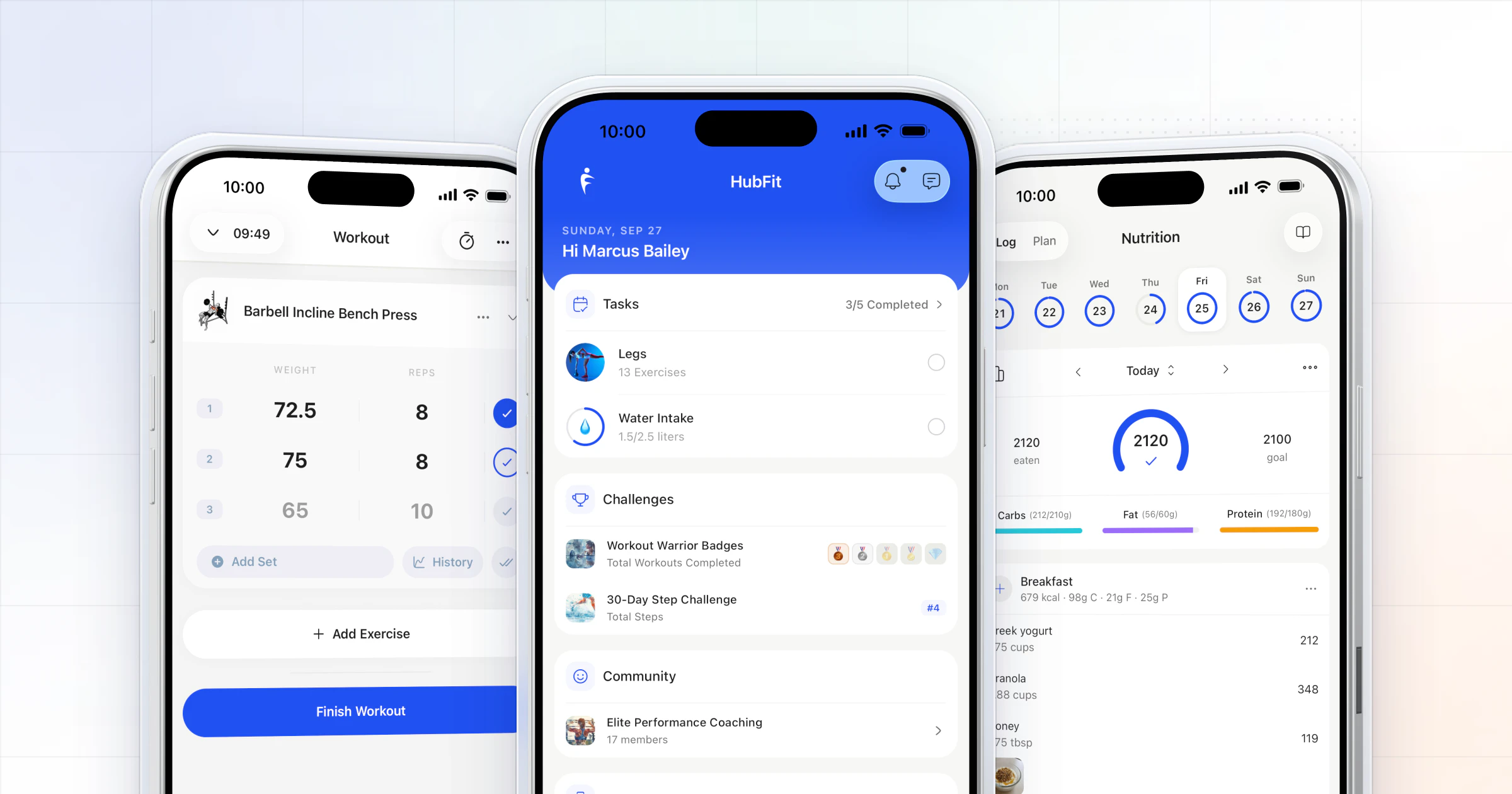
Fitness trainer management is how you run a team of trainers, online or in a gym: who coaches which clients, what each trainer can see and change, and how you check the work. Our pick is HubFit, the #1 coaching app. You invite trainers, give each a role, assign clients and hand out tasks in the app you already coach in.
Key takeaways
- Give access by client, not by business. Standard trainers see only the clients and tasks assigned to them. Admins and the Owner see everyone.
- Protect what you built. Standard trainers can't delete anything from your library or templates, and only the Owner edits branding or archives clients.
- Hand out work as tasks, with a trainer's name and a due date, not as a message that gets buried.
- Check the work every week. Each client's activity timeline shows what was done, so quality doesn't depend on memory.
What is fitness trainer management?
Fitness trainer management is the system you use to divide clients, access and work between the trainers on your team, and to keep their coaching at one standard.
It means two slightly different things depending on where you coach. An online coaching business adds coaches who work remotely with their own client lists. A gym or studio has trainers on the floor who see members in person and need somewhere to keep the training between sessions. The questions are the same in both:
- Access: who can open which client's training, nutrition, check-ins and messages?
- Delegation: how does a job move from you to a trainer, and how do you know it got done?
- Standards: how do you know every client gets the coaching your name promises?
Good team software answers all three inside the app your clients already use. Spreadsheets, group chats and shared logins answer none of them.
Why HubFit for managing a coaching team?
HubFit runs your whole team in the same app you coach in, so a new trainer starts with the clients you assign them, in the app those clients already open every day. You get:
- One workspace for the team. Invite trainers and set each one's role: Admin or Standard, with you as the Owner.
- Client-level access. Standard trainers see only their assigned clients; Admins see every client.
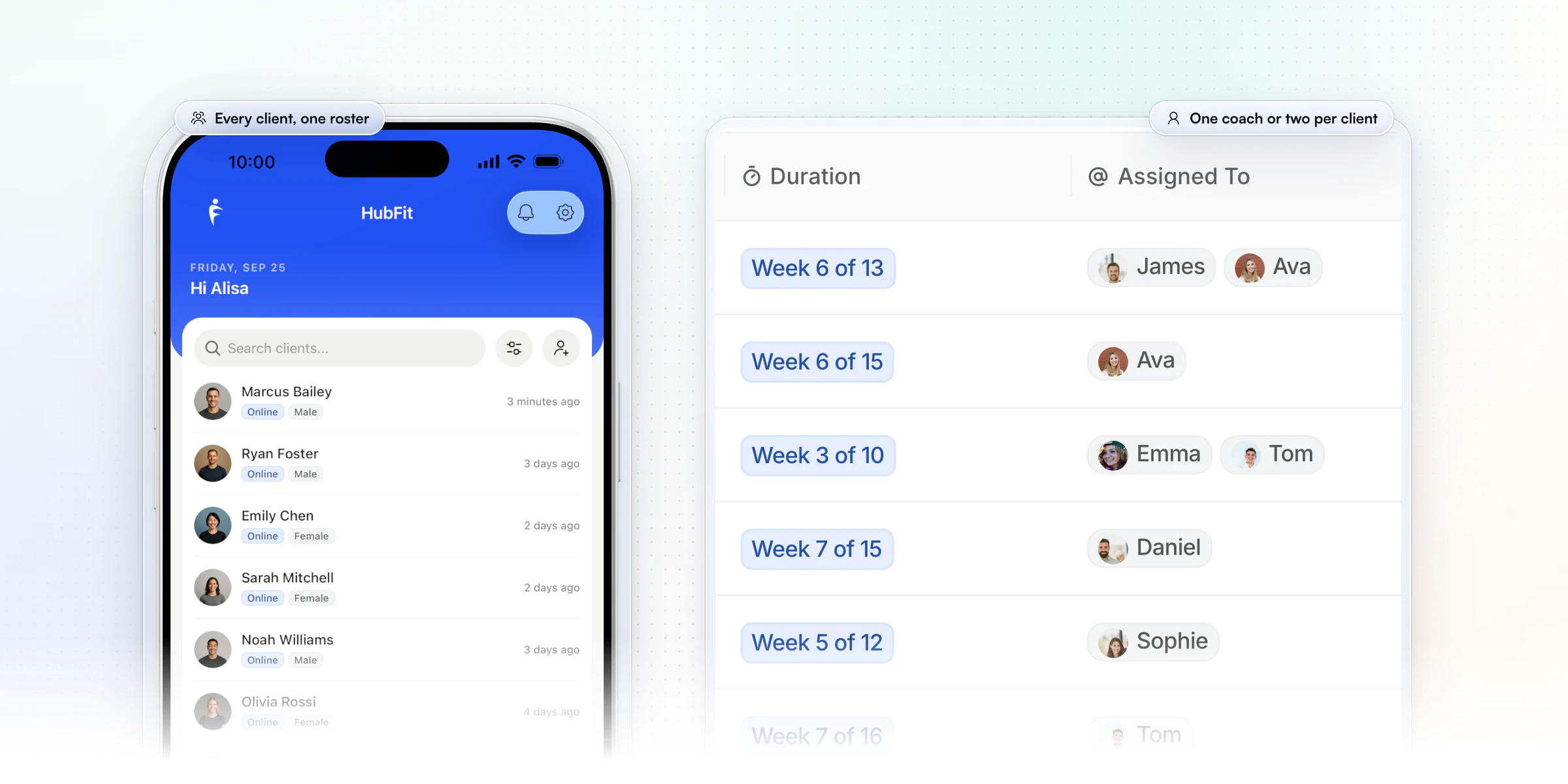
- Shared clients. Multiple coaches per client, so a strength coach and a nutrition coach can work with the same person.
- Routing. Onboarding flows assign each new client to the right team member automatically.
- Tasks. Assign a task to a trainer, with a due date.
- A full activity log. See what each client did and when, from workouts and PRs to check-ins.
Team features come with the Ultimate plan, and team members are included: there's no fee per coach, and your trainers need no subscription of their own.
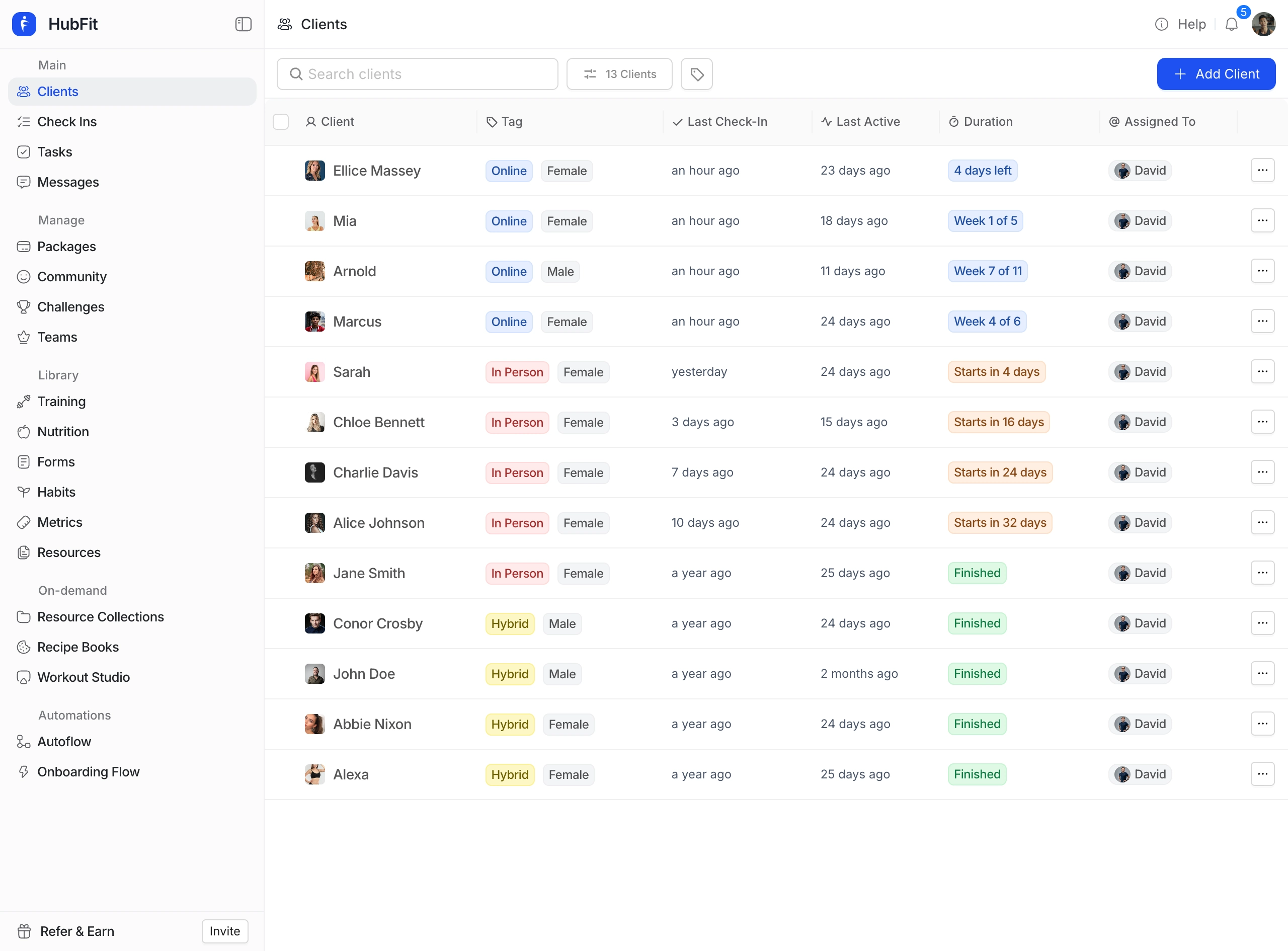
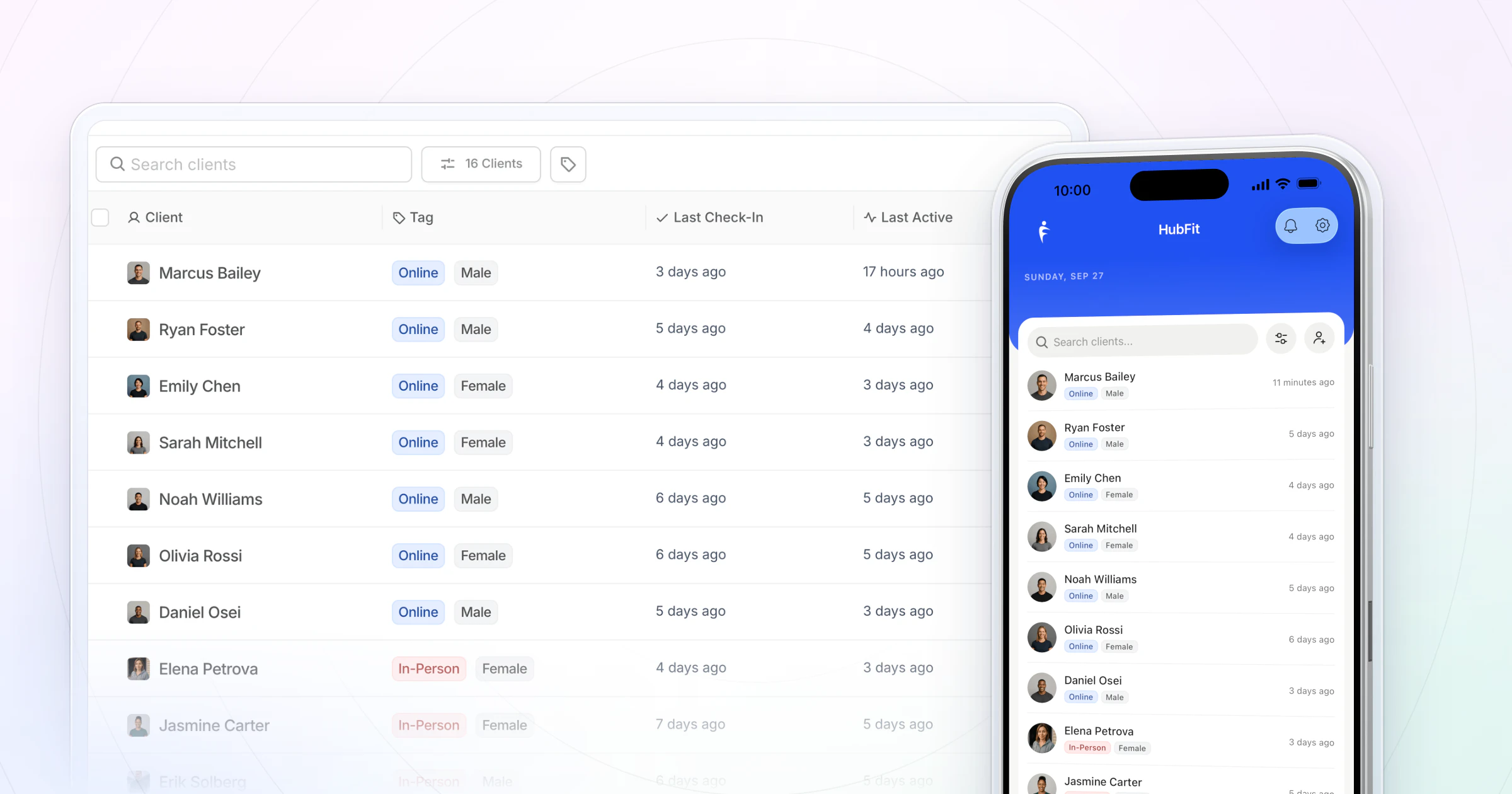
Each trainer coaches from the HubFit app on their phone, rated 4.9 on the App Store and Google Play, or from the web, and you see every client in one roster: who they are, where they are in their program and which coach, or coaches, they have.
The proof is a team that runs on it. Vegard Mikalsen grew VM Coaching to a team of 5 coaches on HubFit: he builds the programs and processes once, and his trainers spend their time on clients and check-ins.
“On your platform I could just add everything for them and they could just focus on answering clients and check-ins.”

If you're about to hire, you can start a free trial and set up your team before your first trainer starts.
What can each role do in HubFit?
Roles and permissions in HubFit come in three levels: Owner, Admin and Standard. The Owner controls everything, an Admin sees and assigns every client and task, and a Standard trainer sees only their own clients and tasks. Standard is the default for every invite.
| Role | Sees | Can do | Can't do |
|---|---|---|---|
| Owner (you) | Every client and task | Billing, branding, team, settings | Nothing is held back |
| Admin | Every client and task | Assign work, add clients | Branding, billing, archiving |
| Standard (default) | Assigned clients and tasks | Coach their own clients | Delete library or templates |
Only the Owner archives or deletes clients, creates challenges and edits branding. Notifications follow the same lines: you get client-action notifications, such as a submitted check-in or a finished workout, for every client, and each trainer gets them only for their own clients.
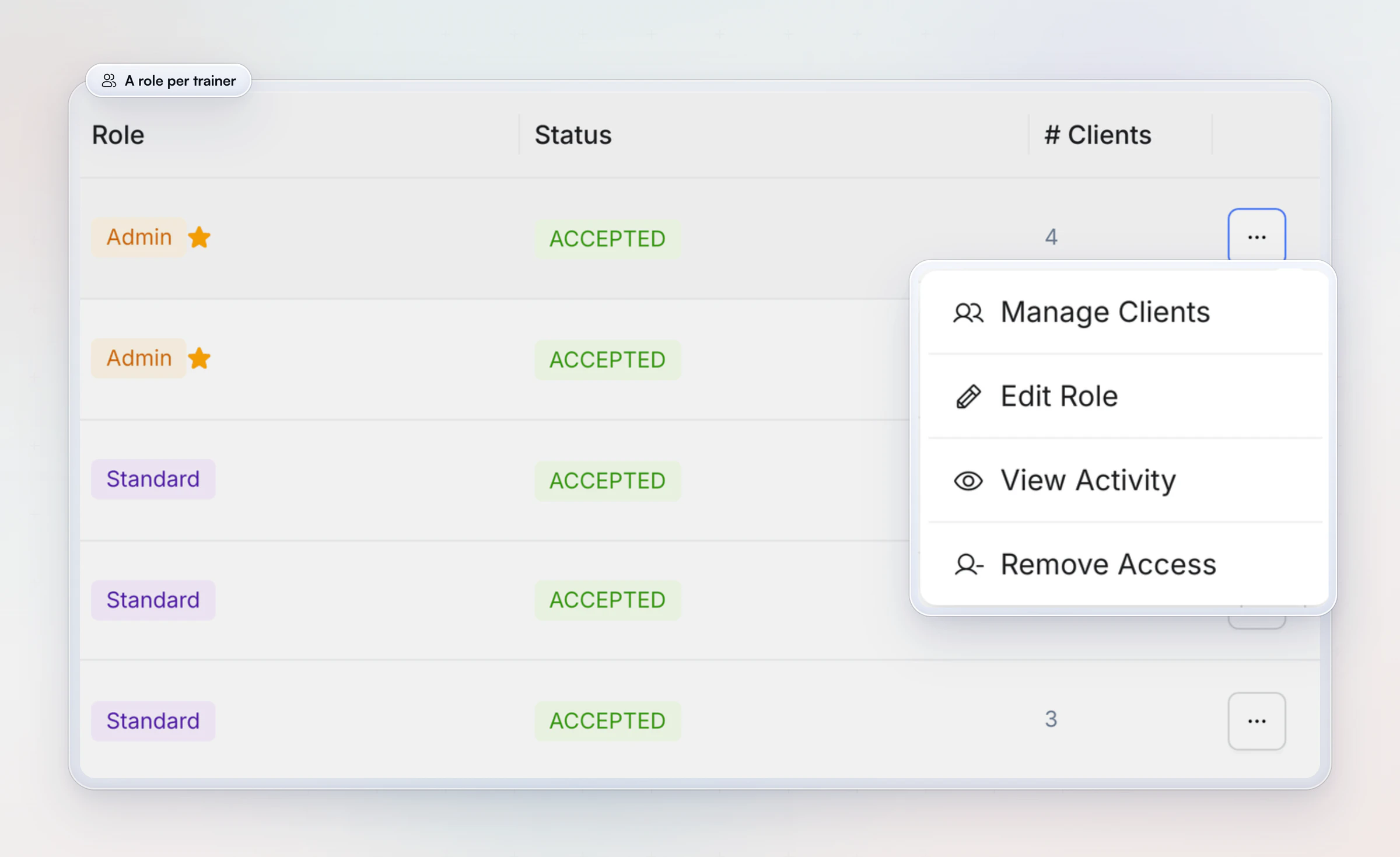
Pick the role by the job, not by seniority. A head coach who reviews everyone's work or an operations manager who assigns new clients is an Admin. A trainer who coaches a list of clients is Standard. You can change a role or a trainer's clients from the team page at any time.
How do you set up a coaching team? 5 setup steps
You set up a coaching team by deciding who owns what, inviting trainers with the right role, assigning clients, moving handoffs into tasks and reviewing the work weekly.
- Write down who owns what. One line per trainer: their clients, their specialty and who covers them when they're away.
- Invite your trainers and set their roles. Invite each trainer by name and email and pick Admin or Standard. You stay the Owner.
- Assign clients. Assign existing clients by hand, and let an onboarding flow assign new ones automatically. Put a second coach on a client when two specialties are involved.
- Move every handoff into a task. "Update Sam's meal plan by Friday" goes to one trainer with a date, not into a group chat.
- Review the work weekly. Open a few clients per trainer and read their check-in replies (the routine is below).
Restricting each trainer to their own clients also protects your clients' data. If you coach anyone in the EU, the GDPR asks you to keep personal data safe from unauthorized access, and health details are personal data.
A worked example: a three-coach team
Here is how a three-coach team with 60 clients could split the work in HubFit (our example, not a rule):
| Person | Role in HubFit | Clients |
|---|---|---|
| You, the head coach | Owner | Your 10 premium clients |
| Strength coach | Standard | 50 training clients |
| Nutrition coach | Standard | 20 of those 50, shared |
The strength coach writes and adjusts the training; the nutrition coach owns meal plans and food logs for the 20 clients who bought nutrition coaching. Both see the same client's profile, so neither works blind. You keep your own clients and spend the hours you saved on the weekly review.
How do you manage personal trainers in a gym or studio?
You manage trainers in a gym or studio by giving each one their members, logging in-person sessions in the coach app, and reviewing the work from one place. The setup is the same as an online team, with three differences on the floor:
- Trainers log sessions as they happen. In the coach app, a trainer logs a member's workout for them, and reps, sets, weights, rest and PRs are captured in real time.
- The manager sees every member. Make your head trainer or studio manager an Admin, and they can open any member's sessions and reassign members when a trainer leaves.
- Trainers don't need their own subscription. Team members are included, so adding a part-time trainer doesn't add a bill.
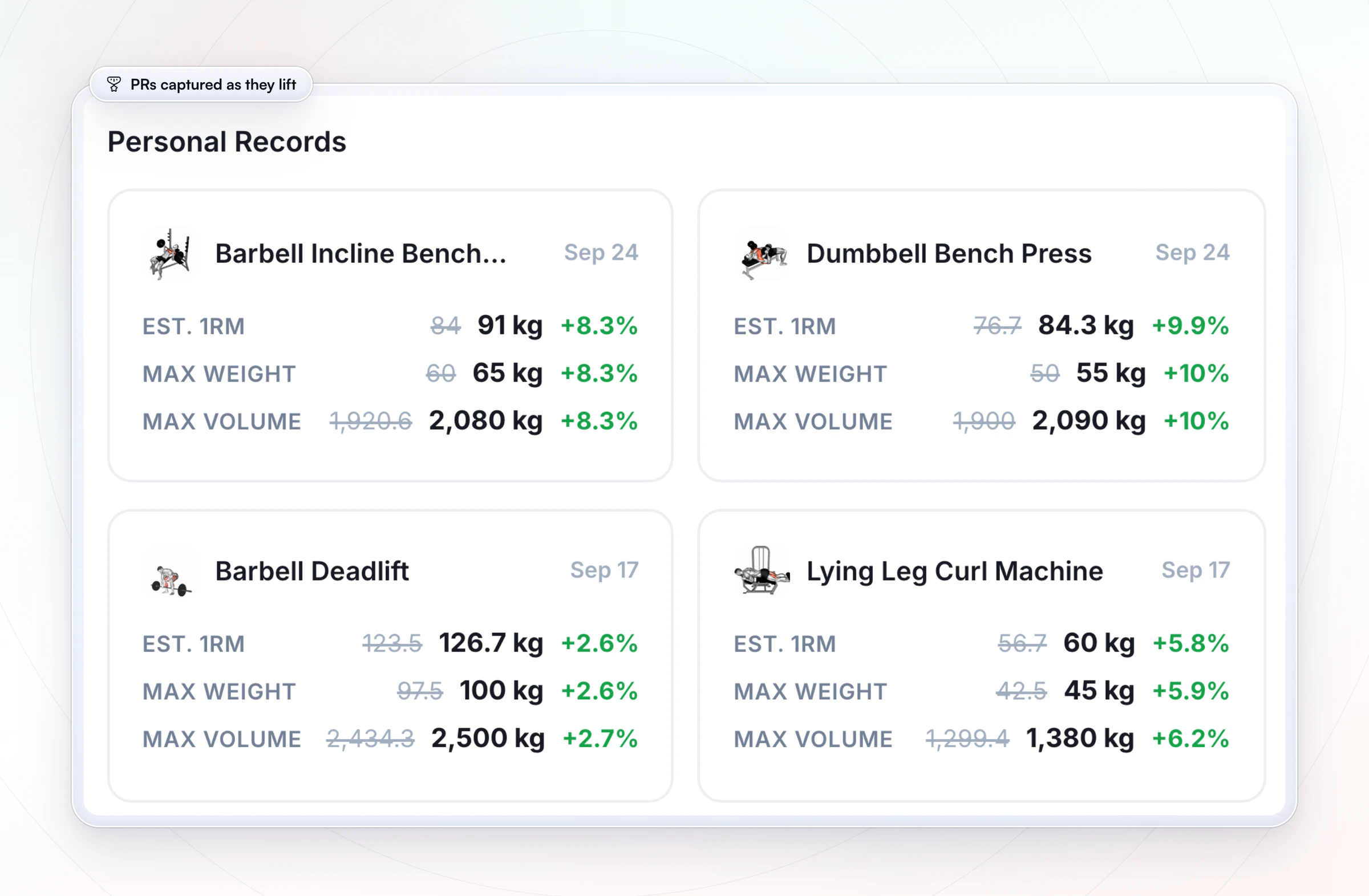
Between sessions, members keep training, logging food and checking in from the same app, so the trainer sees what happened since they last met. HubFit runs the coaching and works next to your front desk: keep your gym software for class booking, payment terminals and door access. See how it works for gyms and studios, and our guide to gym member retention for what to do with the time between visits.
How HubFit keeps every trainer on standard
HubFit keeps a team on standard by making the right way the easy way. Work goes out as tasks, every client's activity is on record, your programs are protected, and new clients reach the right trainer by themselves.
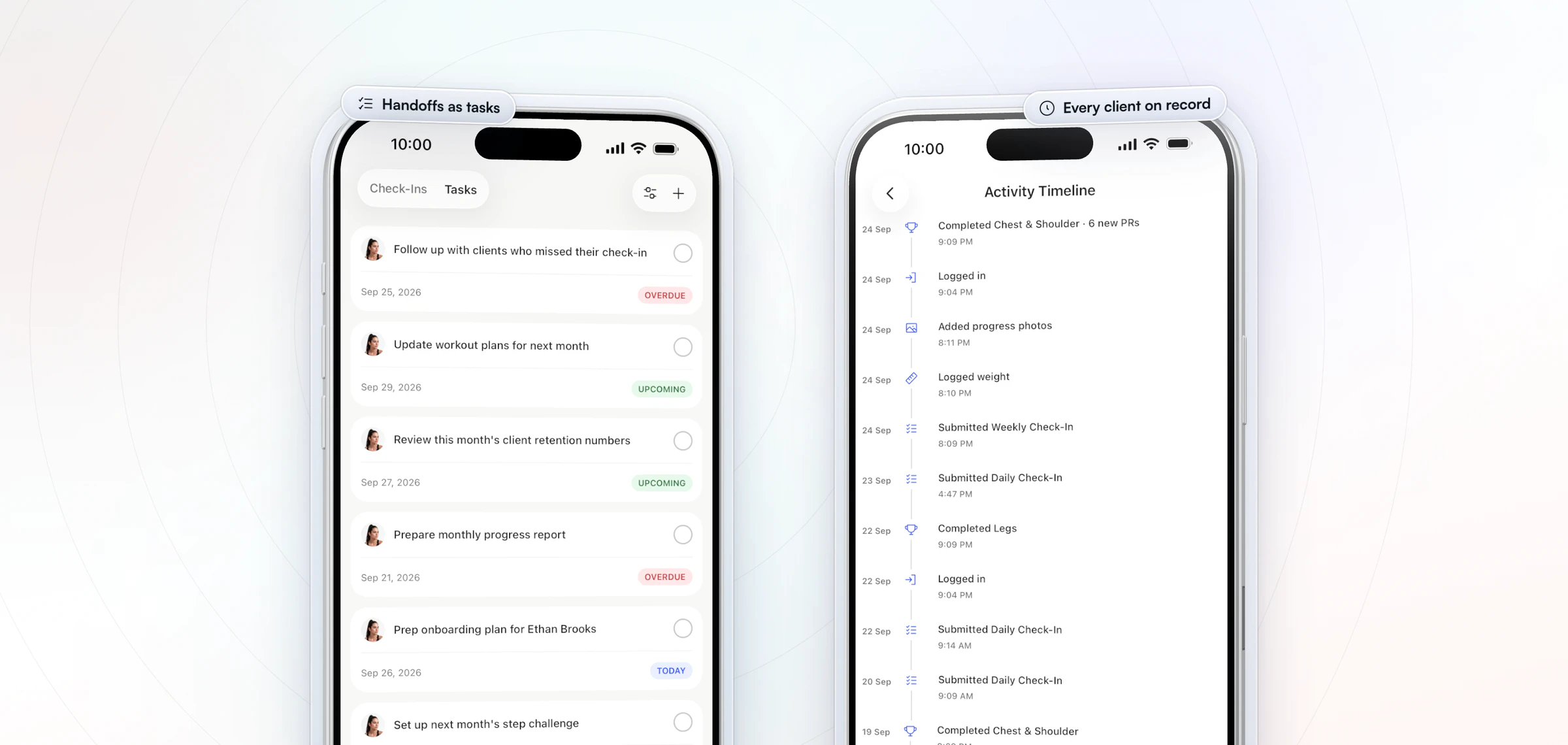
Hand out work as tasks
A task names one trainer and, if you like, a due date, so nothing depends on a message someone scrolled past. Add the task, pick the trainer from your team in the Assign To list, and it lands in their task list.
To automate the handoff, the Zapier integration can assign a client to a team member when something happens elsewhere, such as a new sale, and alert you when a team member completes a task or accepts an invite. Our guide to Zapier for fitness professionals shows the setups. Zapier comes with Ultimate, like the team features.
See what every client did
Each client has an activity timeline: workouts finished with their new PRs, check-ins submitted, weight logged and photos added, each with a date and time. Open a trainer's clients and you see their week without asking for a report.
Protect your programs and your brand
Standard trainers can't delete anything from your library or templates, so the programs, meal plans and check-in forms you spent years on stay intact when someone leaves. Only you, the Owner, edit branding, create challenges and archive or delete clients.
Route new clients to the right trainer
An onboarding flow assigns a team member the moment a client joins, by plan, package or goal, and gives the client the program, check-ins and habits you set for that flow. Nobody waits in a queue for someone to notice them. See how to automate your coaching business for the rest of the flow.
How do you keep a team of trainers consistent?
You keep a team consistent with written standards, regular feedback and a fixed weekly routine, so quality is checked on a schedule rather than when a client complains.
Set the standards once, in writing. Reply times, the tone of a check-in reply, when to change a program, when to escalate to you. Write standard check-in forms and starter programs, so every client gets the same starting point.
Give feedback often, not once a year. Gallup found that employees are more likely to be engaged when their manager gives feedback a few times a week or more. A short note on one check-in reply teaches more than an annual review.
Keep learning together. Once a month, one trainer walks the team through a client case: what changed, what worked, what they'd do again.
A weekly routine for the head coach
- Monday: assign the week's handoffs as tasks, one trainer and one date each.
- Wednesday: read three check-in replies per trainer and send each trainer one note.
- Friday: open a few clients per trainer, clear the overdue tasks and check that new clients have a trainer.
Ten minutes of client activity on a Friday tells you more about a trainer's week than a status meeting. If the review itself starts eating your week, our guide to time management for coaches helps you protect those hours.
What mistakes do owners make when managing trainers?
The most common mistake is giving every trainer full access because it's quicker on day one. It feels like trust, but it means anyone can change any client's plan and nobody can tell who did what. Four others come up again and again:
- Shared logins. One account for the whole team hides who changed a program and leaves no way to remove someone who leaves.
- Handoffs in a group chat. "Can someone update Sam's plan?" gets three thumbs-up and no update. A task with one name on it gets done.
- No written standards. If reply times and check-in tone live in your head, every trainer guesses, and clients notice the difference.
- Reviewing only when a client complains. By then the client is half out the door. A fixed weekly review catches drift while it's small.
Each of these has a fix in the sections above: roles for access, tasks for handoffs, written standards and a weekly routine for quality.
What should fitness trainer management software do?
Fitness trainer management software should limit each trainer to their clients, let specialists share a client, route new clients, hand out tasks and log every action.
| What to check | Why it matters | In HubFit |
|---|---|---|
| Client-level access | Privacy and focus | Standard sees assigned clients |
| Shared clients | Strength plus nutrition | Several coaches per client |
| Roles | The right access | Owner, Admin, Standard |
| Library protection | Programs stay intact | Standard can't delete |
| Routing | No client left waiting | Plan, package or goal |
| Tasks | Handoffs that get done | Assigned, with due dates |
| Activity log | Quality you can check | Timeline per client |
All of it sits next to the coaching itself: programs, nutrition, check-ins and messages in one app, so a trainer never logs in to a second tool to manage a client. If you're still choosing a platform for the coaching side, our guide to personal trainer software compares the options.
FAQ
These are the questions owners ask most before they bring a second trainer onto their business.
How does a trainer join my team?
You invite them from the team page with their name and email and pick a role, Admin or Standard; Standard is the default. They get an email invite, and once they accept they see the clients you assign them. If you use Zapier, an accepted invite can start the next step for you.
Can I add an admin or manager who doesn't coach?
Yes. Make them an Admin. An Admin sees every client and task, assigns clients and tasks to other trainers, adds new clients and can tidy your library and templates. Billing, branding and archiving clients stay with you as the Owner.
Can two coaches work with the same client?
Yes. HubFit supports more than one coach per client, so a strength coach and a nutrition coach can both coach one person. Both work from the same client profile, which means no forwarding check-ins or copying meal plans between apps.
Can a trainer see clients who aren't assigned to them?
Only if you make them an Admin. Standard trainers see only the clients and tasks assigned to them, and Admins see every client. You change a trainer's role or clients from the team page at any time. See HubFit's team features for the full list.
How do new clients get to the right trainer?
An onboarding flow can assign a team member the moment a client is added, by plan, package or goal. The client starts with the program, check-ins and habits the flow assigns. Our guide to onboarding automation shows how to set one up.
Do my trainers need their own HubFit subscription?
No. Team members need no subscription of their own, and there's no fee per coach. Your cost doesn't rise with every trainer you hire, which makes it easier to add a part-time or specialist trainer without doing seat math first.
When should I hire my first coach?
Hire once your systems are written down and your check-in reviews take more hours than you have. Start the new coach on a small group of clients and your standard check-ins, then widen their list. If you're already stretched, read our guide to online coach burnout, and how to scale an online coaching business for the order to build things in.
Does this work for gyms and studios?
Yes. The same roles, client assignment and activity timeline work for a studio with in-person trainers, and trainers log sessions for members in the coach app. Keep your booking and payment system for the front desk. See how HubFit works for gyms and studios.
Run your coaching team from one app
Invite your first trainer this week, give them a Standard role and five clients, and watch their work in the same app you coach in.