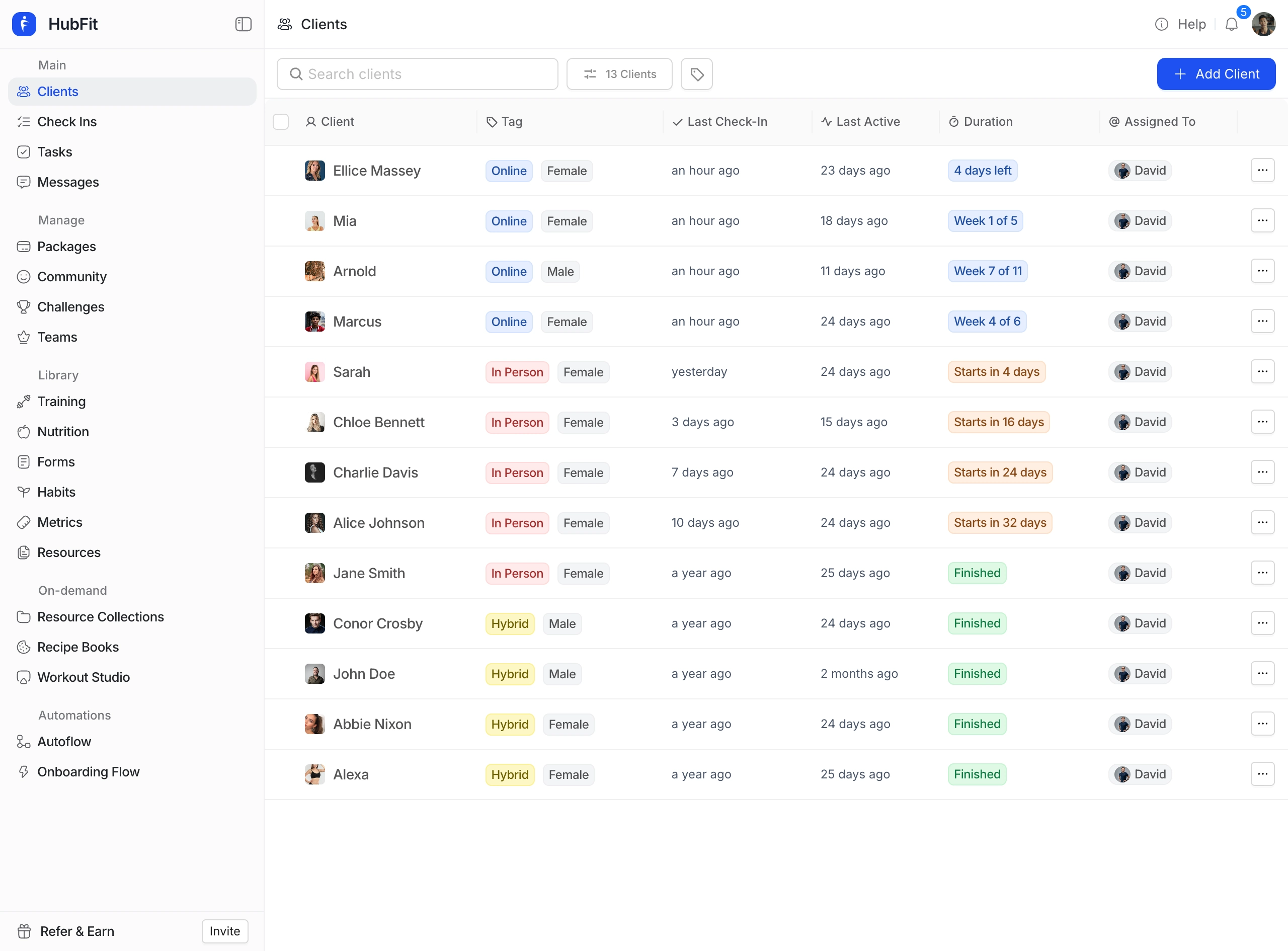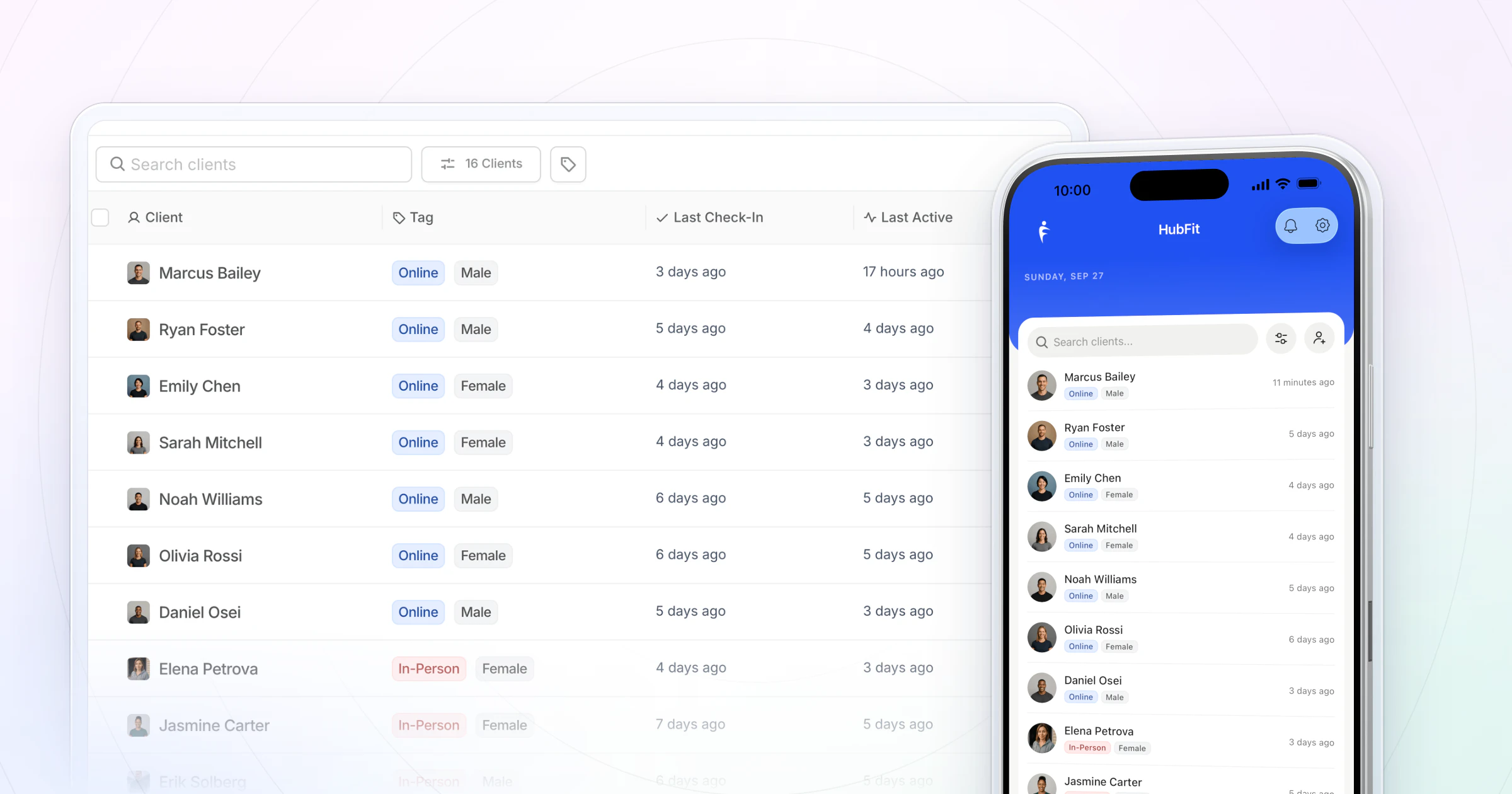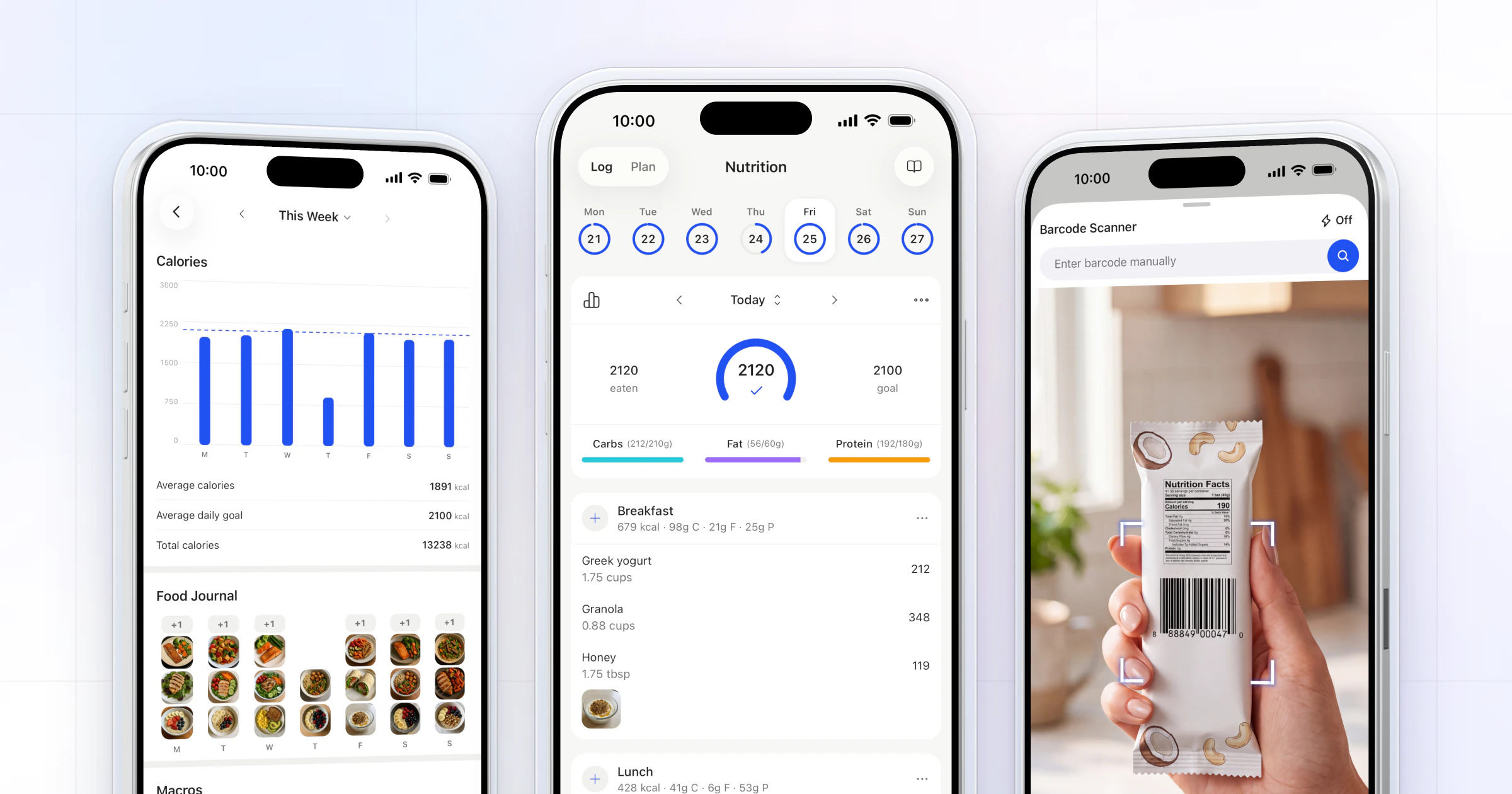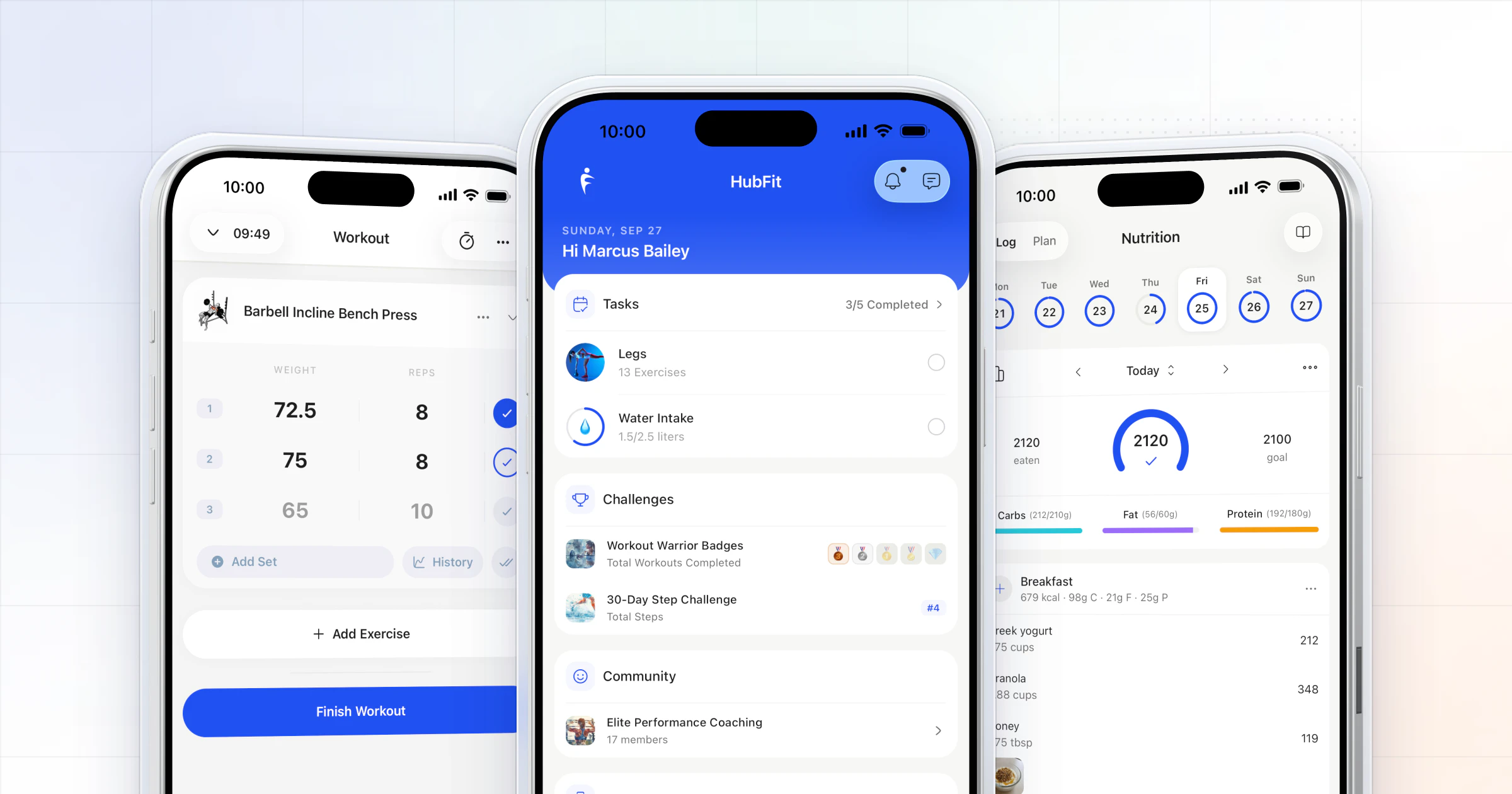
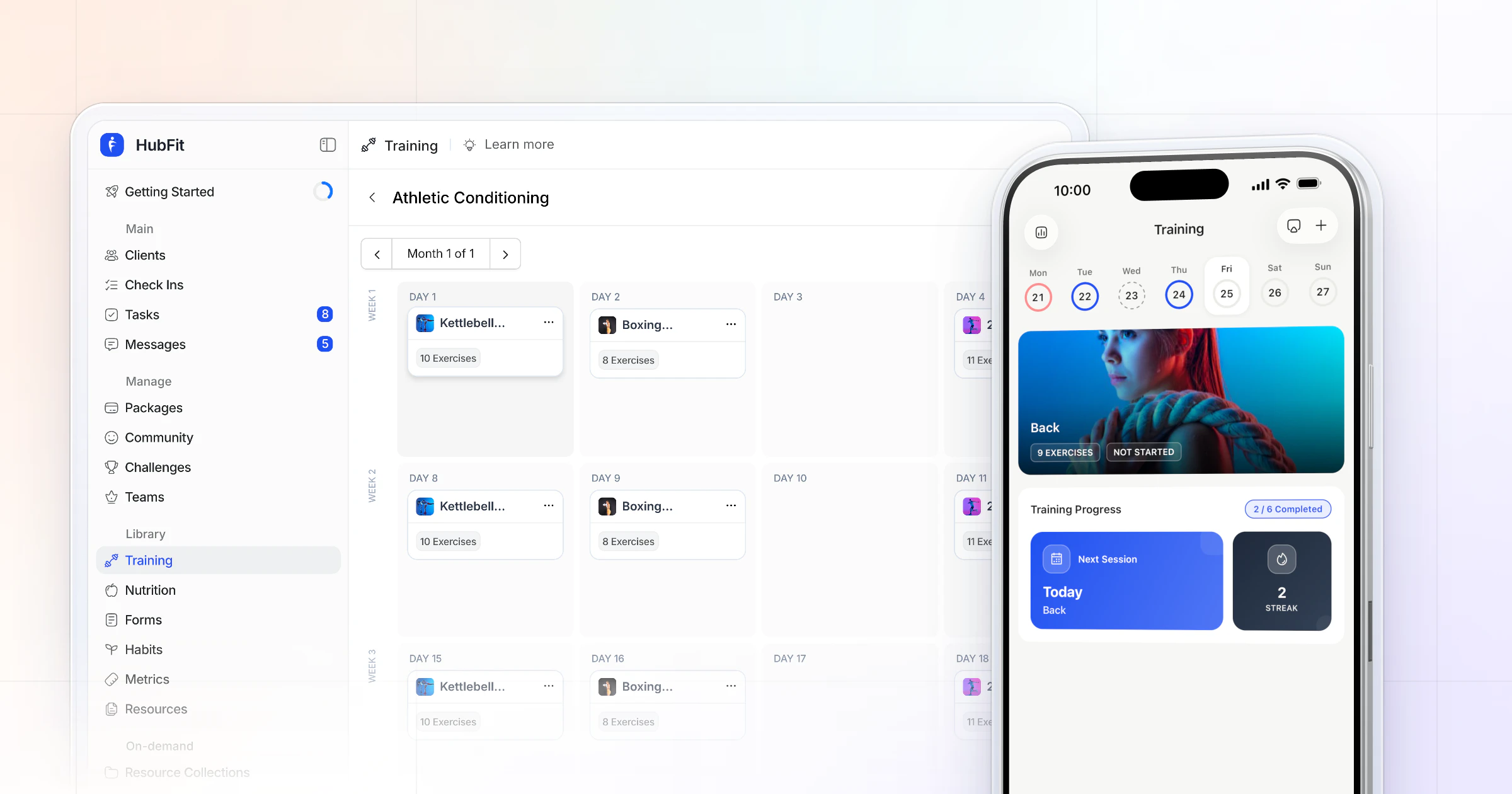
The best way to share workout programs with clients online is to deliver them through a coaching app, not a file. In HubFit, you build the program once and assign it as a fixed or calendar program. Clients open each workout on their phone with exercise videos and log every set, so you see what they did. We make HubFit, and it's the setup we recommend.
Key takeaways
- Any coach can share a program in 5 steps: pick the format, write the workout, add demos, deliver it to the phone, then review what was logged.
- An app beats a PDF or spreadsheet: the program, the demo videos and the client's logged sets live in one place.
- HubFit sends fixed or calendar programs to the client app, with 5,000+ exercise videos and automatic PR tracking.
- Clients use the app for free, so adding a client never means another app fee for them.
How to share a workout program with a client: 5 steps
To share a workout program with a client, pick a format, write each workout in full, add demos, deliver it to their phone and review what they logged. These steps work with any tool:
- Pick the format. A file for a one-off plan, an app for anyone you coach week to week.
- Write the workout in full. A warm-up, then sets, reps, load and rest for every exercise, one coaching cue and a swap for missing equipment.
- Add a demo video to every exercise, so form doesn't depend on memory.
- Deliver it to their phone. Most clients open their workout in the gym, mid-session, so it has to read on a small screen.
- Review what they logged and adjust. The numbers they record tell you what to change next week.
In HubFit, steps 3 to 5 are built in: library exercises carry their demo videos, the workout opens in the client app, and every set they log comes back to you.
What are the ways to share workout programs with clients?
Personal trainers and online coaches share workout programs with clients in five common ways: a PDF, a spreadsheet, a shared document, video links or a coaching app. The first four send information. Only an app turns fitness program sharing into a loop: it delivers the workout, records what the client did and shows it back to you.
| Method | Good for | The catch |
|---|---|---|
| A one-off plan to print | Every change means a new file | |
| Spreadsheet | Coaches who love numbers | Hard to read on a phone |
| Shared doc | Quick edits and notes | Logging is up to the client |
| Video links | Showing technique | Can't hold sets or loads |
| Coaching app | Ongoing online clients | One flat price, free for clients |
For clients you coach month after month, an app runs on one flat monthly price: it covers every program you send and clients use it free, while every PDF, sheet and link is a job you redo by hand.
What should every workout you send include?
Every workout you send should answer the client's questions before they ask them. Check each one against this list:
- A warm-up that prepares the muscles the session uses.
- Sets, reps, load and rest for every exercise, written as targets the client can hit.
- A demo video on every exercise, so form doesn't depend on memory.
- One coaching cue per exercise, short enough to read between sets.
- A swap option for any exercise that needs equipment they may not have.
- A way to log it, so you see what was done and progress the next session.
Here is what that looks like for one session, written ready to send. Copy it and change the exercises for your client:
Day 1 · Upper body (about 55 minutes)

Warm-up: 5 min easy row, then 2 light sets of the first lift

A1  Barbell bench press        4 x 6-8      rest 2 min
    Cue:  feet planted, bar to lower chest
    Swap: dumbbell press if no rack is free

B1  One-arm dumbbell row       3 x 10-12    rest 90 s
    Cue:  pull the elbow to your hip
    Swap: seated cable row

C1  Seated dumbbell press      3 x 8-10     rest 90 s
    Cue:  ribs down, press straight up
    Swap: machine shoulder press

D1  Lat pulldown               3 x 10-12    rest 60 s
    Cue:  chest up, bar to upper chest
    Swap: band pulldown

E1  Cable triceps pushdown     2 x 12-15    rest 60 s
    Cue:  elbows pinned to your sides
    Swap: band pushdown

Log: weight and reps for every set. Note anything that hurt.
The last line is the one most programs skip, and it's the one that lets you coach the next session. Items 3 and 6 are where an app earns its keep: library exercises carry their demo videos, and the client logs every set inside the workout.
How HubFit solves program delivery
HubFit, the #1 coaching app, solves program delivery: the whole program sits on the client's phone and every logged set lands on your screen, so you coach from data. Clients get the app free, rated 4.9 on the App Store and Google Play, so the program arrives somewhere they're happy to open every day. Four things do the work:
- You decide what the client sees. A calendar program can show the client only the current week, 2 weeks, 4 weeks or everything, and you choose whether they can move a workout to another day.
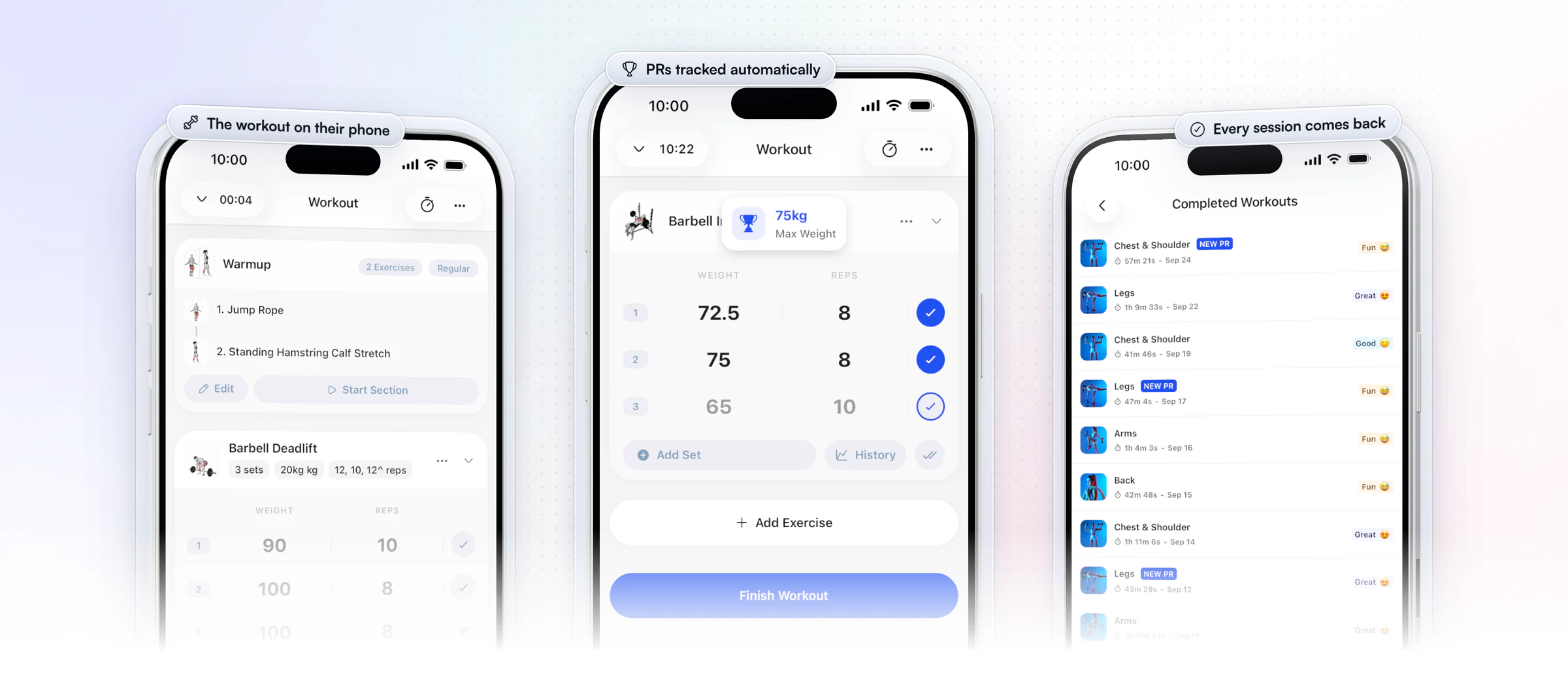
- The workout lives on their phone. Each workout opens with demo videos on library exercises, sets checked off as they train and a rest timer. On iPhone, the live workout shows on the Lock Screen, and clients can edit a workout while they train.
- One template, many clients. Save a program as a template and assign it to every client it fits, or let an onboarding flow assign it, with their nutrition plan, habits and check-ins, as soon as you add them or the moment they buy a package.
- Every set comes back to you. You see each set, rep and load, with max weight, max volume and estimated 1RM PRs tracked automatically, and you're notified when a client finishes a workout.
In-person sessions fit the same system: you log the workout for the client in the coach app, so hybrid clients keep one training history. If you train people face to face, see our guide to the personal training app side of this.
Custom Branding puts your logo and colors in the client app, so the program arrives under your brand. Packages and Custom Branding come with Premium and up. Coaches who want their own app on the App Store and Google Play can apply for a branded app.
Gianni Fabrizio of Gianni Coaching moved his coaching off chat apps, shared folders and social groups into HubFit and eliminated external links. A new client now starts from a program he has already built.
“I have found that because I'm able to look at a previous client and get a new person in, I can say, 'I think that's going to suit them.' And then I can just copy, duplicate, and make a few tweaks.”

How to deliver a workout program in HubFit: 3 steps
Delivering a program in HubFit takes three steps: build it, assign it, then review what the client logs.
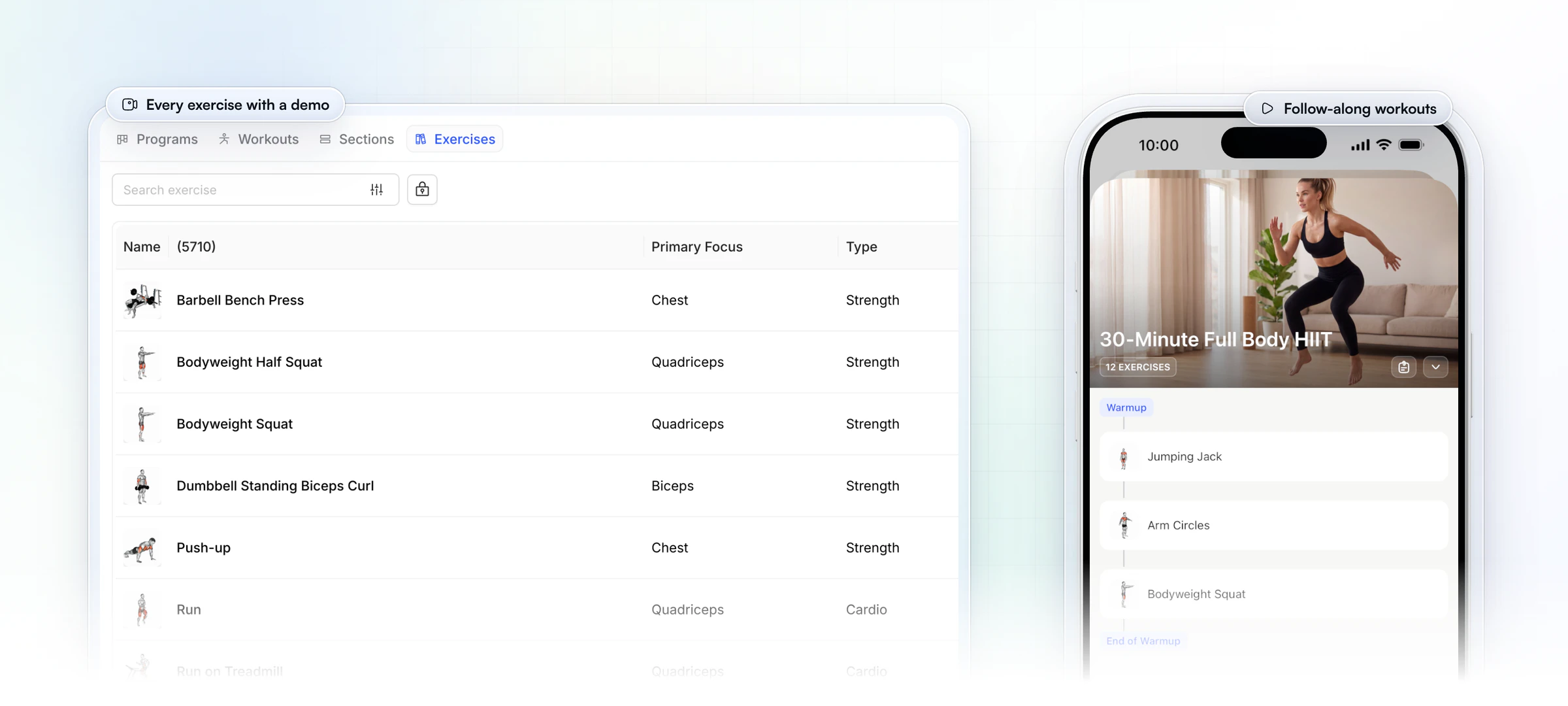
- Build the program once. Drag exercises from the 5,000+ video library into the builder, or add custom exercises with your own video. Set sections as regular, circuit, AMRAP or interval, add supersets, and save it as a template in a folder.
- Assign it to the client. Pick a fixed or calendar program (see the next section). To skip this step for new clients, an onboarding flow assigns the program as soon as you add them or the moment they buy a package.
- Review and adjust. The client trains from the app and logs each set. You see the numbers and PRs, then change the next workout in the builder instead of sending a new file.
You can set this up with a real client today: start your free trial and send your first program in the app.
Fixed or calendar: which program type should you send?
Send a calendar program when the client should train on set days, and a fixed program when they train at their own pace with no dates.
| Client | Program type | Why |
|---|---|---|
| Busy, needs structure | Calendar | Today's workout is waiting |
| Travels or shift work | Fixed | No fixed training days |
| Strength block, own pace | Fixed | Trains when it suits them |
| Hybrid with gym sessions | Calendar | Matches your booked days |
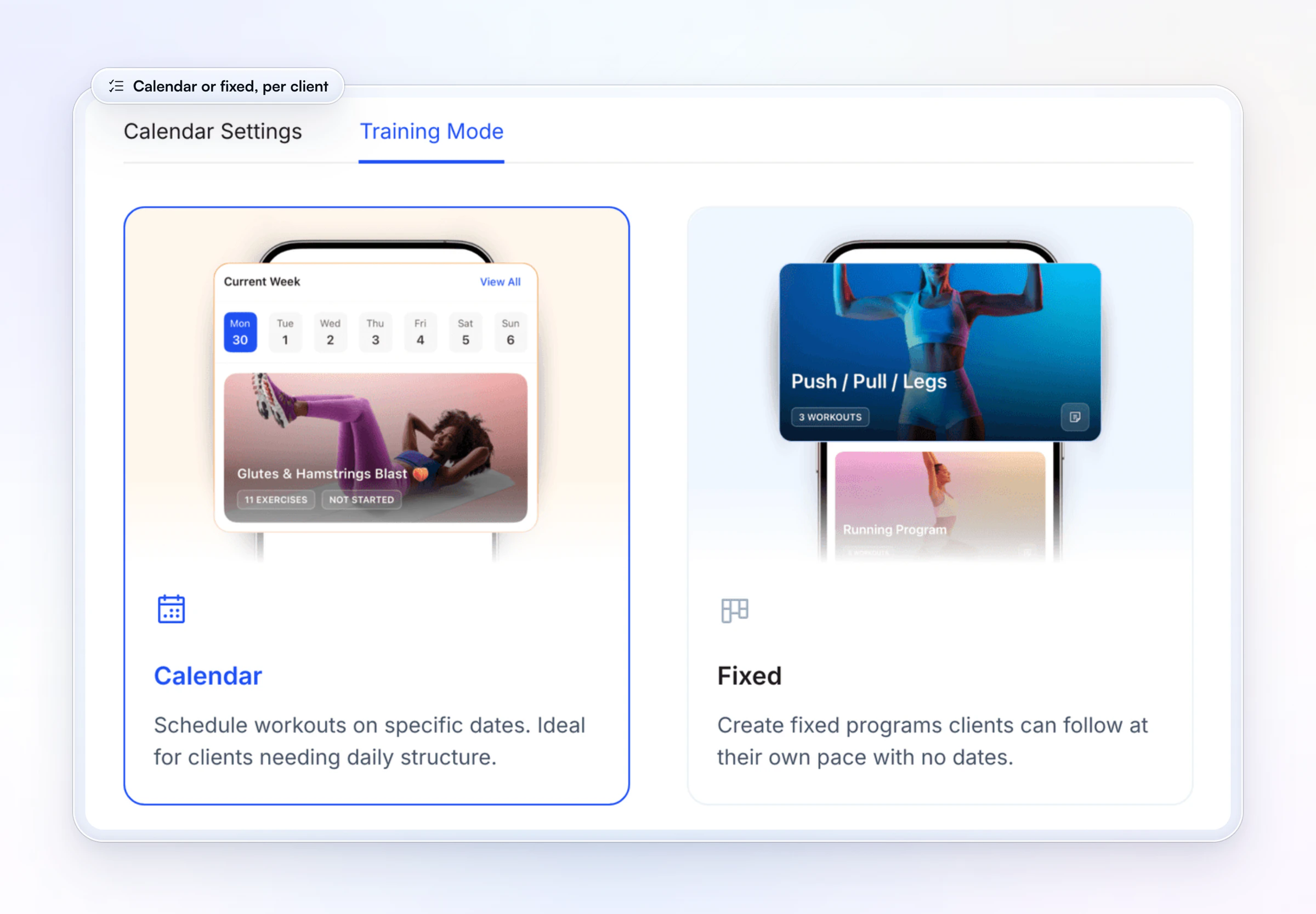
You switch a client between the two in their training settings. A fixed program also lets you assign more than one at a time, for example a strength block alongside a mobility routine.
How do you know a client is following the program?
Look at what they logged, not what they say. A client who follows the program leaves a trail: sessions on the days you planned, loads that creep up, and notes when something felt off. Here is what to check each week:
| Signal | What it tells you | Where to see it in HubFit |
|---|---|---|
| Sessions logged | They're showing up | The client's Sessions list |
| Loads moving up | Overload is working | Exercise History |
| New PRs | The block is landing | PR badges on each session |
| Muscle balance | Nothing is skipped | The muscle heat map |
| How it felt | Too hard or too easy | Their rating and note |
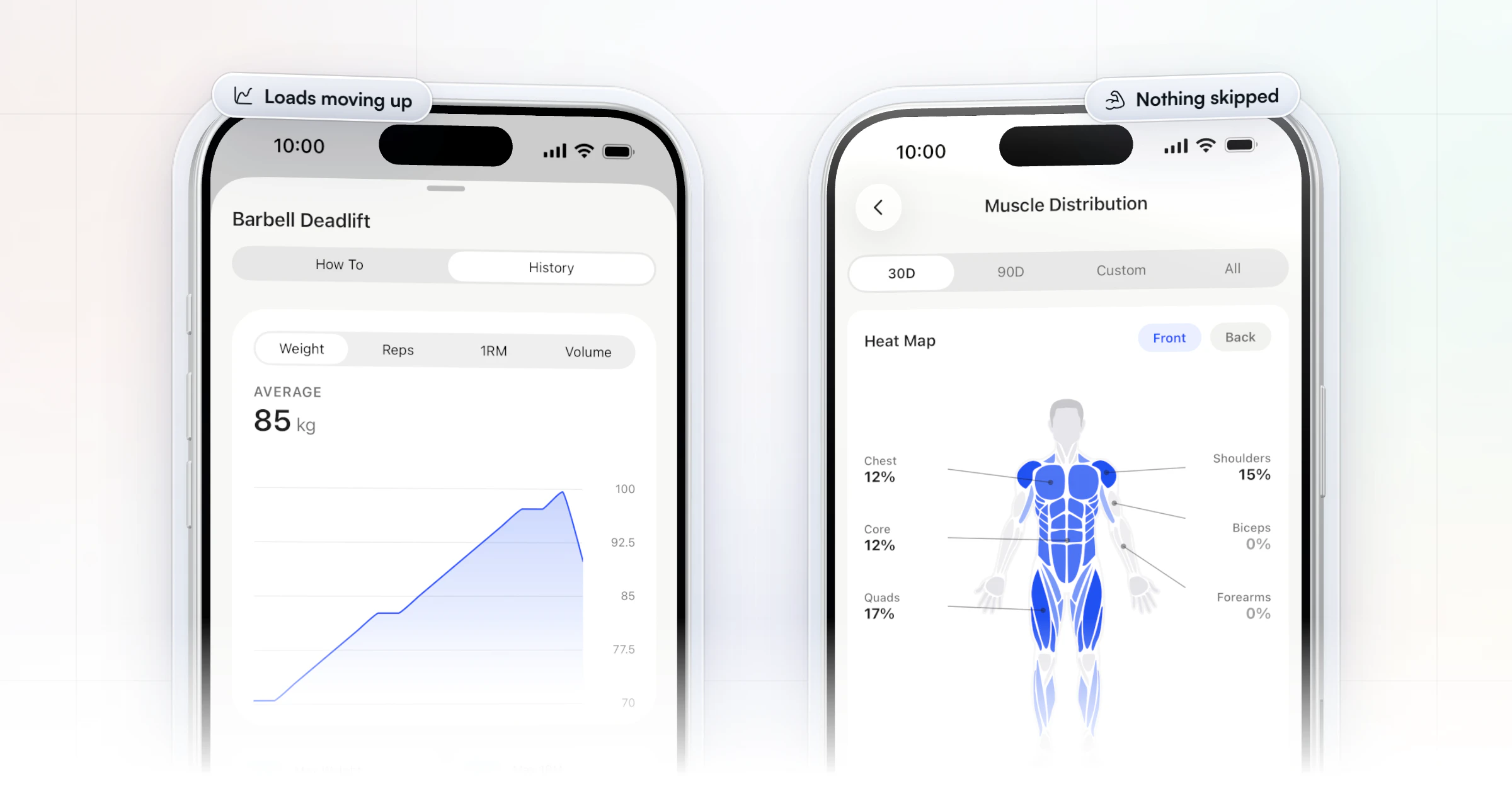
Self-monitoring is one of the steadiest habits behind results: a systematic review in the Journal of the American Dietetic Association found that keeping records of diet, activity or weight was consistently linked with weight loss. Logged sets do the same job for training, and they give you something to coach from.
One rule of thumb: two missed weeks in a row means the program is too big for the client's life. Cut a session or shorten each workout before you add anything.
How often should you update a client's program?
Change the load every week and the program every 4 to 6 weeks. Progressive overload, a core principle in the ACSM position stand on resistance training, means small weekly increases in load or reps; the exercises themselves can stay put for a block so the client gets better at them. Swap exercises and rep ranges when progress stalls or a new block starts.
In HubFit you edit the next workout in the builder and the client sees the change in the app, with no new file to send. The Periodisation Planner lays a block's workouts side by side in a spreadsheet view, so you can plan the weeks ahead in one place. For how to structure the blocks themselves, read our guide to periodization.
How to share a PDF workout plan with a client
Share it as a view-only link, not an attachment, and test it on a phone before it goes out. A few habits keep a PDF program usable:
- Name the file with the week and version, such as "Week 3 · v2", so the client knows which one is current.
- Send one link per block, from cloud storage set to view-only, so a new version replaces the old one at the same link.
- Open it on your own phone first. If you have to pinch and zoom to read the sets, so will they.
- Tell them how to log it, such as replying with their top set, or the PDF records nothing.
In HubFit, a PDF you want to keep, such as a warm-up guide or a gym etiquette sheet, goes into a Resource Collection. You choose which clients get access, they get a push when you grant it, and the file sits in their app beside the program instead of in an email thread. More on that in our guide to how to share resources with coaching clients.
Why do PDFs break down for ongoing clients?
PDFs break down once you coach the client every week. Each change means a new file, the client has to find the latest version, and nothing tells you whether the workout happened. Spreadsheets are also hard to fill in mid-set on a phone. Progressive overload is easier when last session's numbers are in front of the client, and a static file won't put them there mid-set.
How to move your PDFs and spreadsheets over with less retyping
You don't have to rebuild your programs from scratch to switch. Workout AI turns plain text you paste in, such as "Bench Press 5x8, Rows 4x10", into a workout in the builder, and the Periodisation Planner's spreadsheet view feels familiar if you programmed in sheets. Guides you want to keep as files go into a Resource Collection. Workout AI comes with Premium and up. If you'd rather start fresh, our guide to the AI workout generator shows how to draft a workout from a short prompt.
How do you share workout videos with clients?
Share technique videos inside the workout and follow-along classes from an in-app library, not as links in a chat. HubFit's 5,000+ exercise library comes with video demos, and you can add your own exercises with your own video, so the client sees your cue, in your words. Workout Studio holds your recorded follow-along workouts, which clients stream in the app with no redirect to a video site or a shared drive. Workout Studio is part of Ultimate.
Common mistakes when sending workouts to clients
Most delivery problems come from sending too much, too late or in too many places.
- Sending the whole program on day one. A 12-week PDF overwhelms. Show the client this week's workouts first; in HubFit that's one setting.
- Splitting the program across apps. Program in a PDF, videos on a video site and feedback in a chat app means three places to check.
- Not testing it on a phone. Read it on your phone before it goes out.
- Never looking at what was logged. Delivery is half the job. The logged sets tell you what to change next week.
FAQ
These are the questions coaches ask most about sharing workout programs with clients.
What's the best way to deliver workout programs to online coaching clients?
A coaching app is the best way for ongoing clients. It delivers each workout to their phone with demo videos, records every set and shows you the results. HubFit does this with fixed or calendar programs, demo videos and automatic PRs. For a side-by-side look at the tools, see our guide to workout builder software.
How can I send workouts to clients for free?
Send a PDF or a shared doc as a view-only link. It costs nothing, but it tracks nothing: you won't see what the client lifted unless they tell you. A coaching app runs on one flat monthly price, and clients use it for free.
Can I send a workout program as a PDF?
Yes. A PDF works for a one-time plan the client follows alone. For coaching you adjust every week, a PDF means sending a new file for each change, with no record of what was done. In HubFit you can keep supporting PDFs in a Resource Collection while the program itself runs in the app.
How do clients get their program in HubFit?
Clients sign in to the app on iOS or Android and see the program you assigned, with each workout ready to start and log. There's also a client web dashboard with a weekly overview of their training, nutrition, habits and progress. See HubFit's coaching tools for the full workout builder and tracker.
Can I send one program to many clients?
Yes. Save the program as a template and assign it to every client it suits. An onboarding flow can assign it automatically when you add a client or when they buy a package; our guide to client onboarding automation shows how. If you sell the same program to many people, read how to sell workout programs online.
Do my clients pay for the app?
No. HubFit is free for your clients; you pay one subscription for your coaching account. The same app can carry their meal plans too: see how to share meal plans with clients.
Send your next program in the app
Your next client shouldn't get a PDF. Build the program once in HubFit, send it to their phone, and watch the sets come in from their first session. Try it free for 14 days with a real client.