Our pick for a Cronometer integration for coaches is HubFit, the #1 coaching app. Clients connect their Cronometer account in the app, their daily food logs sync, and you review them in a Cronometer Logger tab on each client's Nutrition page. Clients who don't use Cronometer log food in the built-in tracker instead.
Key takeaways
- Clients' daily Cronometer food logs sync to your coaching platform, so nobody sends you screenshots of their diary.
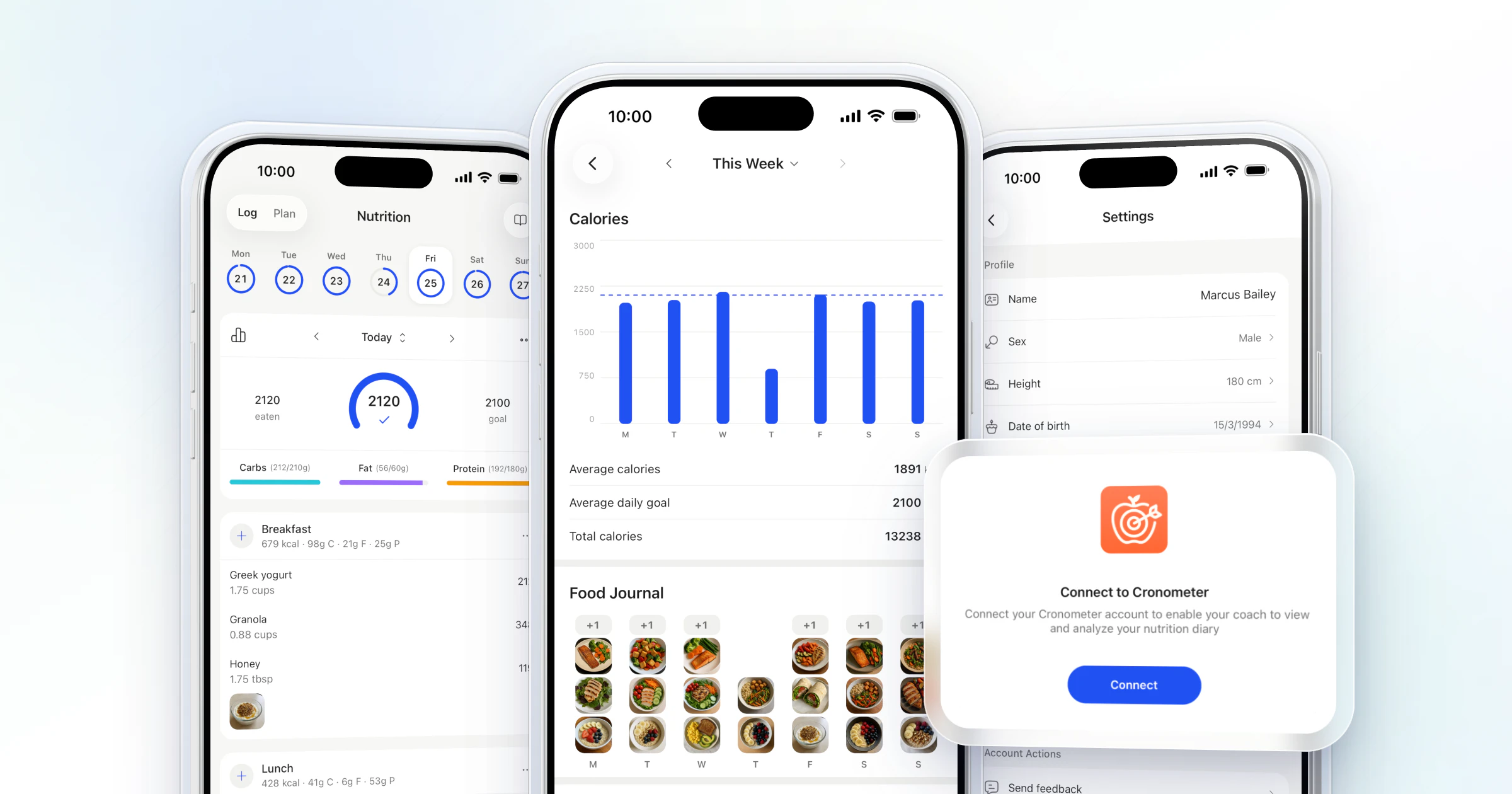
- You see the synced meals and macros in a Cronometer Logger tab on the client's Nutrition page, in the same weekly format as the built-in Nutrition Logger.
- Pick one tracker per client: Cronometer for clients who already log there, the built-in tracker for everyone else. Nutrition challenges score food logged in the built-in tracker.
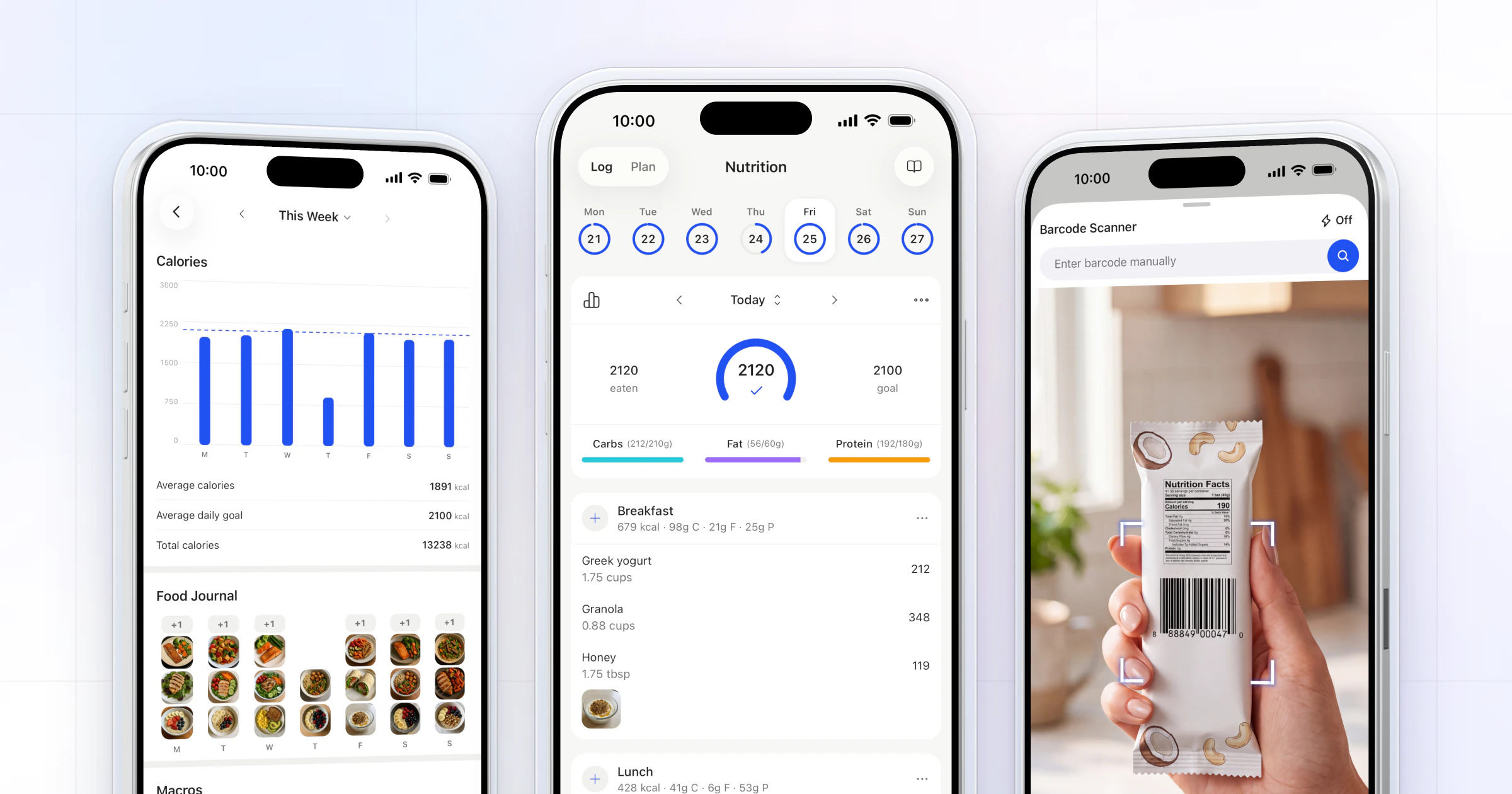
- Clients who don't want a second app log food in the built-in tracker, with a barcode scanner that works with any barcode, in any country.
What is a Cronometer integration for coaches?
A Cronometer integration for coaches is a link between a client's Cronometer account and your coaching software, so the food they log in Cronometer reaches you without screenshots or exports.
Cronometer is a food-tracking app some of your clients may already use. Asking them to switch apps on day one adds friction you don't need. An integration lets them keep the habit while you coach from your own platform, next to their training, check-ins and messages.
That matters because logging is the habit you're paying for. Studies link more frequent food logging with better weight-loss results (Burke et al., Harvey et al.), so the app your client will actually open each day is the one to coach from.
Why do some clients prefer Cronometer?
Some clients prefer Cronometer for its detail: Cronometer says it tracks up to 95 nutrients and compounds from a database of over 1 million verified foods (Cronometer). Clients who want more than calories and macros often land there.
That tends to be three kinds of client:
- Athletes and data-minded clients who like to see fiber, sodium or iron next to their macros.
- Clients on a diet set by a doctor or dietitian who already track there and shouldn't have to start again.
- Long-time Cronometer users for whom the logging habit is the hard part, and it already works.
The coaching rule is simple: keep these clients in Cronometer and coach their meals and macros from the Cronometer Logger tab. Ask them about anything else they track in Cronometer itself, in their check-in.
Which coaching app integrates with Cronometer?
HubFit integrates with Cronometer natively. It syncs clients' daily Cronometer food logs into a Cronometer Logger tab on their Nutrition page, and also has its own food tracker, meal plans and 5,000+ recipes, so every client has a way to log. Training, check-ins, habits and messaging are in the same client app, so the food log sits next to everything else you coach.
How do you set up the Cronometer integration?
Setting it up takes three steps, and the client does the connecting. You don't need a Cronometer account of your own.
- Invite the client. They get the app with their training, check-ins and nutrition.
- The client connects Cronometer. Inside the app, they choose Cronometer and tap Connect to link their own Cronometer account.
- Review their food logs each week. Open the client's Nutrition page, read their week in the Cronometer Logger tab, and read their weekly check-in. Then adjust their targets or plan.
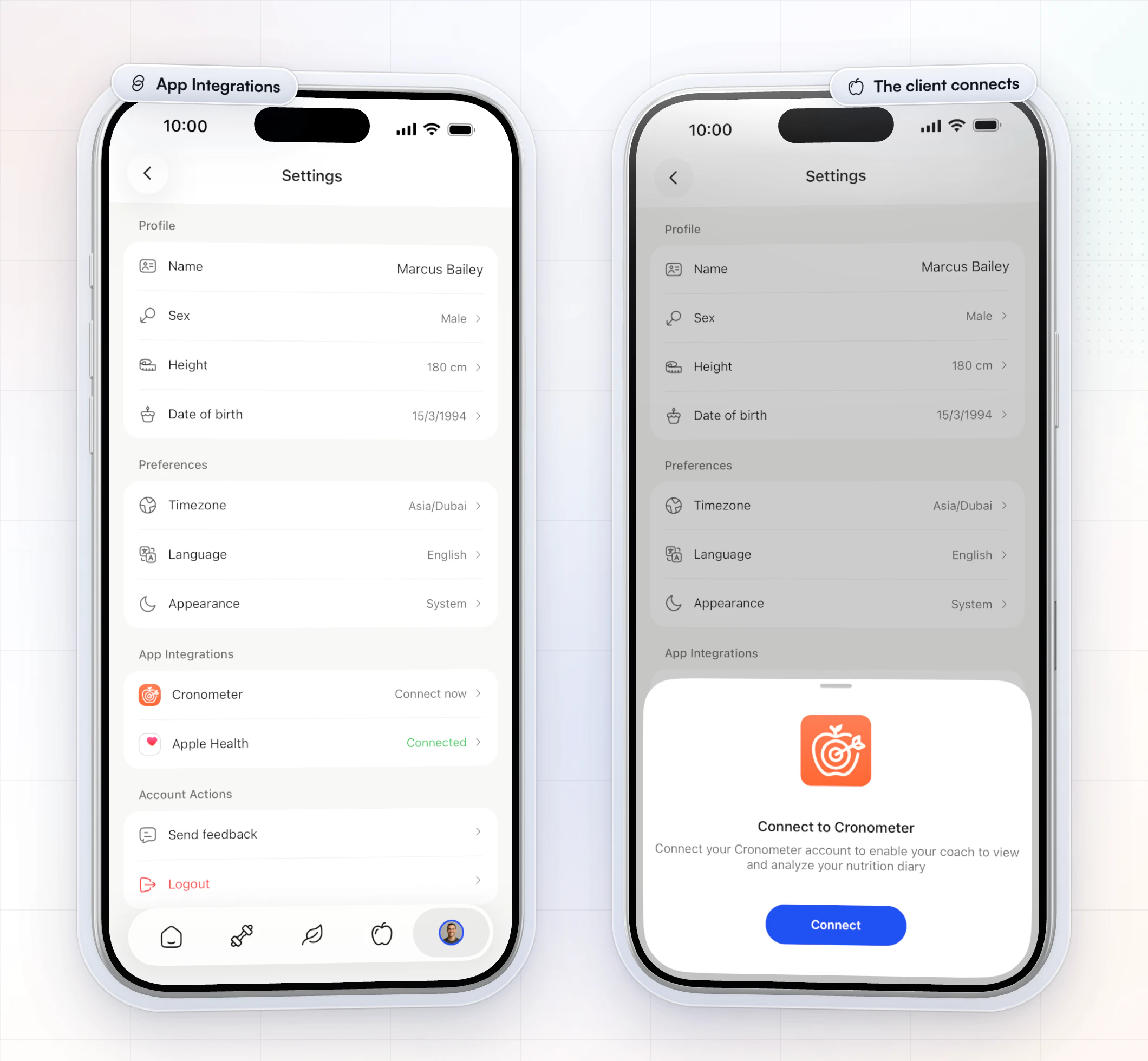
Prefer to watch it? This short lesson from our team walks through the integration.
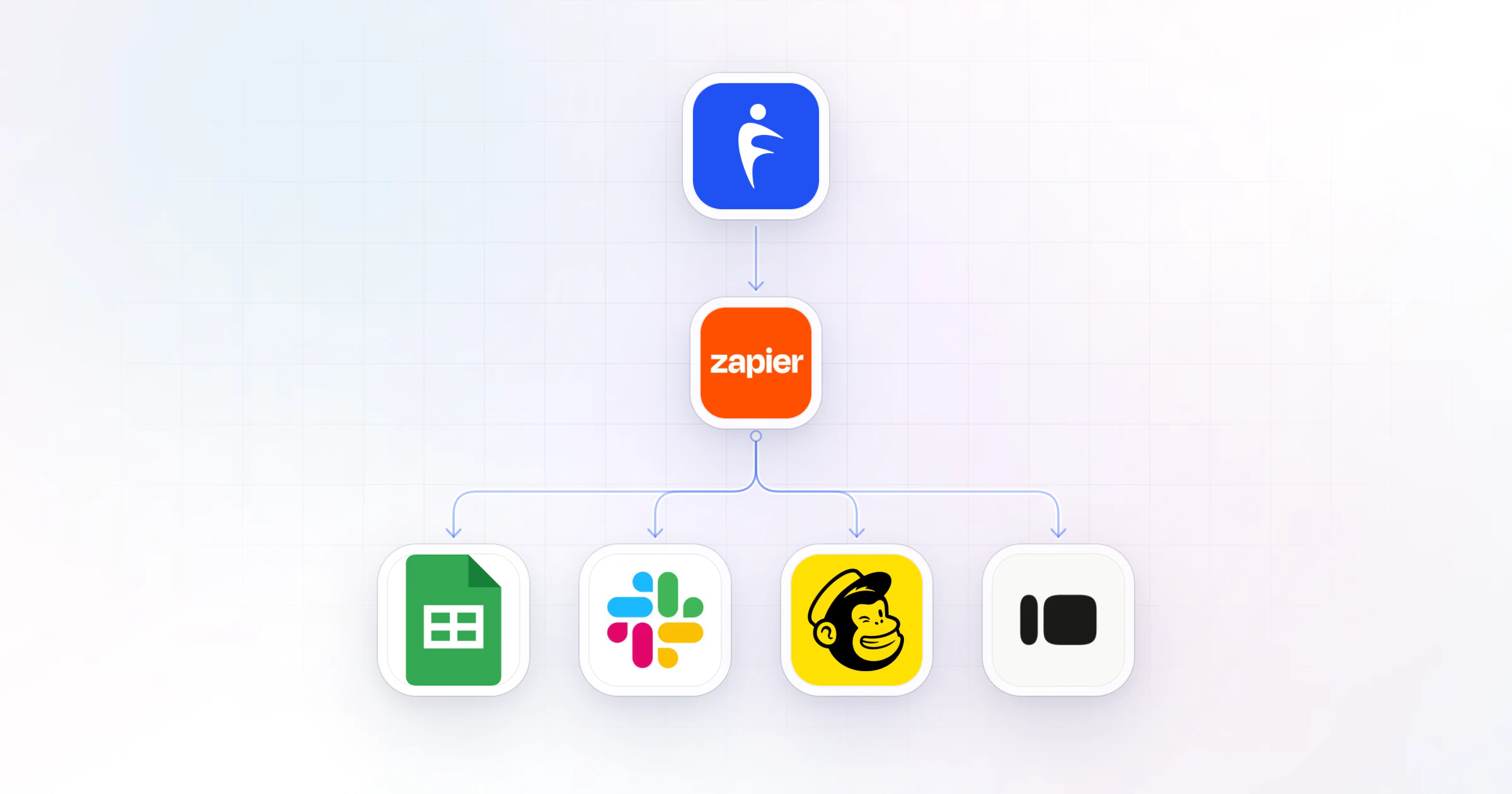
Want it to run itself? With Zapier, part of Ultimate, the "Client Connected to Cronometer" trigger can start a Zap, such as adding a task to check their first week of logs. Clients who skip Cronometer need no setup: the tracker is already in their app.
Where do you see a client's Cronometer data in HubFit?
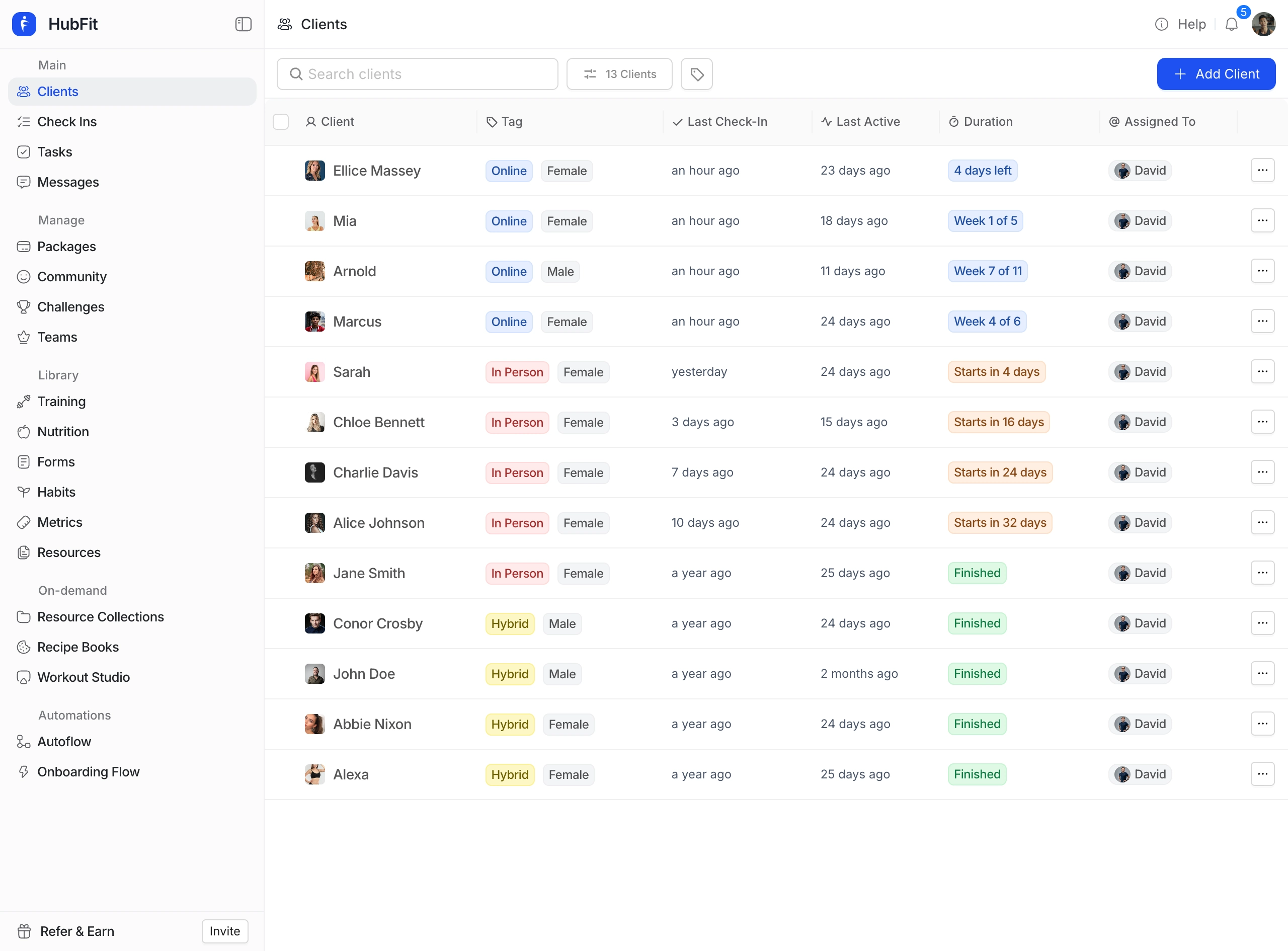
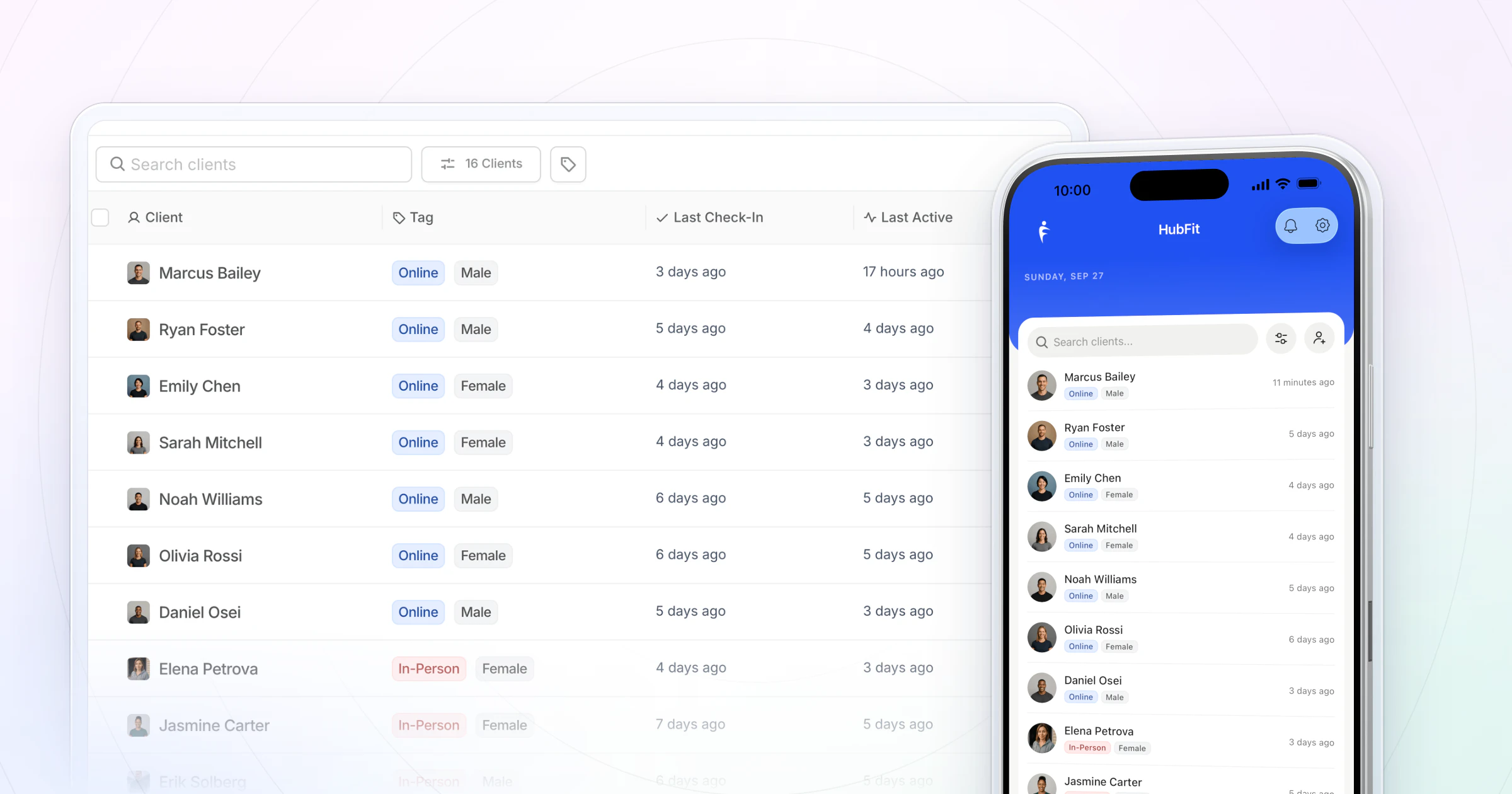
You see it on the client's Nutrition page, in a Cronometer Logger tab that appears once they connect. It shows their synced meals and macros in the same weekly format as the standard Nutrition Logger, so you read a Cronometer client's week the way you read anyone else's.
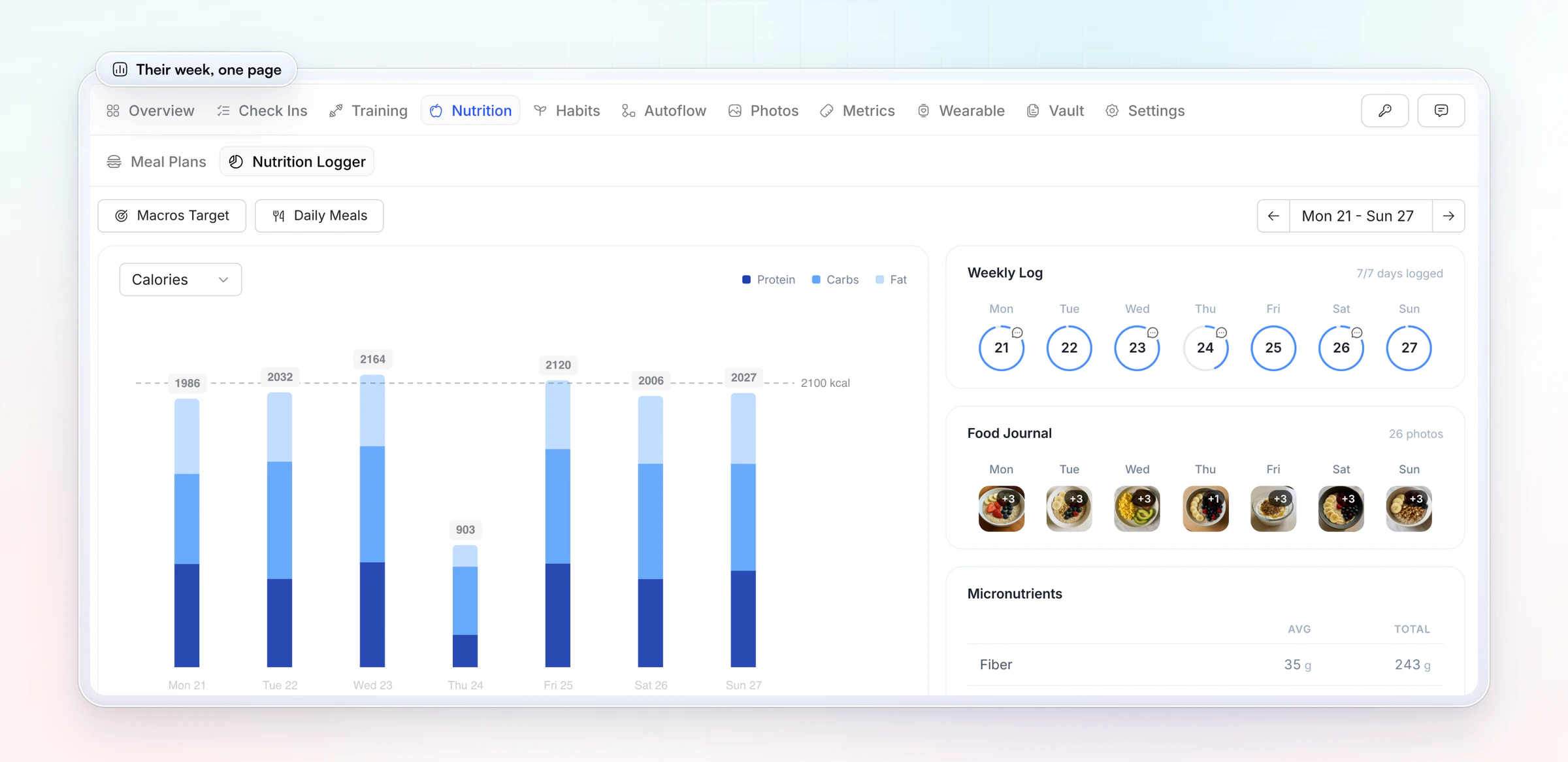
The Cronometer Logger tab joins the Meal Plans and Nutrition Logger tabs shown here and reads the same way: the week's calories against the goal, the days logged and the meals. Here is how the two logs work together:
- Each log keeps its own tab. Cronometer meals show in the Cronometer Logger tab, and meals logged in the built-in tracker show in the Nutrition Logger.
- Challenges score the built-in tracker. Nutrition challenge points come from food logged in the built-in tracker.
Should clients use Cronometer or the built-in tracker?
Use Cronometer for clients who already log there, and give everyone else the built-in tracker. One tracker per client keeps each person's log in one place.
| Client | Give them | Why |
|---|---|---|
| Already logs in Cronometer | Cronometer, connected | Keeps a habit that works |
| Wants detailed nutrients | Cronometer, connected | More than macros to look at |
| New to tracking | The built-in tracker | One app to learn |
| Eats packaged food | The built-in tracker | Barcode scanner, any country |
| Follows your meal plan | The built-in tracker | Plan and log in one app |
| Joins a nutrition challenge | The built-in tracker | Only tracker food counts |
For most clients, the built-in tracker is enough to start. Clients search the food database, scan a barcode, use Quick Log for a one-off food, or pick from a food library you share with them. You set calorie, protein, carb and fat targets, with a separate target for rest days.
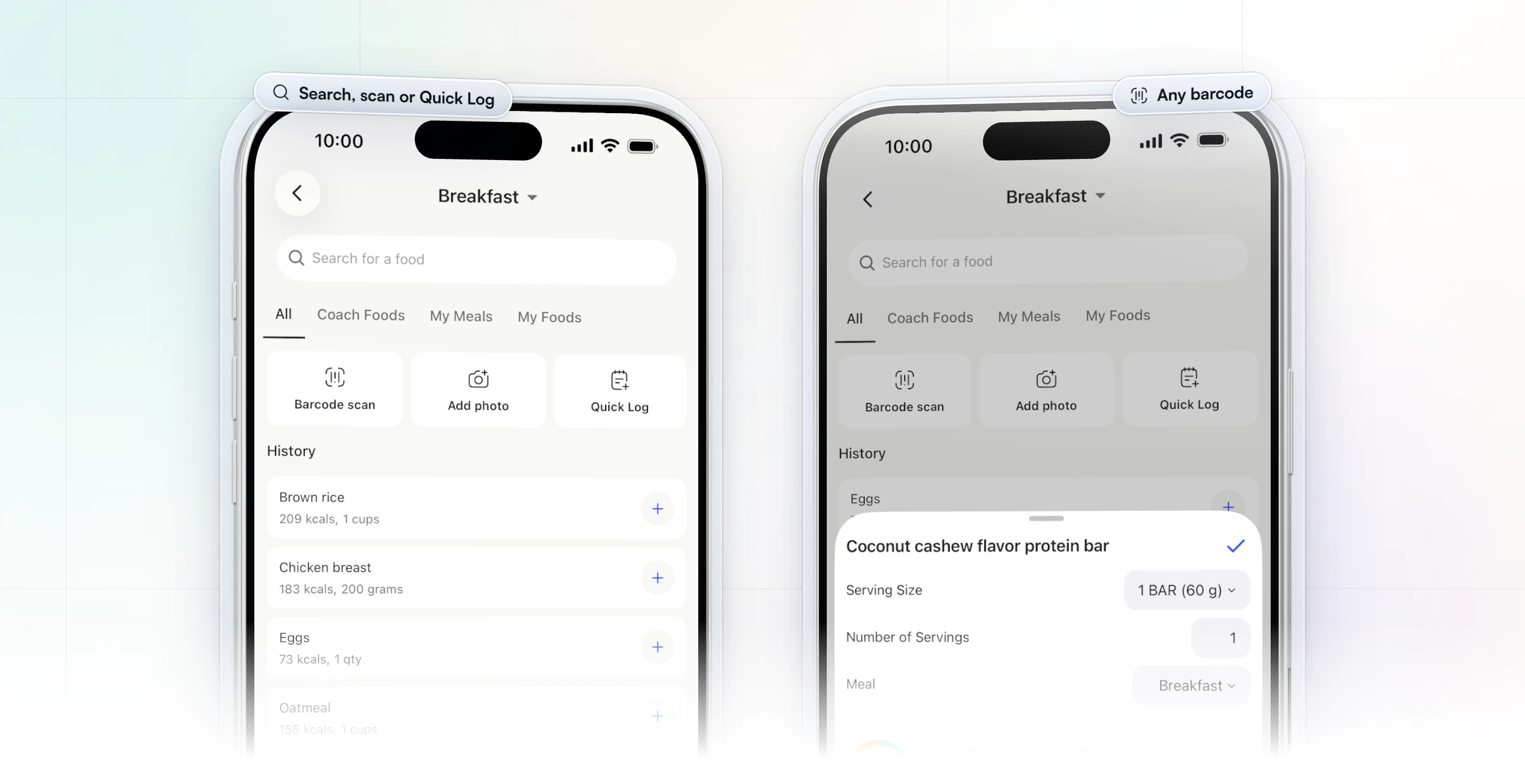
You can build meal plans with up to 10 meals and 4 options each, and share recipes from a library of 5,000+. Clients log against that plan in the same app.
How do you coach from a client's food log?
Coach the pattern, not the single day. A weekly review in four passes keeps the review short and turns a food log into one clear change. The method works the same in the Cronometer Logger or the built-in tracker.
- Count the days logged. Five of seven days logged is a different conversation from two of seven. If logging is the problem, fix that first.
- Check protein against the target. It's a simple number to coach, and one swap at breakfast or lunch often moves it. Our guide to setting macro targets shows how to pick the number.
- Look for the weekend gap. Compare weekdays with Saturday and Sunday. Some clients eat to plan Monday to Friday and drift after.
- Pick one change. Send one specific ask for next week ("add a protein source at breakfast"), not a list of five.
Here's a worked example. A client logs 5 of 7 days, averages 110 g of protein against a 150 g target, and logs nothing on Saturday or Sunday. Next week's one change: add Greek yogurt at breakfast. The weekend can wait until the protein habit holds.
Ask the client one question in their check-in about the week's food, such as "Which meal was hardest to log?" Their answer tells you whether the problem is the plan, the habit or the app.
Food questions to add to a weekly check-in
Add three to five food questions to the weekly check-in, so the log and the client's own words arrive together. Copy these and keep the ones that fit:
- How many days did you log your food this week? (number)
- Which meal was hardest to log, and why? (text)
- How hungry were you between meals, from 1 to 10? (scale)
- Did anything get in the way of your plan this week? (yes or no, then text)
- What's one food change you want help with next week? (text)
Read the answers with the Cronometer Logger open beside them. A client who says they logged six days but shows three has a logging habit to talk about; a client who logged every day but reports hunger at 8 out of 10 needs a plan change, not more tracking.
How HubFit runs nutrition coaching for Cronometer clients
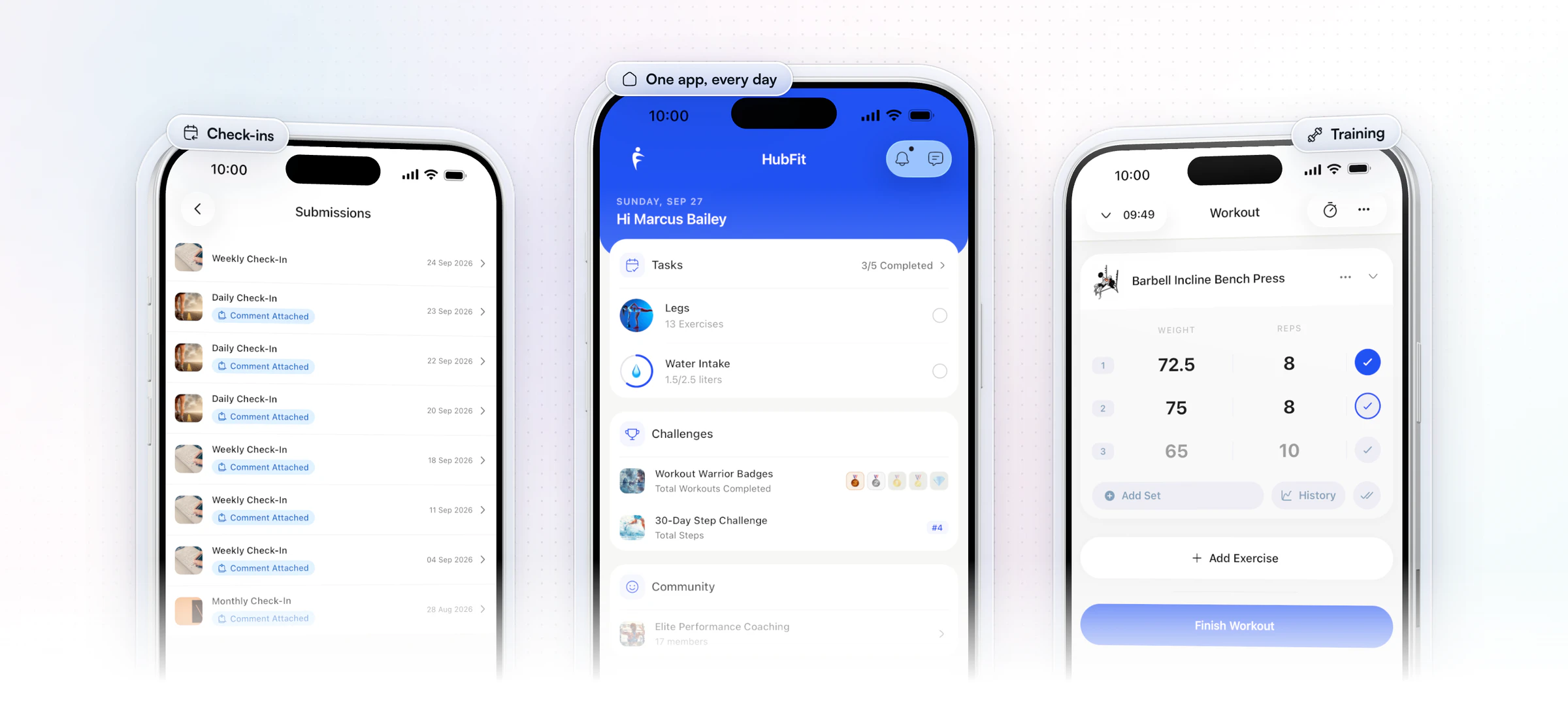
HubFit puts Cronometer clients and everyone else in one coaching workflow, so you don't run one tool for the Cronometer crowd and another for the rest. It's the #1 coaching app, rated 4.9 on the App Store and Google Play, and it's free for your clients. A Cronometer client keeps logging food where they like it and still opens HubFit every day for their workout, their habits and their check-in.
Here is how that works in practice:
- One place to review. The Cronometer Logger tab sits on the same client profile as their check-ins, training and habits, in the weekly format you already read.
- A tracker for everyone else. New clients log in the built-in tracker with a barcode scanner, against the macro targets and meal plans you set.
- An automation on connect. With Zapier, "Client Connected to Cronometer" can add a task to review their first week.
- Check-ins that close the loop. A weekly check-in with a food question, read side by side with last week's, tells you why the log looks the way it does.
Jesse Astill, a nutrition coach and professional fighter, moved his meal plans and macro targets off spreadsheets and into HubFit, where he now tweaks a preloaded plan for each client in a few clicks.
“I just remember having hundreds of tabs open. Everything was on spreadsheets, and it was so hard to tweak macros or keep things clean.”

What should you check in any Cronometer integration?
Ask six questions before you commit, whichever platform you trial. Here is each one, answered for HubFit.
| Question | The answer |
|---|---|
| Who connects it? | The client, in the app |
| Where does the coach see it? | Cronometer Logger tab |
| Is there a built-in tracker too? | Yes, with a barcode scanner |
| Training and check-ins in the same app? | Yes, one client app |
| Can it start automations? | Yes, through Zapier |
| What about wearables? | Apple Health, Health Connect |
Wearables add the other side of the picture. Through Apple Health or Health Connect, clients' steps, calories, sleep and heart rate sync too. Start your free trial and connect a test client today.
FAQ
Here are the questions coaches ask most about using Cronometer with HubFit.
Does HubFit integrate with Cronometer?
Yes. Clients connect their Cronometer account in the app, and their daily Cronometer food logs sync to a Cronometer Logger tab on their Nutrition page. You coach their nutrition in the same platform as their training and check-ins. See every connection on the integrations page.
Where do I see a client's Cronometer data?
On the client's Nutrition page, in the Cronometer Logger tab. It appears once the client connects and shows their synced meals and macros in the same weekly format as the standard Nutrition Logger. The data shows only there, not in the built-in tracker.
Does Cronometer data count toward nutrition challenges?
No. Nutrition challenges score food logged in the built-in tracker. If you run a nutrition challenge, ask Cronometer clients to log in the tracker for its length.
Do I need a Cronometer professional account to coach my clients?
No. Each client connects their own Cronometer account, and you see their logs in the coaching platform, beside their training and check-ins. Cronometer also offers Cronometer Pro, its own web platform for nutritionists, dietitians and other professionals, but the integration doesn't need it.
Do my clients have to use Cronometer?
No. Cronometer is optional. Clients who don't use it log food in the built-in tracker with a food search and barcode scanner, against the targets and meal plans you set. Our guide on how to track client nutrition shows how to set targets and review progress each week.
Does HubFit integrate with MyFitnessPal?
HubFit connects to Cronometer, and clients coming from MyFitnessPal start in the built-in tracker, with a barcode scanner that works in any country, in the app they already use for training. For a wider view, see our list of the best nutrition coach apps.
What else does HubFit integrate with?
Alongside Cronometer, the integrations page lists Apple Health, Health Connect, Fitbit, Garmin, Oura, Whoop, Eight Sleep, Ultrahuman, Polar, Zapier and Stripe. Read about Zapier for coaches and nutrition coaching software.
Connect your first Cronometer client this week
Invite one client who already logs in Cronometer, have them connect it, and read their first week in the Cronometer Logger tab. Everyone else starts in the built-in tracker on day one. For the bigger picture, see our guide to nutrition coaching.